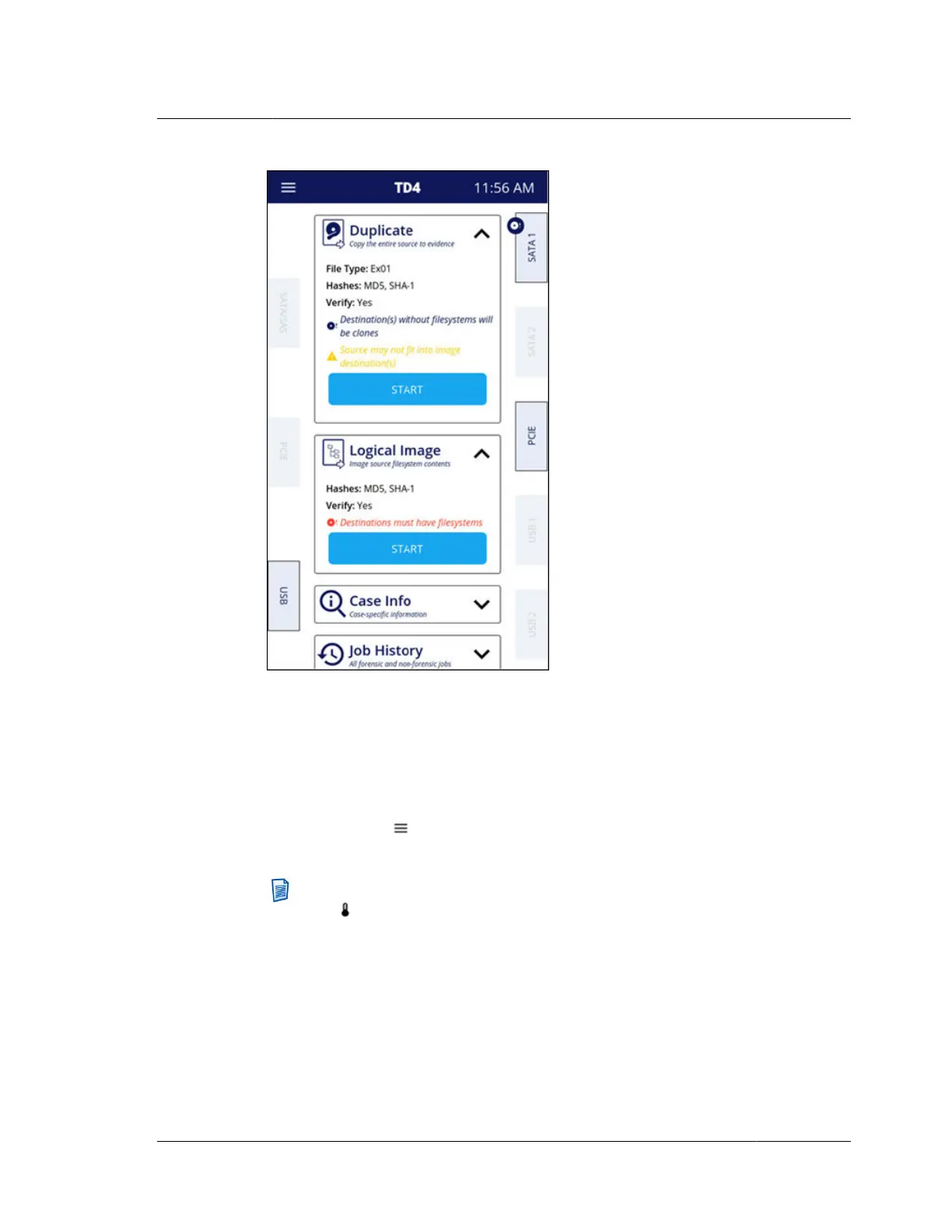
Each function tile may be opened to show more information, enter data, and, if
applicable, start the associated job. Depending on various conditions, the job will
either start immediately after hitting the Start button or an advanced settings screen
will be displayed to allow configuration of specific settings before starting the job.
More details for each home screen function can be found later in this user guide.
Across the top navigation bar there are buttons to quickly access the System
Navigation Menu and the home screen and to view the current time. Tapping the
TD4 model name in the top navigation bar takes you to the home screen.
Note: In the event of abnormal cooling conditions, a thermal event warning
icon
will be shown in the top navigation bar to the right of the System
Navigation Menu icon. Such a warning will never be seen under normal
operating conditions. Please refer to “Thermal issues” on page 84 for more
information.
2.2. Navigating TD4
ISTD230100-UGD-EN-1
User Guide
11



 To Next Page