4.4 Job status
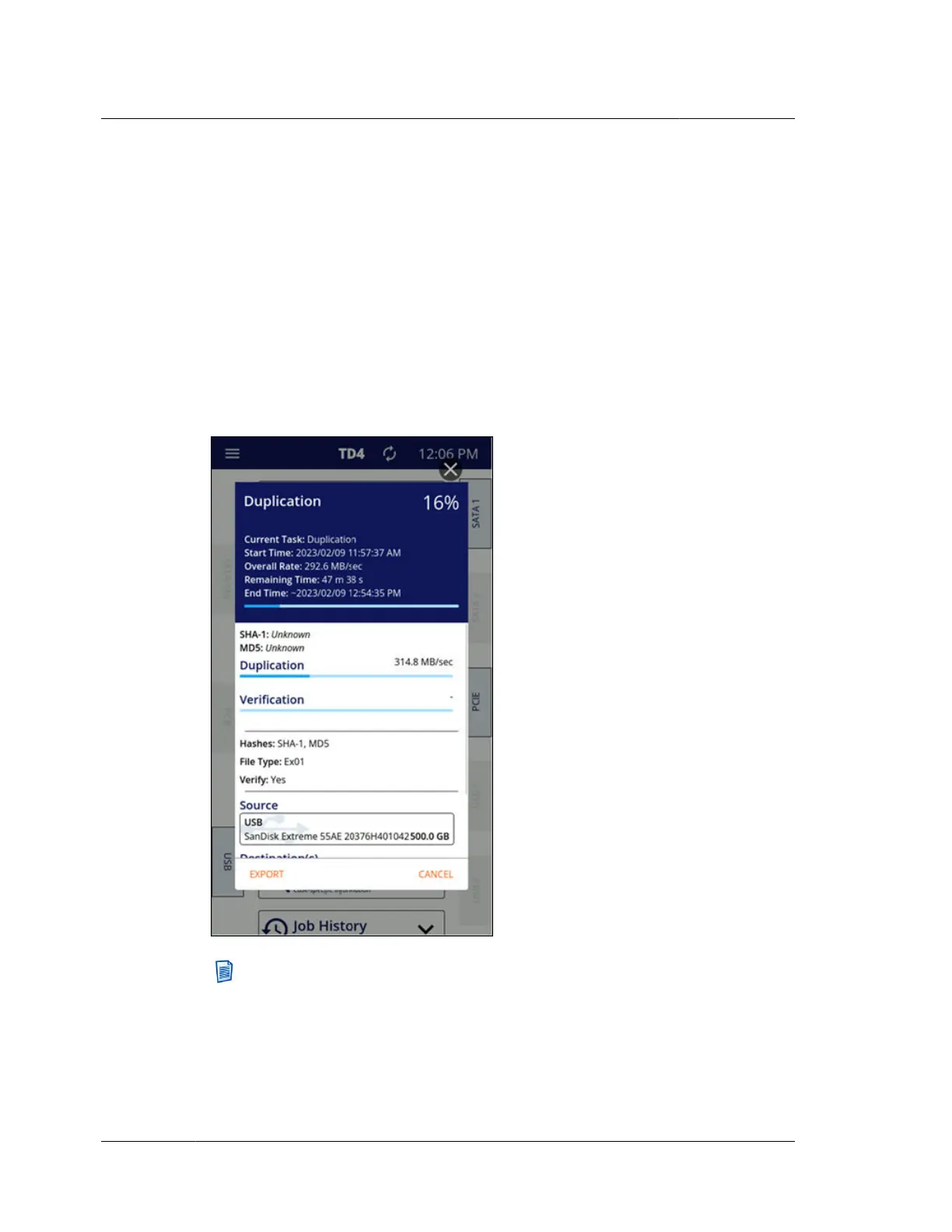
After a job starts, its job status screen is automatically displayed. This status screen
shows the details of a given job, including a header showing the job type, its status,
its start and end times, the overall data rate, remaining time, and percent complete.
The lower area of the job status screen shows additional job details, including hash
values (when available) sub-step progress (for example, Duplication separate from
Verification in a duplication/verification job), a settings summary, and a listing of
the drives involved in the job. Tapping a drive tile opens its drive details screen
which provides a view of all the information available for the drive. The fixed
bottom area of the job status screen includes buttons for exporting the forensic log
for that job and canceling the job. An example of an active Duplication job status
screen is shown below.
Note: If the job status screen is closed, a brief summary of the job status is still
available in the expanded function tile on the home screen. Tapping the lower
portion of that function tile will reopen the job status screen. Also, when a job
is running, a circular spinner is shown in the top navigation bar to the right of
the TD4 model name. Tapping the spinner reopens the job status screen.
Chapter 4 Using TD4
34
OpenText™ Tableau™ Forensic TD4 Duplicator
ISTD230100-UGD-EN-1



 To Next Page