2.2.2 Drive details
On the left and right sides of the home screen you will find drive tiles that align with
the physical drive connection ports. These tiles will be inactive (grayed-out) for any
ports that have no drive attached. When a drive is attached to a given port, that tile
will become active and can be tapped to access detailed information about that drive
and perform drive-specific actions.
Note: The drive tile for the rear USB accessory port will only appear when a
drive is connected to that port. It will appear beneath the system Navigation
Menu icon in the top-left corner of the home screen.
See “Using TD4“ on page 31 for more information on drive details.
2.2.3 System navigation menu
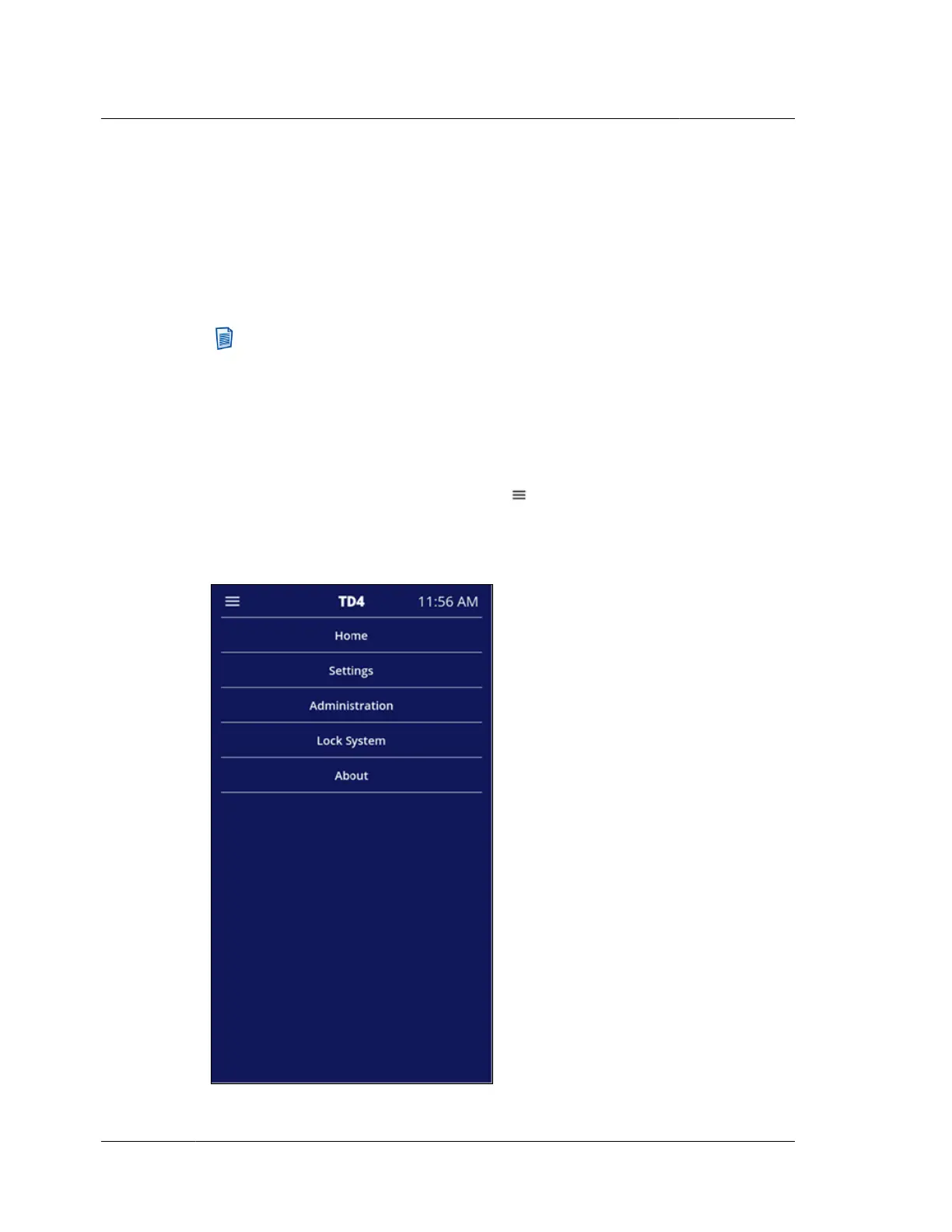
Tapping the System Navigation Menu icon in the upper-left corner of the top
navigation bar displays the TD4 System Navigation Menu, as shown below. For
additional information on the items in this menu, see “Configuring TD4”
on page 19.
Chapter 2 Overview
12
OpenText™ Tableau™ Forensic TD4 Duplicator
ISTD230100-UGD-EN-1



 To Next Page