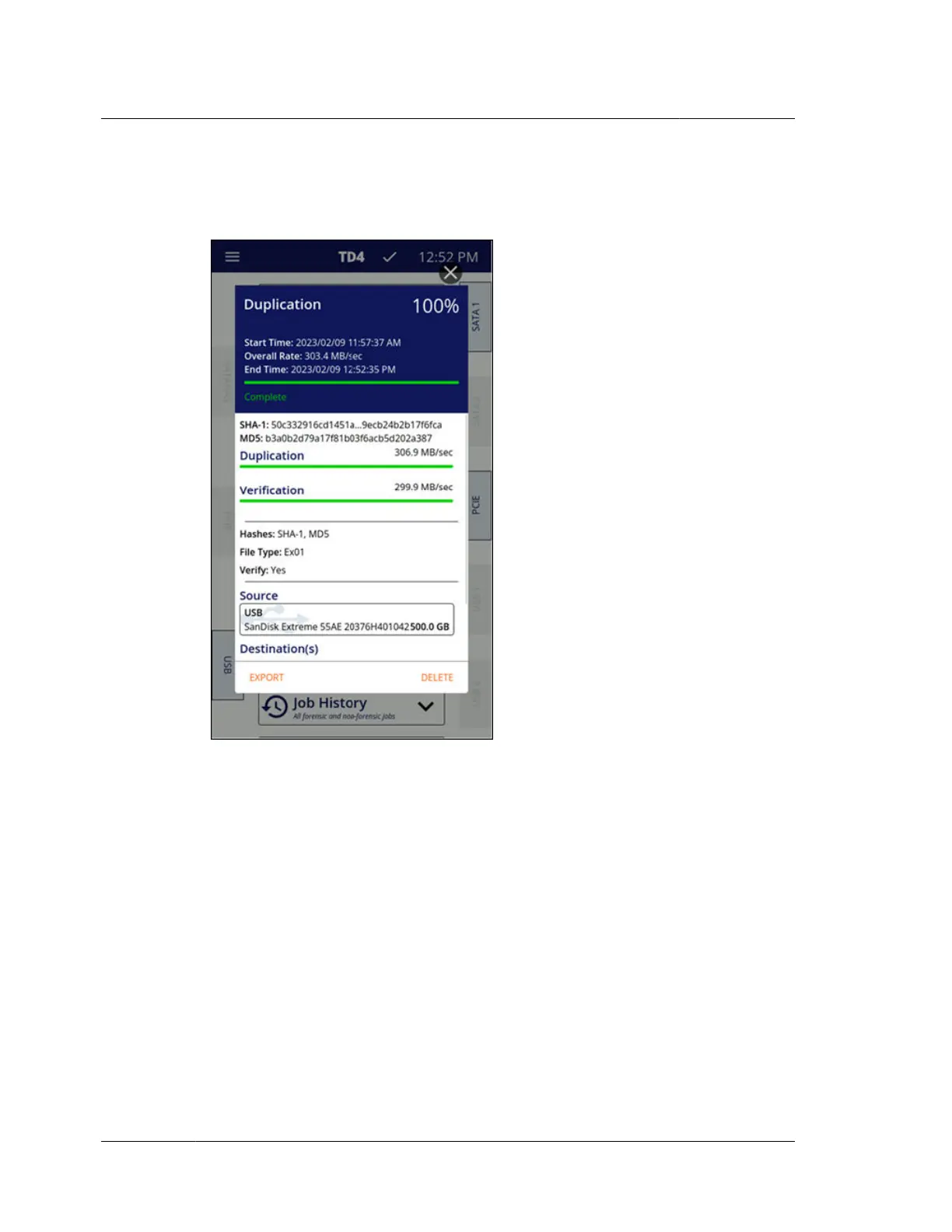
Once a job has completed, the job status screen is displayed and shows the final
status of that job. An example of a completed Duplication job status screen is shown
below.
2.2.5 Job history
Historical job status screens can be viewed from the Job History list. To access the
Job History list, expand the Job History function tile on the home screen. A
summary of the total jobs and cases (based on Case ID setting) will be shown in the
expanded function tile. Tap the lower portion of the expanded Job History function
tile to open the Job History list. The jobs in this list persist across power cycles. Any
active jobs will show in the list with an active blue progress bar. Successfully
completed jobs will show with a full green progress bar. Canceled jobs will show a
partially filled yellow progress bar. And failed jobs will show a partially filled red
progress bar. Tapping a specific job tile from the list will open the detailed job status
screen for that job. An example of a Job History list is shown below.
Chapter 2 Overview
14
OpenText™ Tableau™ Forensic TD4 Duplicator
ISTD230100-UGD-EN-1



 To Next Page