4.7 Browsing
The browse function provides an easy way to view the contents of a mounted
filesystem. To browse a filesystem, tap the desired drive tile from the home screen.
The drive details screen for the selected drive will be displayed. For drives with at
least one mounted filesystem, the Contents section of the drive details screen will
show general information about the partition(s)/filesystem(s), and a filesystem card
will be displayed showing key information for each filesystem. To browse a given
filesystem, simply tap the filesystem card from the Contents section of the drive
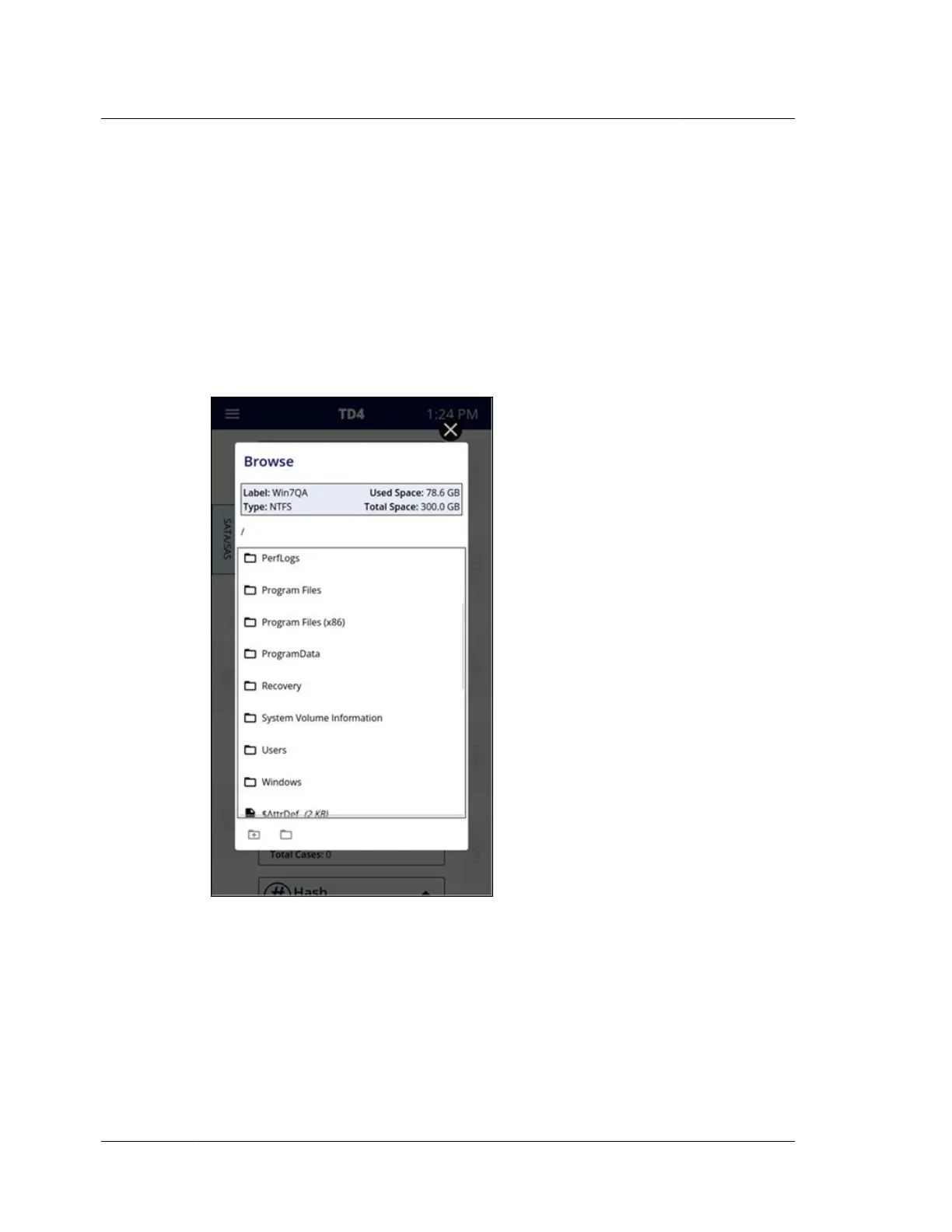
details screen, which will display a browse modal. A sample browse modal is shown
below.
The top part of the browse window will show the filesystem information, followed
by the current file path. The starting path location is always the root of the
filesystem, as indicated by the forward slash (/) just above the filesystem contents
section. That path information will be updated as folders are navigated to always
indicate the current path.
In the browser portion of the screen, you can scroll up and down to view the list of
directories and files. Scrolling right/left is also enabled if filenames are long and go
Chapter 4 Using TD4
52
OpenText™ Tableau™ Forensic TD4 Duplicator
ISTD230100-UGD-EN-1



 To Next Page