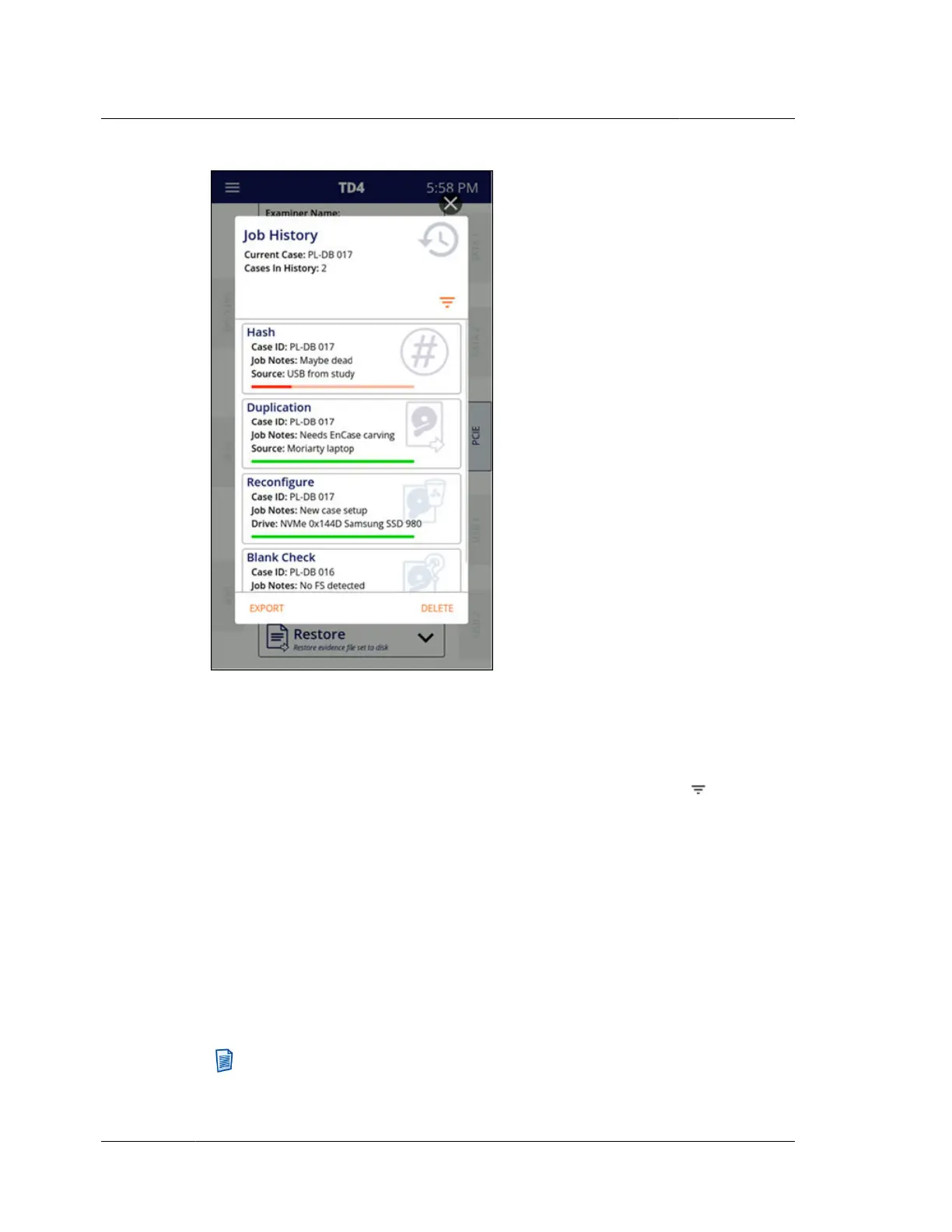
As can be seen at the top of the Job History screen above, the current case (as
identified by the Case ID setting) is shown along with a count of the number of
different cases included in the Job History list.
In some situations, it may be convenient to view and manage (export or delete) only
a subset of jobs from the list. To filter the job list, tap on the filter icon near the
top-right side of the Job History screen. Filter criteria can be added to show only the
desired jobs. Note that when multiple criteria are used, all must match for a job to
show in the filtered list. The jobs list can be filtered based on the following criteria:
Examiner name
Case ID
Job notes
Drive vendor
Drive model
Drive serial number
Note: There is an easy way to filter the Job History list to show only jobs
associated with a specific drive. To do so, tap on the desired drive tile from the
Chapter 4 Using TD4
36
OpenText™ Tableau™ Forensic TD4 Duplicator
ISTD230100-UGD-EN-1



 To Next Page