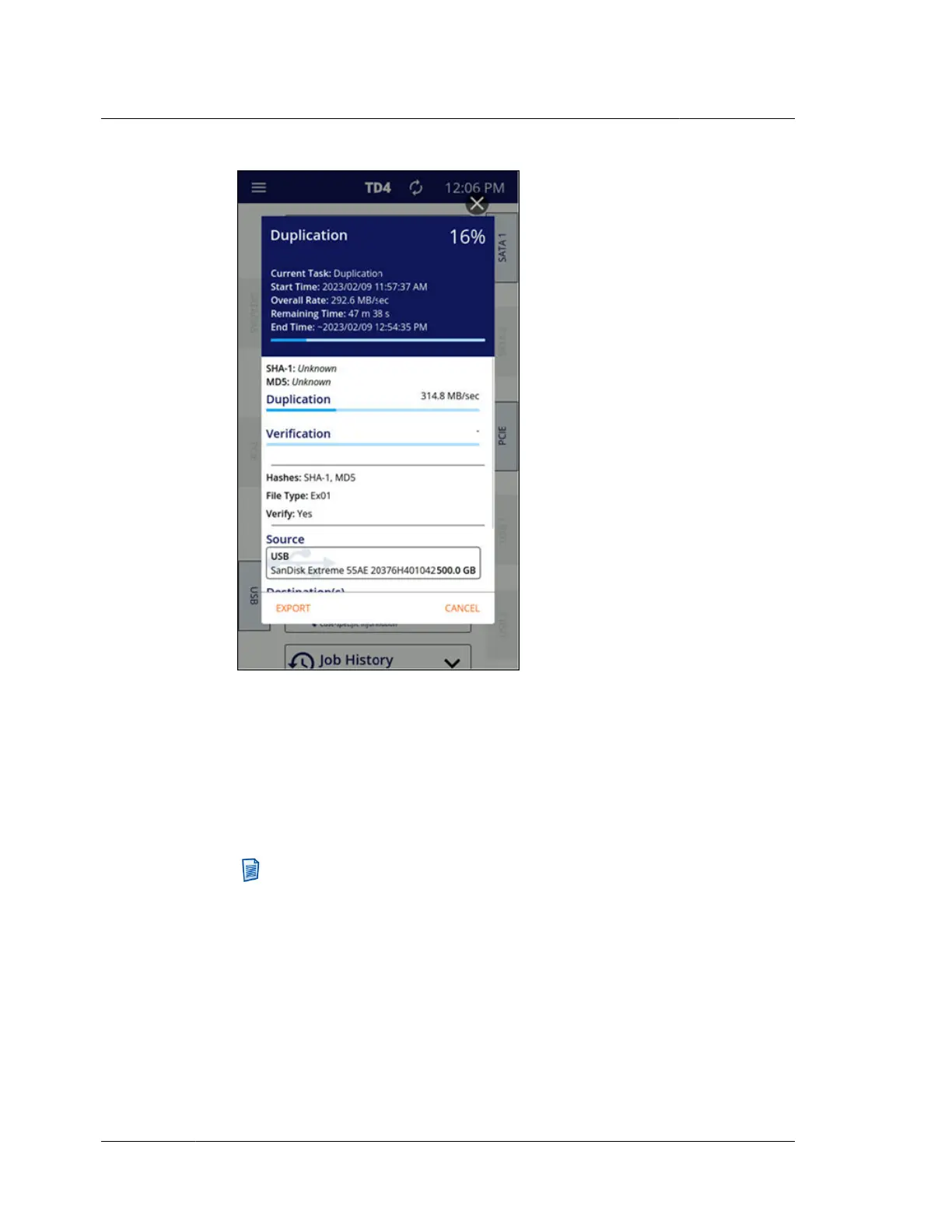
You may cancel an active job by tapping Cancel in the bottom-right corner of the
job status screen. You may also export the job log from this screen (even for in-
progress jobs, if desired) by tapping the Export button in the bottom-left corner
and then selecting the desired destination or accessory drive/filesystem.
The source and destination drives used in a job are shown near the bottom of the
job status screen. These drive cards provide basic drive information, such as the
connected port name, the overall size of the drive, and either the Evidence ID (if
entered) or the drive’s make/model/serial number.
Note: The drive cards in the job status screen can be tapped to show
detailed drive information. However, when drive details are viewed from
this area, the information is considered historical as of the start of the job,
as indicated by date and time information in the top-right corner of the
drive details screen. This means that changes to drive information during
the job (such as reduced free space on the destination drive) will not be
reflected and browsing of any mounted filesystems is disabled. To see a
live version of the drive details and to be able to browse mounted
filesystems (even during an active job), use the drive tiles on the home
screen to access the drive details screens.
Chapter 4 Using TD4
58
OpenText™ Tableau™ Forensic TD4 Duplicator
ISTD230100-UGD-EN-1



 To Next Page