Condential
4-5
EX765/EW766/EX765W/EW766W
4-6 PC MODE
Note: - When getting into function test, adjust the zoom ring and focus ring
to guarantee the image maximum and clearest, then start to test.
- Test signal: analog 1024 x 768 @60Hz (for EX765&EX765W);
analog 1280 x 800 @60Hz (for EW766&EW766W).
- We take EX765 for example here.
- Connect VGA IN port of Projector with VGA port of Chroma
and connect VGA Out port of Projector with VGA port of Monitor
by VGA cable, check if the Projected image and the LCD
image are the same.
*Note: VGA1-IN and VGA2-IN/SCART ports of Projector
all need to do the function test.
1. Frequency and tracking boundary
Procedure - Test equipment: video generator
- Test signal: analog 1024 x 768 @60Hz
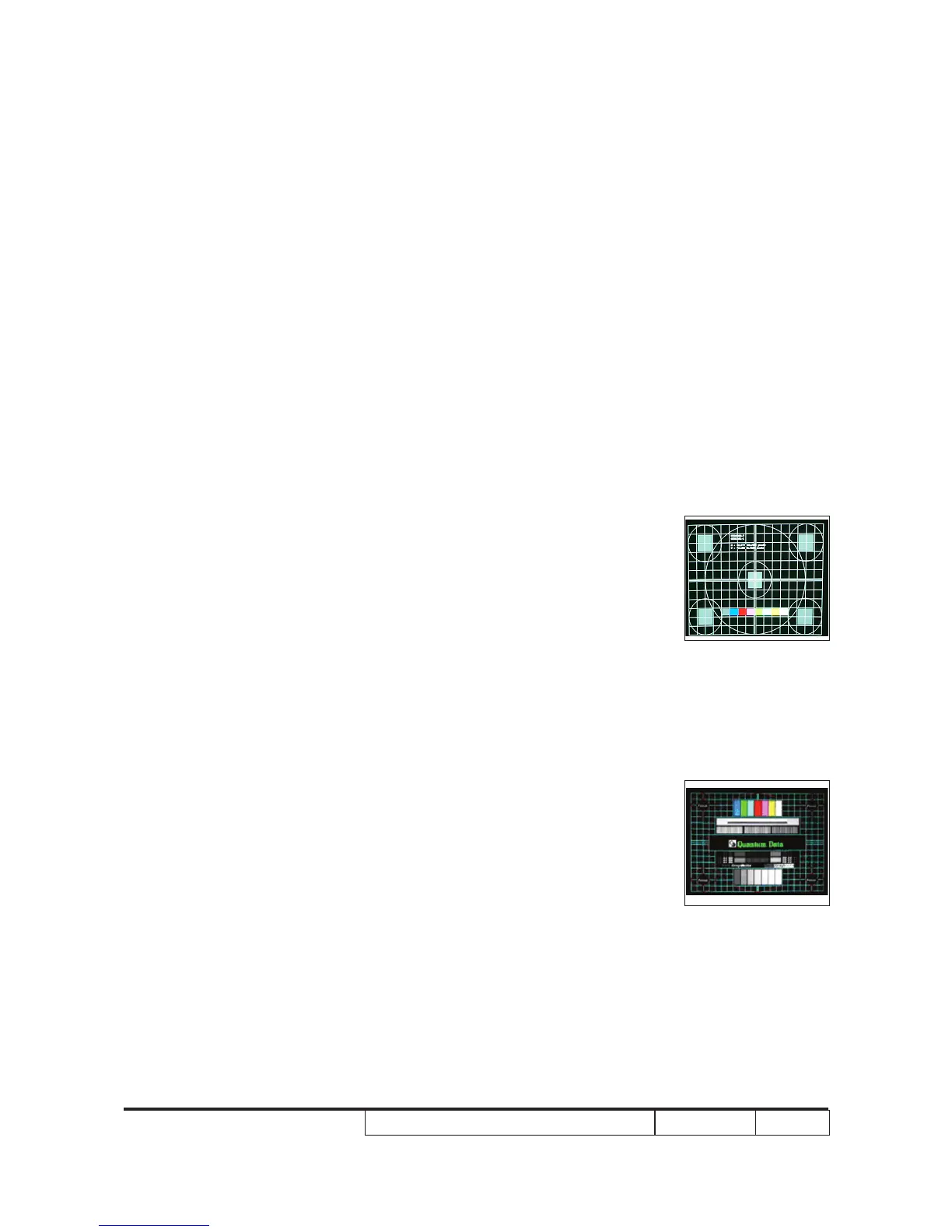
- Test pattern: general-1 or master
- Check and see if the image sharpness is well per-
formed.
- If not, re-adjust by the following steps:
(1) Select "Frequency" function to adjust the total
pixel number of pixel clock in one line period.
(2) Select "Tracking" function and use right or left
arrow key to adjust the value to minimize video
icker.
- Adjust Resync or Frequency/Tracking/H Image
Shift/V Image Shift to the inner screen.
Inspection item - Eliminate visual wavy noise by Rsync, Frequency
or Tracking selection.
- Check if there is noise on the screen.
- Horizontal and vertical position of the video should
be adjustable to the screen frame.
Criteria - If there is noise on the screen, the product is con-
sidered as failure product.
- If there is noise on the screen, use auto or manual
“frequency” function or “tracking” function to adjust
the screen.
General-1
Master



 To Next Page