© Optoma
Issue 2.1 July 25, 2018
17
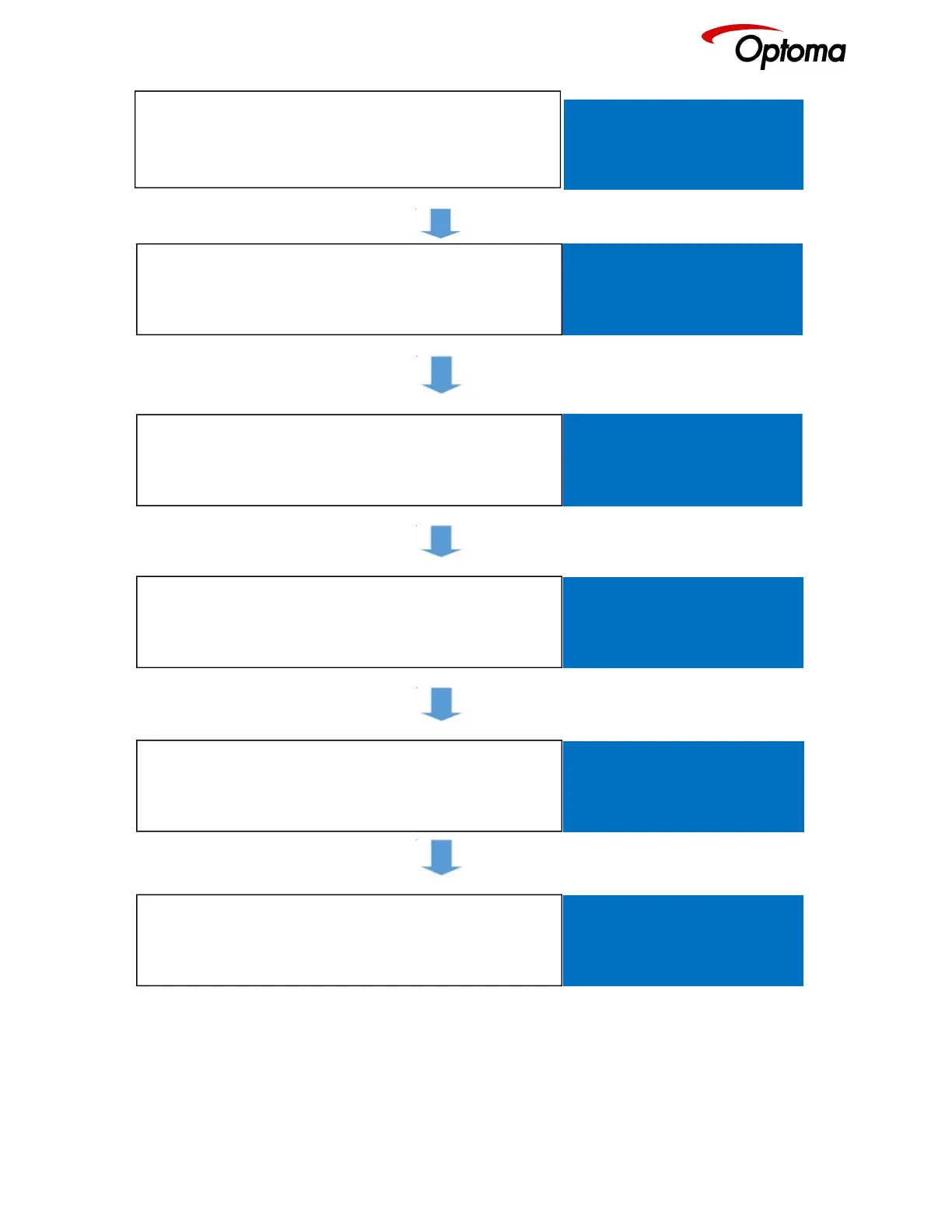
After the unit boots up, the main status menu is displayed.
The menu shows the detected resolution of the input source,
the output resolution and the lock status. In the example, a
4K source was detected on the HDMI-1 input
HDMI 1
Free Run
Press the Test button to enable a Test Pattern on the output.
Use the rotary knob to select the Warp Adjust pattern. This
pattern provides a border around the whole raster
TESTPAT
Out:1920x1080p 59.94
Run
Press the select button or the rotary knob to enter the main
menu. Scroll to the Output menu entry and enter the menu
to setup all the output related parameters
Input
►Output
System
Status
Enter the Display Type sub menu by pressing the menu
button. In the example shown.
►Display Type
Gamma/Color/Crush
Output Config
First, select the output resolution from the O/P Mode sub-
menu
Frame Rate
I/O Lock Off
FR Enable
Locate and select the desired output resolution to match the
native resolution of the connected device. In the example,
2560x1600p is selected. Press the Esc key to return to the
2560x1440p
►2560x1600p
3840x2160p


 To Next Page