Before Use
-14-
beyond these ranges will damage the Movie
Camera.
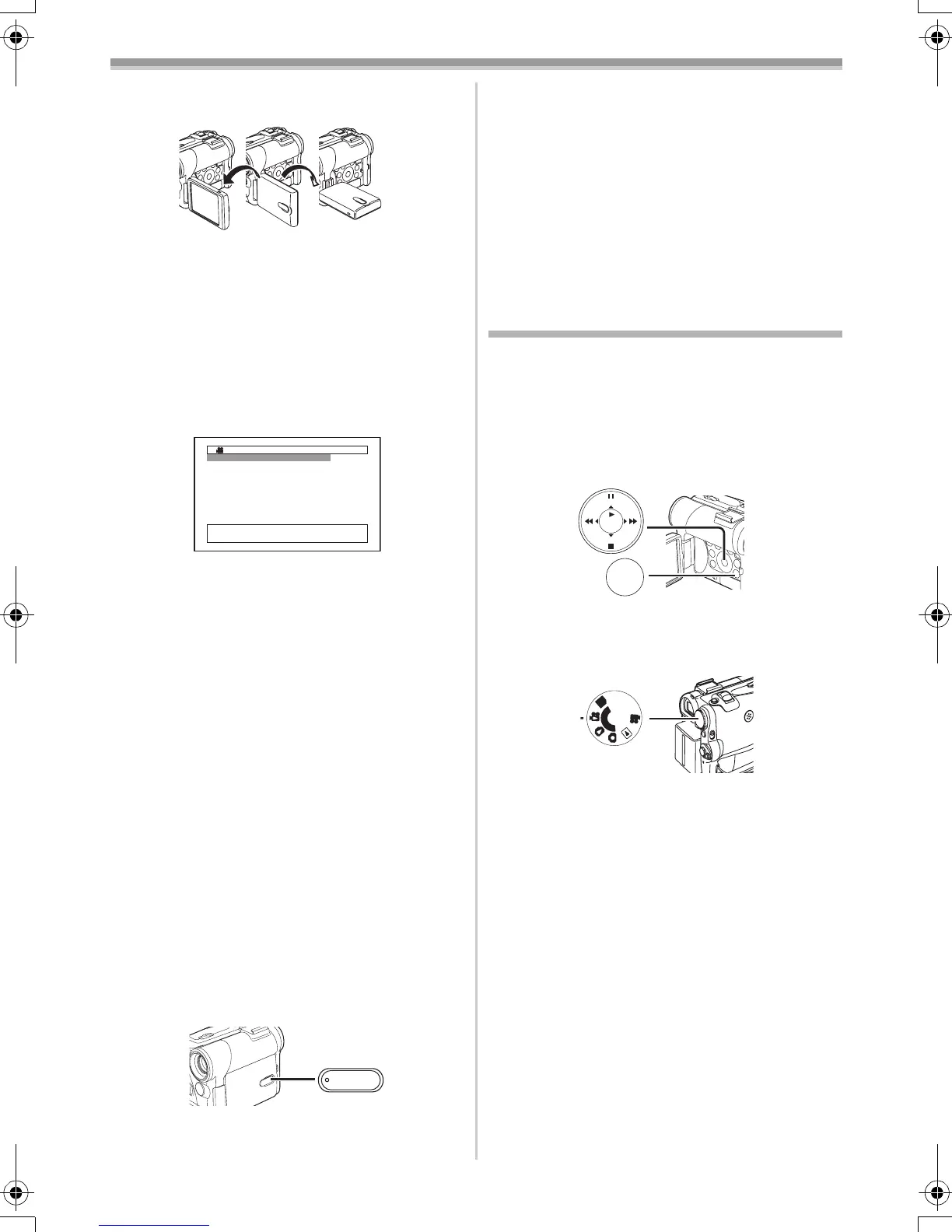
Closing the LCD Monitor
Push the LCD Monitor until it is securely locked.
≥Make sure the Card Slot Cover is closed.
ª Adjusting Brightness and Colour
Level
When [LCD/EVF SET] on the [LCD/EVF]
Sub-Menu is set to [YES], the following items are
displayed.
LCD Brightness [LCD BRIGHTNESS]
Adjusts the brightness of the image on the LCD
screen.
LCD Colour Level [LCD COLOUR LEVEL]
Adjusts the colour saturation of the image on the
LCD screen.
Brightness of the Viewfinder
[EVF BRIGHTNESS]
Adjusts the brightness of the image in the
Viewfinder.
To Adjust
Press the [;/∫] Button and select the item to be
adjusted, and then press the [6/5] Button to
raise or lower the number of vertical bars in the
Bar Indication.
≥A larger number of vertical bars indicates
stronger brightness or colour saturation.
To Increase the Brightness of the Entire LCD
Monitor
Press the [POWER LCD] Button.
When you press [POWER LCD] button, the LCD
monitor becomes bright about twice as much as
usual.
290o1180o
1LCD BRIGHTNESS
[-]||||----[+]
LCD COLOUR LEVEL
[-]||||----[+]
EVF BRIGHTNESS
[-]||||----[+]
;/∫:SELECT &/%:SETUP
!/MENU:EXIT
LCD/EVF SETUP
POWER
LCD
(27)
The [POWER LCD] Lamp (27) lights up.
≥When turning the power on with using AC
Adaptor, [POWER LCD] function is
automatically effective.
To Resume Normal Brightness
Press the [POWER LCD] Button again.
≥These adjustments do not affect the recorded
images.
≥For other notes concerning this item, see -57-.
Using the Menu Screen
To facilitate the selection of a desired function or
setup, this Movie Camera displays various
function setups on Menus.
≥When operating the menu with the Viewfinder,
set [LCD/EVF] >> [EVF ON/AUTO] >> [ON] or
rotate the LCD monitor by 180o.
1 Press the [MENU] Button (18).
≥The Menu corresponding to the Mode
selected by using the Mode Dial
(43) is
displayed.
2 Press the [;/∫] Button to select a desired
Sub-Menu.
≥Press the [;/∫] Button to display the
highlighted item.
3 Press the [5] Button to display the
selected Sub-Menu.
4 Press the [;/∫] Button to select the item.
5 Press the [5] Button to display the
selected item.
6 Press the [;/∫] Button to select the desired
mode and press [ENTER] Button to
determine the setting.
≥While a Menu is displayed, you cannot record or
play back. Menus can be displayed during
playback but not during recording. The above
operations can be done using the [MENU]
Button, [π, ∑, ∏, ∫] Buttons and [ENTER]
Button on the Remote Controller. (
-7-)
To Return the Previous Screen
Press the [6] Button.
MENU
STILL
ENTER
FADE
is
(18)
(43)
PC
S
D
55B-ENG.book 14 ページ 2004年2月4日 水曜日 午前11時54分




 To Next Page