Editing Mode
-41-
Editing Mode
Recording from a Tape onto a Card
Still pictures or moving pictures can be recorded
on the Memory Card from scenes that have
already been recorded on a cassette.
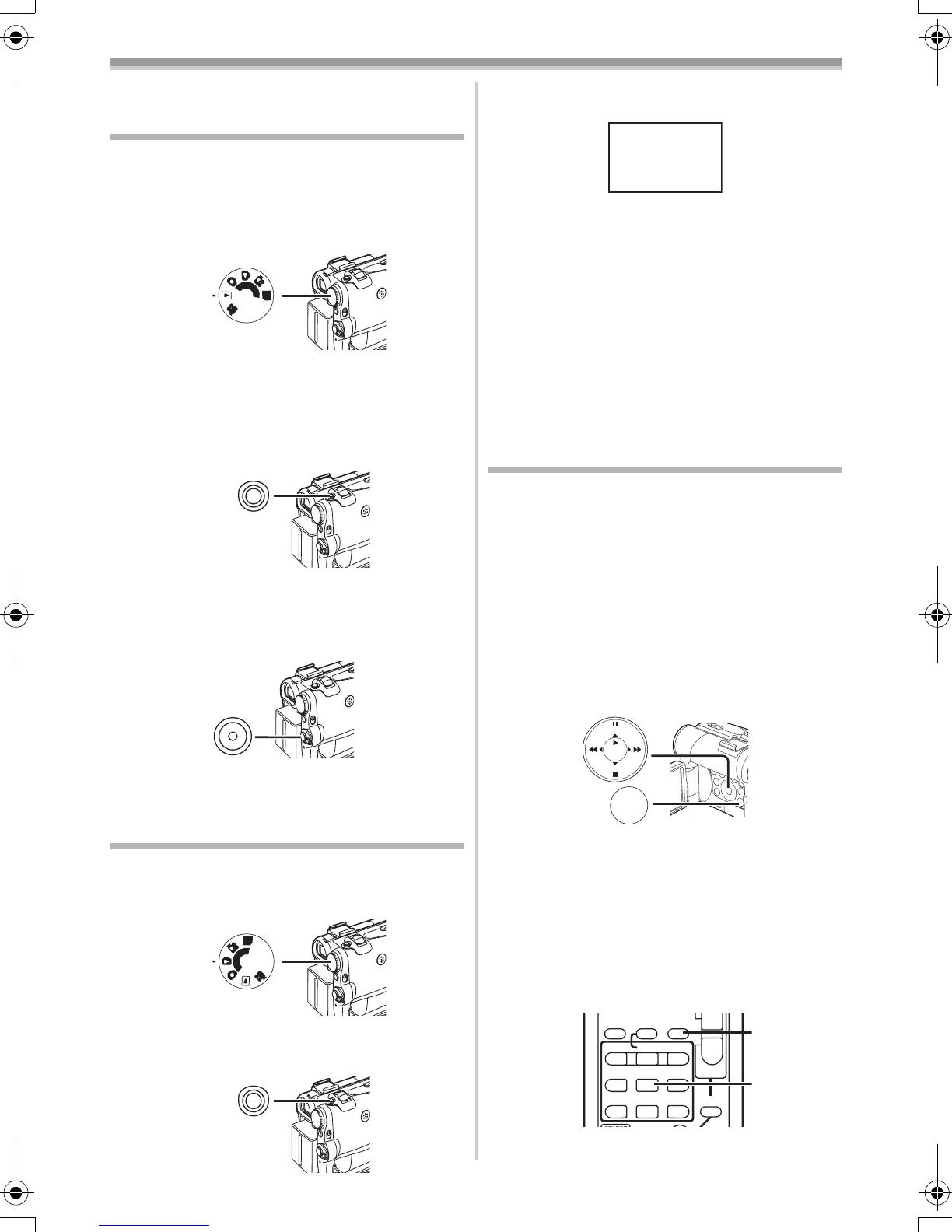
1 Set the Mode Dial (43) to Tape Playback
Mode.
2 Still Picture:
Start playback and set the Movie Camera to
Still Playback Mode at the scene you wish
to record, and press the [PHOTO SHOT]
Button
(39).
Moving Picture:
Start playback and press the Recording
Start/Stop Button
(45) at the desired scene.
Recording Pictures from a Card onto
a Tape
Card Images can be recorded to the Tape.
1 Set the Mode Dial (43) to Picture Playback
Mode.
2 Display the first picture.
3 Press the [PHOTO SHOT] Button (39).
PC
S
D
(43)
PHOTO SHOT
(39)
(45)
P
C
S
D
(43)
PHOTO SHOT
(39)
≥During the copying, the following Indication
appears.
≥It takes a few seconds to record a picture to
the Tape.
≥When recording to tape, select the tape position
before recording. The picture will be recorded to
the tape position when the [PHOTO SHOT]
Button is pressed at Step 3.
≥Photoshot index signals are automatically
recorded.
≥Moving Picture (MPEG4) cannot be recorded
from a Card to tape.
≥For other notes concerning this item, see
-53-.
Audio Dubbing
You can add music or narration to the recorded
Cassette.
≥If the tape recorded in the [16bit] Mode is
dubbed with the Audio Dubbing function, the
original sound is erased. (If you wish to
preserve the original sound, use the [12bit]
Mode when recording.)
≥Audio Dubbing cannot be performed on a
recording made in LP Mode. (
-19-)
1 Set [TAPE PLAYBACK MENU] >>
[AV IN/OUT] >> [AV JACK] >> [IN/OUT].
(NV-GS55 only)
2 Continuing the aforesaid setup, select
[A.DUB INPUT] >> [MIC] or [AV IN].
(NV-GS55 only)
≥Set to [AV IN] when external device is used,
and to [MIC] when an external or built-in
microphone is used.
3 Press the [;] Button (73) on the Remote
Controller where you want to add new
sound.
4 Press the [A.DUB] Button (59) on the
Remote Controller.
NOW RECORDING
REC
MENU
STILL
ENTER
FADE
is
(18)
INDEX INDEX
STOP
KL
∫
V
/REW
STILL ADV
W
sVOL r
¥REC
MULTI/
P-IN-P
A.DUB
PLAY
PAUSE
FF/
W
STILL ADV
61 5
;
ED
P.B. ZOOM
(59)
(73)
55B-ENG.book 41 ページ 2004年2月4日 水曜日 午前11時54分




 To Next Page