EasyManua.ls Logo

Panasonic NV-RX11A - Recording with Manual White Balance Adjustment

Panasonic NV-RX11A
60 pages
Print Icon
To Next Page IconTo Next Page
To Previous Page IconTo Previous Page
Loading...
Recording
with
Manual
White
Balance
Adjustment
With
this
Movie
Camera,
you
can
also
adjust
the
white
balance
manually.
Use
this
mode
for
special
subjects
and
recording
conditions,
such
as
listed
(-
36),
for
which
the
Full
Auto
Mode
is
not
suitable,
and
for
light
sources
outside
the
range
O
38).
Use
it
also
when
you
want
to
manually
adjust
the
white
balance
for
each
new
scene
as
professionals
do.
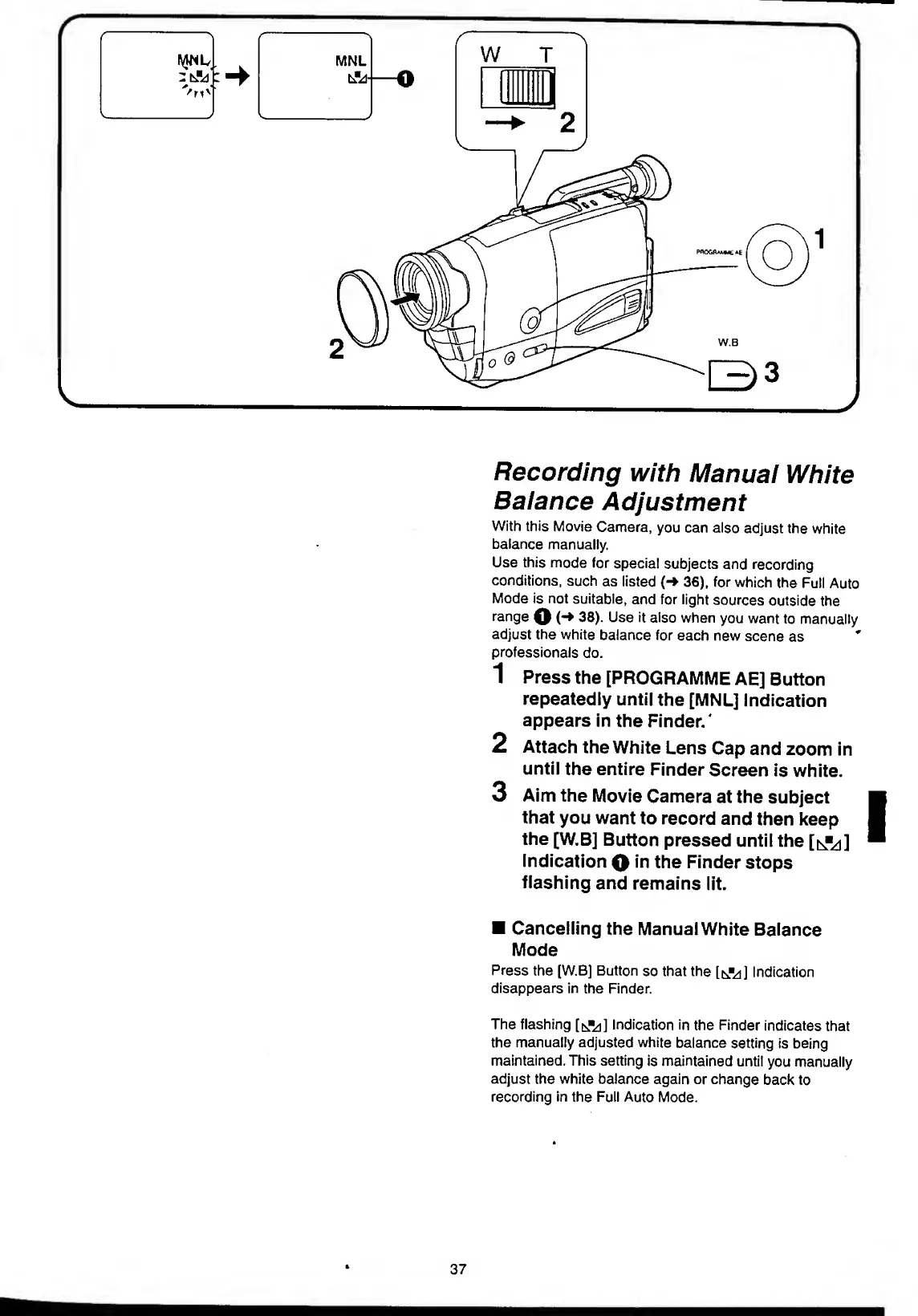
1
Press
the
[PROGRAMME
AE]
Button
repeatedly
until
the
[MNL]
Indication
appears
in
the
Finder.'
2
Attach
the
White
Lens
Cap
and
zoom
in
until
the
entire
Finder
Screen
is
white.
3
Aim
the
Movie
Camera
at
the
subject
that
you
want
to
record
and
then
keep
the
[W.B]
Button
pressed
until
the
[t^j]
Indication
O
in
the
Finder
stops
flashing
and
remains
lit.
Cancelling
the
Manual
White
Balance
Mode
Press
the
[W.B]
Button
so
that
the
[cAj]
Indication
disappears
in
the
Finder.
The
flashing
[^]
Indication
in
the
Finder
indicates
that
the
manually
adjusted
white
balance
setting
is
being
maintained.
This
setting
is
maintained
until
you
manually
adjust
the
white
balance
again
or
change
back
to
recording
in
the
Full
Auto
Mode.

Table of Contents

Related product manuals