EasyManua.ls Logo

Panasonic PV-A206 - Copying Your Tapes (Dubbing)

Panasonic PV-A206
40 pages
Print Icon
To Next Page IconTo Next Page
To Previous Page IconTo Previous Page
Loading...
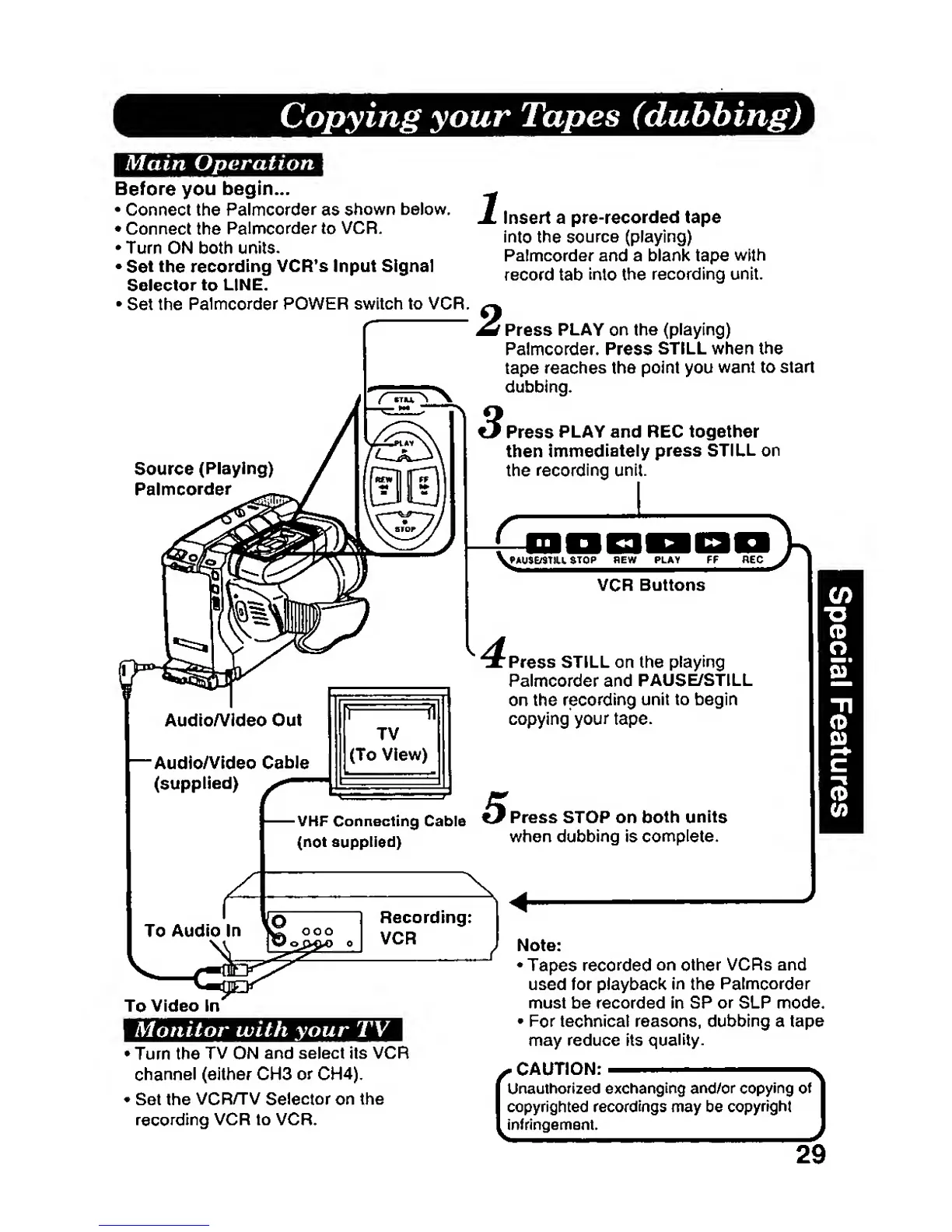
Copying
your
Tapes
(dubbing)
Mam
Operation
Before
you
begin...
•
Connect
the
Palmcorder
as
shown below.
•
Connect
the
Palmcorder to
VCR.
•
Turn ON
both units.
•
Set the
recording
VCR*s Input Signal
Selector
to
LINE.
•
Set the
Palmcorder
POWER switch to VCR.
Source
(Playing)
Palmcorder
Insert a
pre-recorded
tape
Into the
source
(playing)
Palmcorder and
a blank tape
with
record tab
into the
recording unit.
Press
PLAY
on
the
(playing)
Palmcorder. Press
STILL when the
tape
reaches the
point you
want to start
dubbing.
Press
PLAY
and REG
together
then
immediately
press
STILL
on
the
recording unit.
f
MAETSmL
STOP
flEW PLAY
—Audio/Video
Cable
(supplied)
-VI-IF Connecting
Cable
(not supplied)
VCR
Buttons
Press
STILL on the
playing
Palmcorder and
PAUSE/STILL
on the
recording unit to begin
copying
your tape.
5
Press STOP on
both
units
when
dubbing
is
complete.
To
Video in
Monitor with your TV
•
Turn the
TV ON
and select its
VCR
channel (either CH3
or
CH4).
•
Set the
VCR/TV
Selector on
the
recording
VCR to VCR.
V!:
Note:
•
Tapes
recorded
on
other
VCRs and
used for playback
in
the
Palmcorder
must be recorded in SP or SLP mode.
•
For
technical
reasons, dubbing a tape
may
reduce its
quality.
CAUTION:
Unauthorized
exchanging
and/or copying of
copyrighted
recordings
may be
copyright
infringement.
29