EasyManua.ls Logo

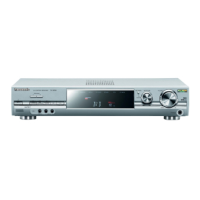
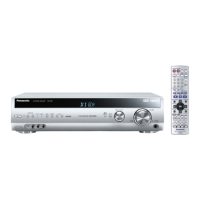
Panasonic SA-BX500 - User Manual

Panasonic SA-BX500
60 pages
Print Icon
To Next Page IconTo Next Page
Loading...
PP
En
RQT9223-Y
H0608VC0
Cf
Operating Instructions
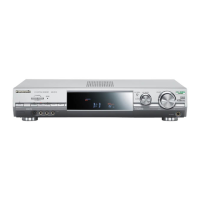
AV Control Receiver
Model No. SA-BX500
Dear customer
Thank you for purchasing this product.
Before connecting, operating or adjusting this product, please read
the instructions completely.
Please keep this manual for future reference.
If you have any questions, contact
In the U.S.A.: 1-800-211-PANA (7262)
In Canada: 1-800-561-5505
The warranty can be found on page 57.
For U.S.A. only
For Canada only
The warranty can be found on page 58.
As an ENERGY STAR Partner*,
Panasonic has determined that this
product meets the ENERGY STAR
guidelines for energy efficiency.
* For Canada only: The word “Participant” is used in place of
the word “Partner”.
SA-BX500-PP (RQT9223-Y)_En.indd 1 6/27/2008 4:04:53 PM

Table of Contents

Questions and Answers

  • S
    Stacey SalinasAug 19, 2025
    What to do if my Panasonic SA-BX500 has no sound or the sound is distorted?
    • D
      Dana HarrisAug 19, 2025
      If you're experiencing no sound or distorted sound from your Panasonic Receiver, try the following: * Ensure the volume is at an audible level. * If the speakers indicator is off, select either “SPEAKERS A ” or “SPEAKERS B ”. * Verify that you've selected the correct input source. * Deactivate the “MUTING ” function. * Confirm that the signals can be decoded by the unit. * Check all connections to speakers and other equipment. * Make sure the input setting matches your connection type. * Cancel the PCM FIX. * Note that some DVD-Audio recordings might not play due to copyright protection.
  • F
    Frances SantiagoAug 21, 2025
    What to do if my Panasonic SA-BX500 has no power?
    • G
      ghurstAug 21, 2025
      If your Panasonic Receiver has no power, ensure the AC power supply cord is securely connected.
  • P
    Patricia MorganAug 25, 2025
    Why does my Panasonic SA-BX500 sound stop and display “F61 ”?
    • K
      Kari ClarkAug 25, 2025
      If your Panasonic Receiver stops playing sound, displays “F61 ” for a moment, and then shuts off, it could be due to several reasons. Check the following: * Make sure the positive and negative wires of the speaker cable are not interfering with each other. * Ensure that the speaker impedance is not lower than the unit's tolerance. * The speakers may be straining due to excessive volume or power. * The unit may be overheating, especially if used in a hot environment. * Ensure that curtains or other objects are not blocking the exhaust hole. After checking these potential causes, turn the unit on again.
  • A
    Amy CarterAug 26, 2025
    What to do if my Panasonic SA-BX500 remote control doesn’t work?
    • J
      James NobleAug 26, 2025
      If the remote control for your Panasonic Receiver isn’t working, try replacing the batteries.
  • K
    kimberlysolisAug 28, 2025
    Why is my Panasonic SA-BX500 display dim?
    • W
      Walter BauerAug 28, 2025
      If the display on your Panasonic Receiver is dim, try canceling the “DIMMER” function.
  • J
    Jerry MooreAug 30, 2025
    What does “MEASURING ERROR ” mean on my Panasonic SA-BX500?
    • M
      Melinda PorterAug 30, 2025
      If “MEASURING ERROR ” appears on the display of your Panasonic Receiver, it could mean one of two things: * A speaker is too far away. Check the speaker locations. * An unidentified error occurred. Try performing the auto speaker setup again.
  • M
    Mark WintersSep 1, 2025
    Why is there a lot of noise and interference on my Panasonic Receiver radio?
    • L
      linda59Sep 1, 2025
      If you're experiencing difficulty tuning into radio stations or encountering a lot of noise and interference on your Panasonic Receiver, consider these steps: * Connect the appropriate antenna. You might need an outdoor antenna or one with more elements. * Adjust the position of the FM or AM antenna to improve reception. * Reduce the treble to minimize noise. * Turn off nearby electronic devices such as televisions, video decks, DVD recorders, Blu-ray Disc/DVD players, and satellite receivers. * Separate the antenna from other cables, cords, and appliances to reduce interference.
  • A
    Andrew ZavalaSep 3, 2025
    Why is no sound coming from the center, surround, or subwoofer speakers on my Panasonic SA-BX500?
    • J
      jason33Sep 3, 2025
      If you're not hearing sound from the center, surround, or subwoofer speakers on your Panasonic Receiver, make sure the speaker settings are correct for your speaker configuration. Also, confirm Dolby Pro Logic , NEO:6, or SFC settings, and select an adequate mode. When playing 2-channel stereo sources, press [SURROUND] on.
  • M
    Mark FordSep 5, 2025
    Why is no sound coming from the surround back speaker on my Panasonic SA-BX500?
    • S
      Stephen ReevesSep 5, 2025
      If you're not hearing sound from the surround back speaker on your Panasonic Receiver, ensure the speaker settings are correct for your speakers. Also, try pressing [SURROUND] on.
  • R
    Robert ShannonSep 8, 2025
    Why are Dolby Pro Logic , NEO:6, and SFC unavailable on my Panasonic SA-BX500?
    • K
      kathleenhoffmanSep 8, 2025
      If Dolby Pro Logic , NEO:6, and SFC are unavailable on your Panasonic Receiver, check if the center speaker, surround speakers, and surround back speakers are connected properly. Also, press [SPEAKERS A] on. Cancel ANALOG 8CH playback. Note that you cannot use these effects when the input source contains dual audio signals in Dolby Digital or DTS formats.

Summary

Safety, Health, and Compliance Notices

Important Safety Warnings

Critical warnings for fire, shock, and product damage.

Detailed Safety Instructions

General Safety Precautions

Comprehensive list of safety guidelines for unit operation.

FCC Compliance Statement (U.S.A.)

Equipment compliance with FCC rules for interference.

Effortless Home Theater Setup

Automatic Speaker Setup

Highlights the ease of automatic speaker adjustment.

Rear Panel and Remote Control Overview

Rear Panel Connection Terminals

Identifies and locates all input/output terminals on the rear.

Remote Control Functionality

Details the buttons and their functions on the remote.

Quick Start Guide

Step 1: Speaker Placement

Guidance on optimal speaker positioning for sound quality.

Step 2: Speaker Connection

Instructions for connecting speakers to the unit.

Step 3: Source Device Connection

Steps to connect TV and Blu-ray/DVD players.

Step 4: Viewing and Listening

How to watch TV or DVDs with surround sound.

Step 1: Detailed Speaker Placement

Ideal Speaker Placement Strategy

Explains distance measurement for optimal sound.

Front, Center, and Surround Speaker Placement

Specific placement advice for speaker types.

Surround Back and Subwoofer Placement

Guidelines for rear and bass speaker positioning.

Step 2: Connecting Speakers

Speaker Cable Connection Guide

Instructions on connecting speaker wires to terminals.

Setting Speaker Impedance

How to configure impedance settings for speakers.

Step 2: Connecting Additional Speakers

Surround and Surround Back Speaker Connections

Connecting rear and back surround speakers.

Active Subwoofer Connection

Connecting the powered subwoofer.

Step 3: Connecting AV Sources via HDMI

HDMI Connection Procedure

Steps for connecting HDMI-compatible devices.

Step 3: HDMI Features and Standby Function

Advanced HDMI Technology

Details on Deep Color and High Speed HDMI capabilities.

Step 4: Verifying Audio Output

Testing Speaker Output with Test Signal

Procedure to confirm all speakers are functioning correctly.

Step 4: Basic Operation for Viewing

Turning the Unit On and Off

How to power the unit on and put it into standby.

Input Source Selection

Switching between connected devices like TV and DVD player.

Adjusting Volume Levels

How to control the audio volume.

Basic Connections via HDMI

HDMI Connection Cables

Types of HDMI cables and recommendations.

Automated Speaker Setup

Auto Speaker Setup Preparation

Steps to take before starting the automated setup.

Performing the Auto Speaker Setup

Step-by-step guide to running the setup process.

Automated Speaker Setup Details

Functions of Auto Speaker Setup

Explains what the unit automatically adjusts.

Troubleshooting Auto Setup Errors

Common error messages and their solutions.

Basic Home Theater Playback

Powering On and Standby

How to turn the unit on and off.

Selecting Input Sources

Switching between connected audio/video devices.

Playback and Volume Control

Basic playback commands and volume adjustment.

Listening to Surround Sound

Using the Sound Menu

Adjusting Speaker Levels

Fine-tuning the volume for each speaker.

Adjusting Bass and Treble

Modifying the low and high frequency sound.

Using the Setup Menu

Setup Menu: Display and Speaker Settings

Setting Speaker Sizes and Distances

Manually configuring speaker size and placement distance.

Setup Menu: Audio and Impedance Settings

Setup Menu: Input and Signal Configuration

Error Message Troubleshooting

HDMI Connection Errors (U701-U704)

Troubleshooting HDMI connection issues.

Speaker and Input Source Errors

Addressing errors related to speaker detection and input sources.

Troubleshooting Guide (Part 1)

No Power or Sound Issues

Solutions for power and sound output problems.

Sound Distortion and Interruption

Addressing sound quality issues and interruptions.

Display and Speaker Detection Errors

Troubleshooting dim displays and speaker detection failures.

Specific Speaker and Surround Sound Issues

Resolving problems with individual speakers or surround effects.

Troubleshooting Guide (Part 2)

Radio Interference and Tuning Problems

Solutions for AM noise and FM tuning issues.

HDMI, VIERA Link, and Remote Control Issues

Troubleshooting connectivity and remote control problems.

Panasonic SA-BX500 Specifications

General IconGeneral
Channels5.1
HDMI Inputs4
HDMI Outputs1
Dolby AtmosYes
BluetoothYes
TypeAV Receiver
Frequency Response20 Hz - 20 kHz
Input Sensitivity200 mV
Signal-to-Noise Ratio98 dB
Speaker Impedance6 - 16 ohms
Dimensions430 x 151 x 319 mm
Power Output100 W per channel (6 ohms, 1 kHz, 1% THD)

Related product manuals