05
06
07
08
01
02
03
04
57
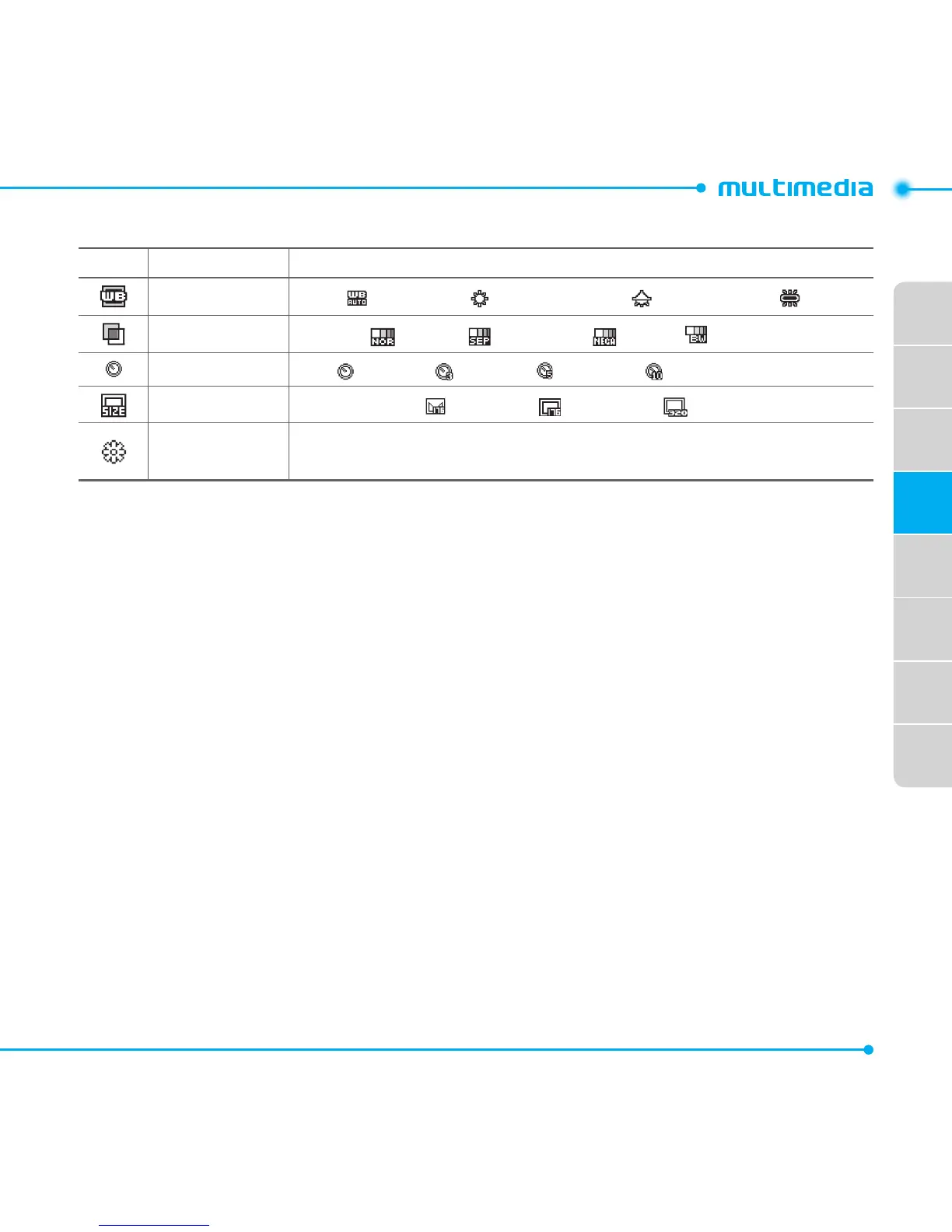
Video Camera menu options
Icons Name Description
White Balance
Auto( ),DayLight( ),Incandescent( ),Fluorescent( )
Effect
Normal( ),Sepia( ),Negative( ),B&W( )
Self Timer
Off( ),3secs( ),5secs( ),10secs( )
Resolution
176x144(MMS)( ),176x144( ),320x240( )
Advanced
VideoQuality,SoundRecording,SaveLocation,TimerSound,Video
Format
Zoom in and out
1. Press U/D. It ranges from 1xto4x.
note:Whenyousetthephotosizeto1600x1200,thezoomfunctionisnotavailable.
Increasing or decreasing brightness
1. Press L/R. It ranges from -2 to +2.
Taking a picture
1. Select Menu > Tools > Camera or Menu > My Stuff > Tools > Camera.
2. Focus on the object and pressOorQ.
Orselect Options > Capture.
note: Your photos will be saved automatically to My Stuff > Picture.



 To Next Page