66
Music player
You can listen to music on your phone through the Music Player. The Music Player is only
compatiblewithandcanplaythefollowingaudiotypessuchasMP3and.WMA.
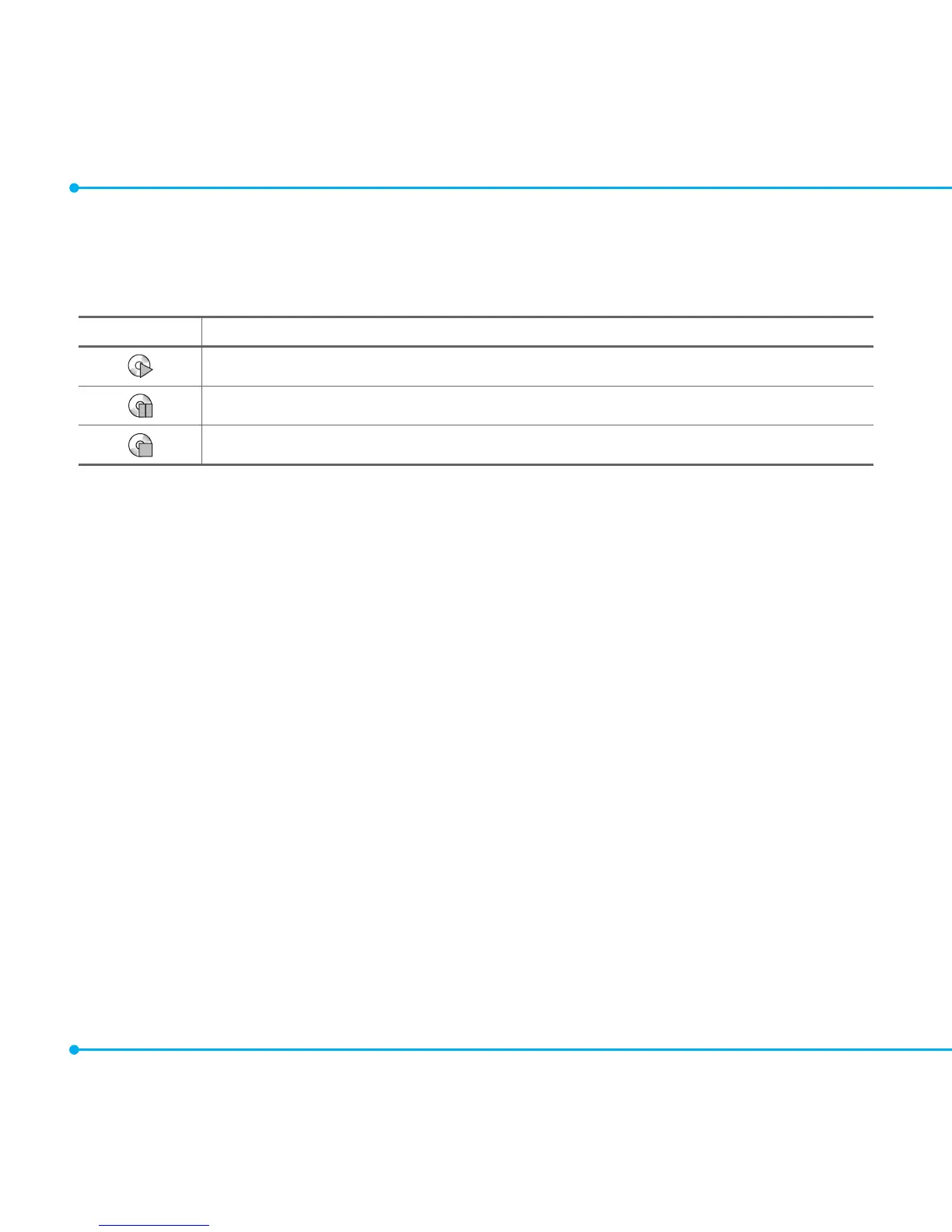
Icon Description
Music is playing.
Music has been paused.
Music has been stopped.
note:AmicroSDcardmustbeinsertedtotransfermusictoyourdevice.
Adding music from Windows Media Player™
1. ConnecttheUSBcabletothedeviceandthecomputer.
2. Select Menu > Settings > Connectivity > Select USB mode > Music Player > Select.
When set Select USB mode to Ask on Connection, select Music Player > Select after
connectingtheUSBcabletothedevice.
3.OpentheSynctabinWindowsMediaPlayer™inyourcomputer.
4.Selectthemusicfromthelistanddragittoyourdevice.
note: Windows Media Player™ 10, 11 and Window XP version are required.
Playing music
1. Select Menu > AT&T Music > Music Player.
2. Select the category using U/D to play music.
3.SelecttheleusingU/D then select Play.
4.SelectOptions > Add to Playlist to add to the playlist.
5.SelectOptions > Stop to stop playing.
note: Music will pause when you receive an incoming call. Music will resume when the call ends.



 To Next Page