13
6.2 CAMERA OVERVIEW / LIST
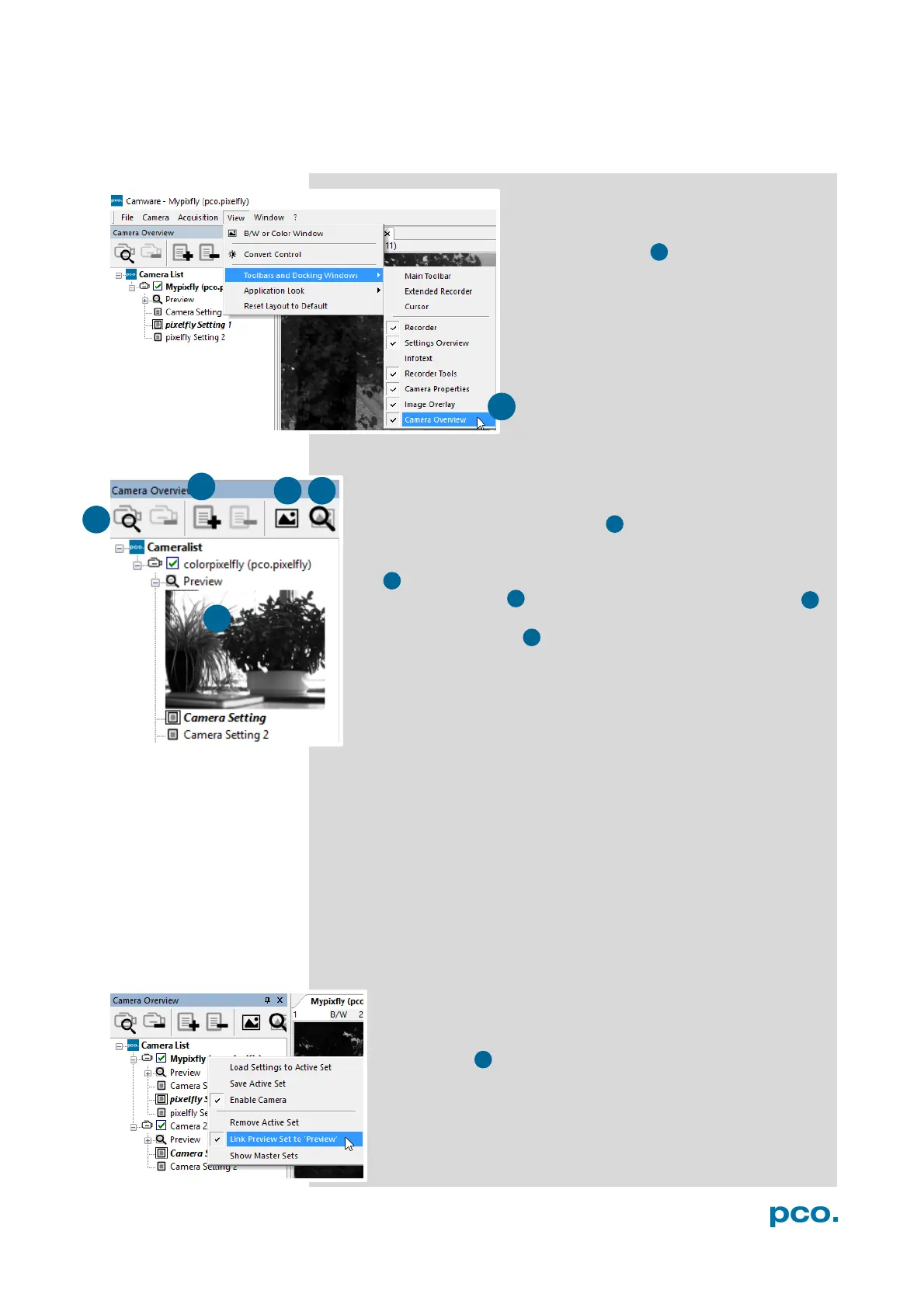
If closed, the Camera Overview window
can be opened by selecting the View tab
and Toolbars and Docking Windows →
Camera Overview.
The Camera Overview window allows you to manage several
connected cameras. It displays a list of all connected PCO
cameras. Camware is able to scan 2 for connected cameras or
close a connected camera. It is possible to define several different
Settings for each camera (max. 30 sets per camera → add new
set 3 ).
New view windows 4 can be opened and the Live Preview 5
function can be started. When unfolded, the Preview shows a
small preview window 6 (always monochrome) integrated in the
camera list.
Live preview enables the adjustment of aperture and focus and to
have a first look at your object. During live preview no images are
saved into the computer RAM.
During Live preview Trigger and Acquire mode are set to Auto.
Camera Setting: All Preferences that have been made in the
Camera Properties (see 6.3) are saved to Camera Settings. Define
different Settings with different Preferences in Camera Properties
for each of your experiments. Settings can be switched easily at any
time (not during record) and can be copied to other cameras.
Link Preview Set to ‘Preview’
When Link Preview Set to Preview is activated the Preview
set with its parameters will always be active when you start a
Live Preview 5 .
In case this function is deactivated the Live Preview will
always show live images with the parameters of your active
setting.
This feature can be of great advantage if preview light
conditions are different from those in recording situations.


 To Next Page