8
4. INSTALLATION
You will find all necessary files on the accompanying USB storage
device. You may also download the newest versions of our software,
camera driver and third party software drivers from our Website
(www.pco.de).
Minimum system requirements:
resolution display
4.1 DRIVER
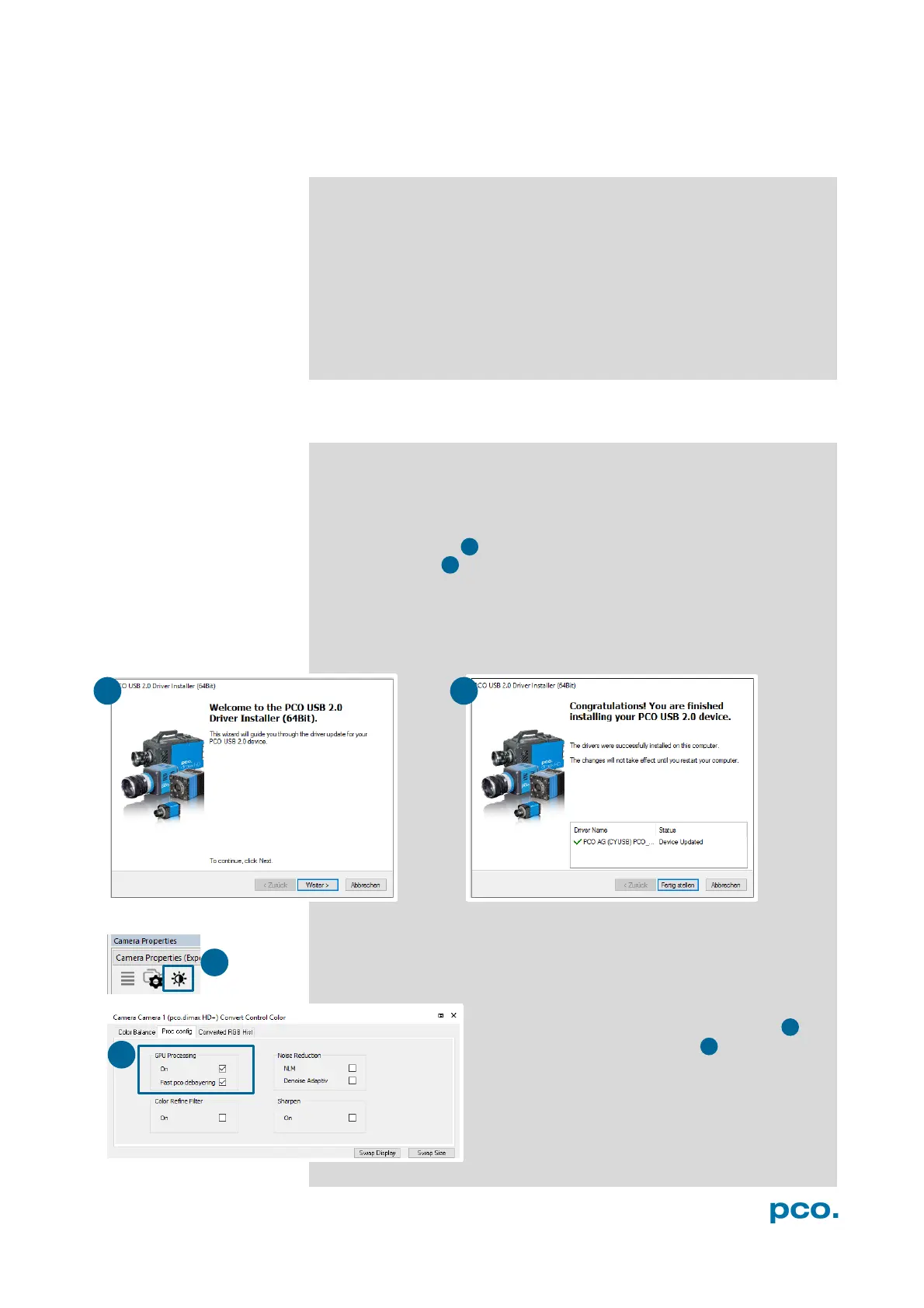
Please start the USB 2.0 driver installation from your pco.usb flash
drive. Don’t connect the camera to your computer before driver is
completely installed.
Run the provided installation file and follow the instructions of the
installation wizard.
After finishing the driver installation wizard please connect your
pco.pixelfly camera to its power supply and via enclosed USB 2.0
cable to your computer.
The first time the camera is connected via USB to your computer,
Windows will notify the user that a new device has been detected.
NVIDIA Cuda Driver:
Please update your NVIDIA driver for Camware 4. In case of an old
driver version GPU Processing is not working. Therefore image
processing is slow.
Please check if GPU Processing is activated by
having a look into the Proc config settings in
the Convert Control window (see Convert
Control chapter 6.3.7).
If GPU Processing is disabled and shown
grayed, please update your NVIDIA driver. Your
NVIDIA driver version must be at least 333.11 or
higher.


 To Next Page