38
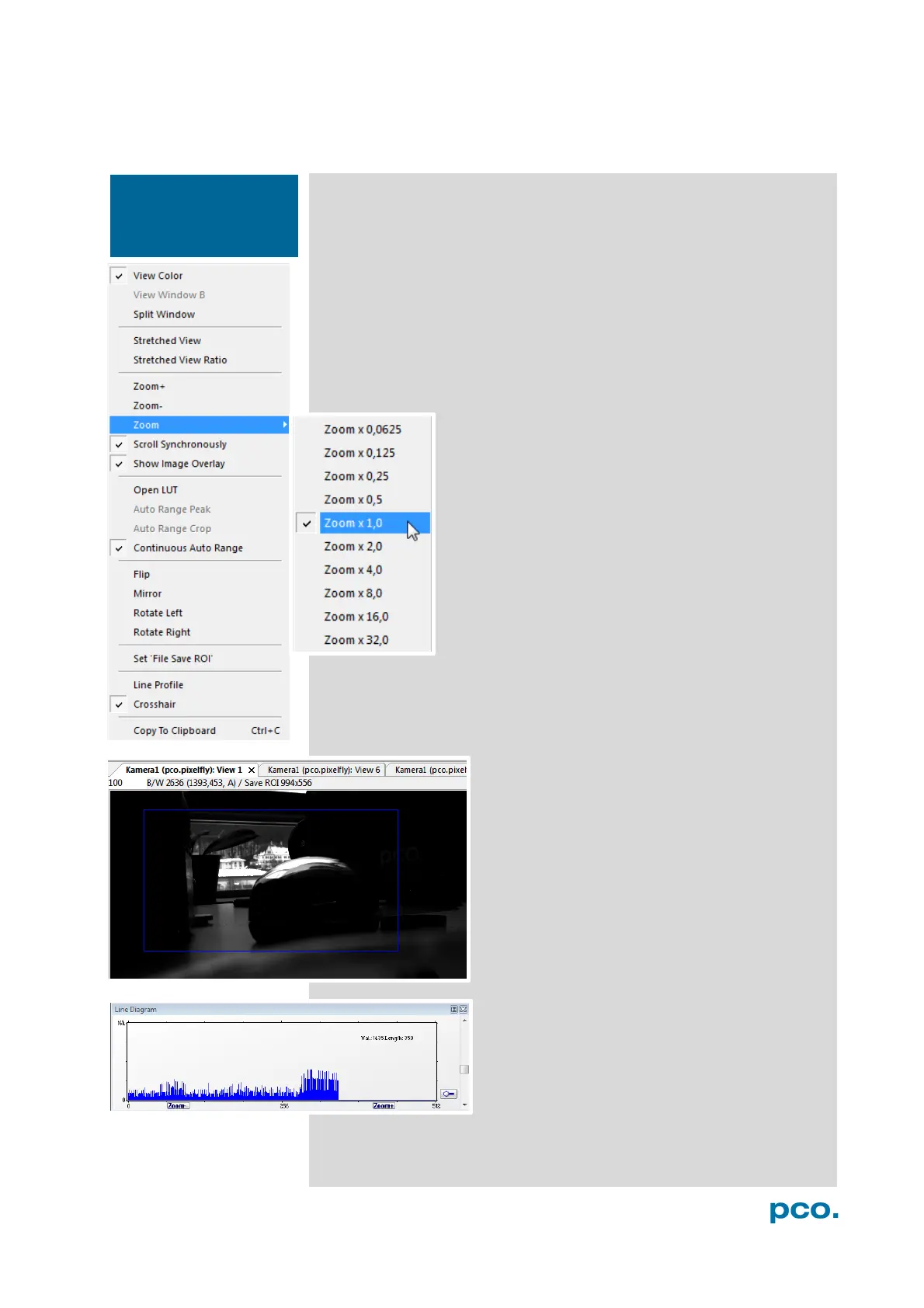
6.9.8 RIGHT-CLICK MENU
View Color: color window.
View Window B: if Double Shutter mode is activated, this will switch
to window B (second image).
Stretched View: image will be fitted into the display window.
Stretched View Ratio: aspect ratio are maintained.
Zoom +/-: image zoom (only available if Stretched View is
deactivated).
Zoom set the factor of the Zoom (from 0.0625 to 32).
Scroll Synchronous if more than one image window
is opened, it is possible to scroll synchronously
through the images (only available if Stretched View
is deactivated).
Show Image Overlay: activates the overlay see 6.4
Open LUT: opens look-up table file for false-color
illustration.
Auto Range Peak searches for the minimum and
maximum 14 bit intensity values of the image. Given
these numbers the converter scales the 8 bit display
(256) within these two values.
Auto Range Crop sets the converter to ignore the extreme intensity
values of the image and scales the display in a smaller range. Thus
dark or bright light spots, reflections, etc. are cut off.
Continuous Auto Range (Crop): this option
enables the automatic min/max function during
record and replay.
Flip/Mirror: image will be flipped or mirrored.
Rotate Left/Right: rotates the image.
Set ‘File Save ROI’: if you want to save just a
part of the recorded image (region of interest),
it is possible to draw a rectangle with the
mouse. This rectangle is valid for all recorded
images and can be dragged at its edges.
Line Tool: Select Line Tool to show a graph,
which shows the intensity of the pixels under
the red line shown in the image window. The
selection of this menu item determines the
location of the first point. After this you can
move the mouse to the second point, which
can be selected by a left click. Now a Line
Diagram opens and the length of the line (unit: pixel) is displayed in
the window.
Right-click in the View
window to open this
menu.


 To Next Page