37
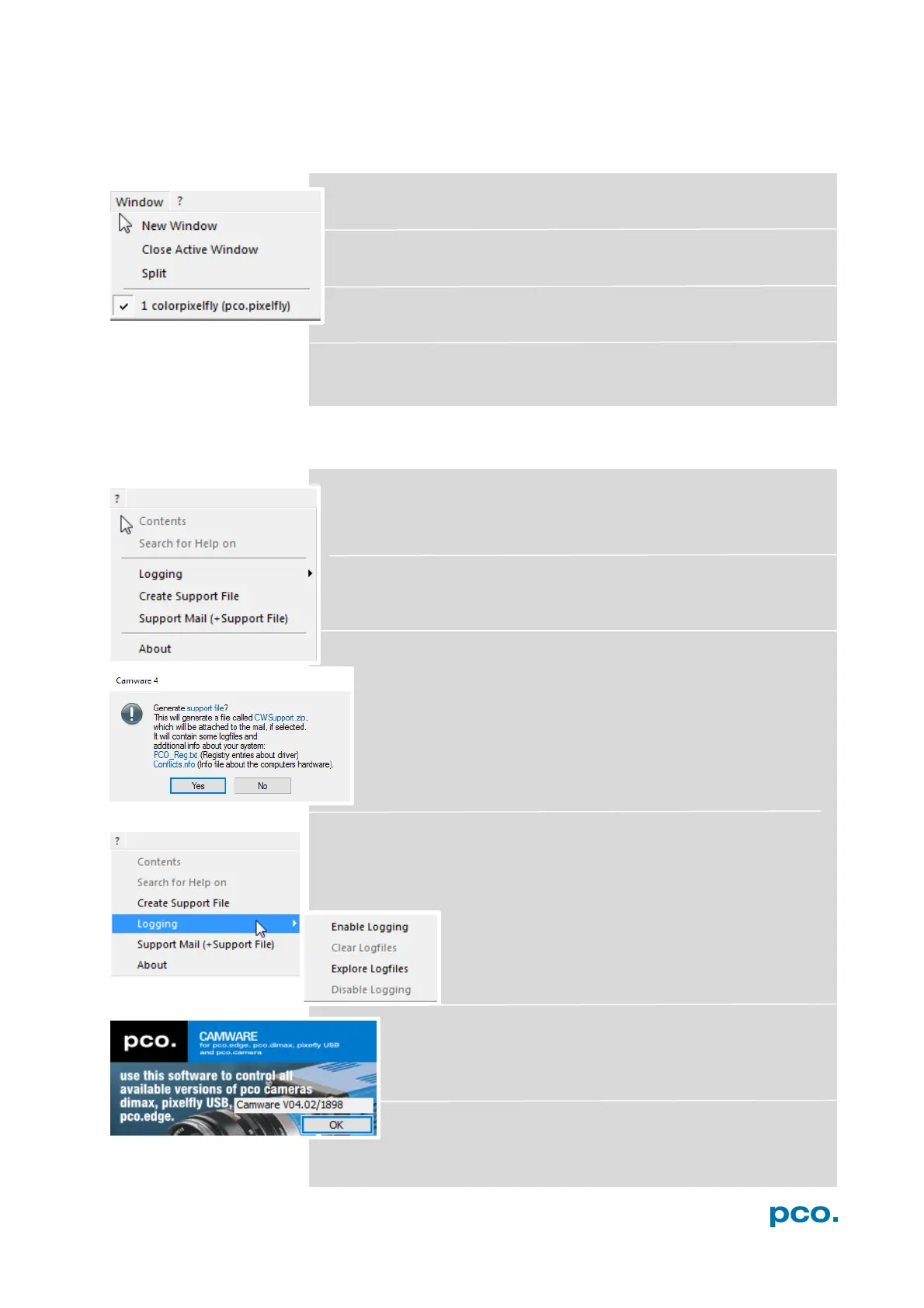
6.9.6 WINDOW MENU
New Window
A new view window will be opened.
Close Active Window
Active window will be closed.
Split
The view window will be split in four quarters.
Camera overview
Shows all connected cameras, e.g. 1 colorpixelfly (pco.pixelfly)
6.9.7 HELP MENU
Contents
Opens the main page of the program help.
Search for Help on
Opens an index list for help.
Create Support File
This will activate the Camware log files. Press YES to activate
log files and reboot Camware and your pco.pixelfly usb.
After log files are activated it is possible to create a support file.
Please send this file to the PCO support (see A5.4).
Logging
Enable Logging: Activates Camware log files (this cuts down
performance)
Clear Logfiles (only visible if logging is enabled):
this command erases all actual log files
Explore Logfiles: opens windows explorer. Logfiles
are formatted as e.g. SC2_Cam.log
Disable Logging (only visible if logging is enabled):
disables logging
Support Mail
This command opens your email-program and an already
created support file will be added automatically as file
attachment.
About Camware
This window shows program version information.


 To Next Page