26
6.6 VIEW WINDOW
More View Windows
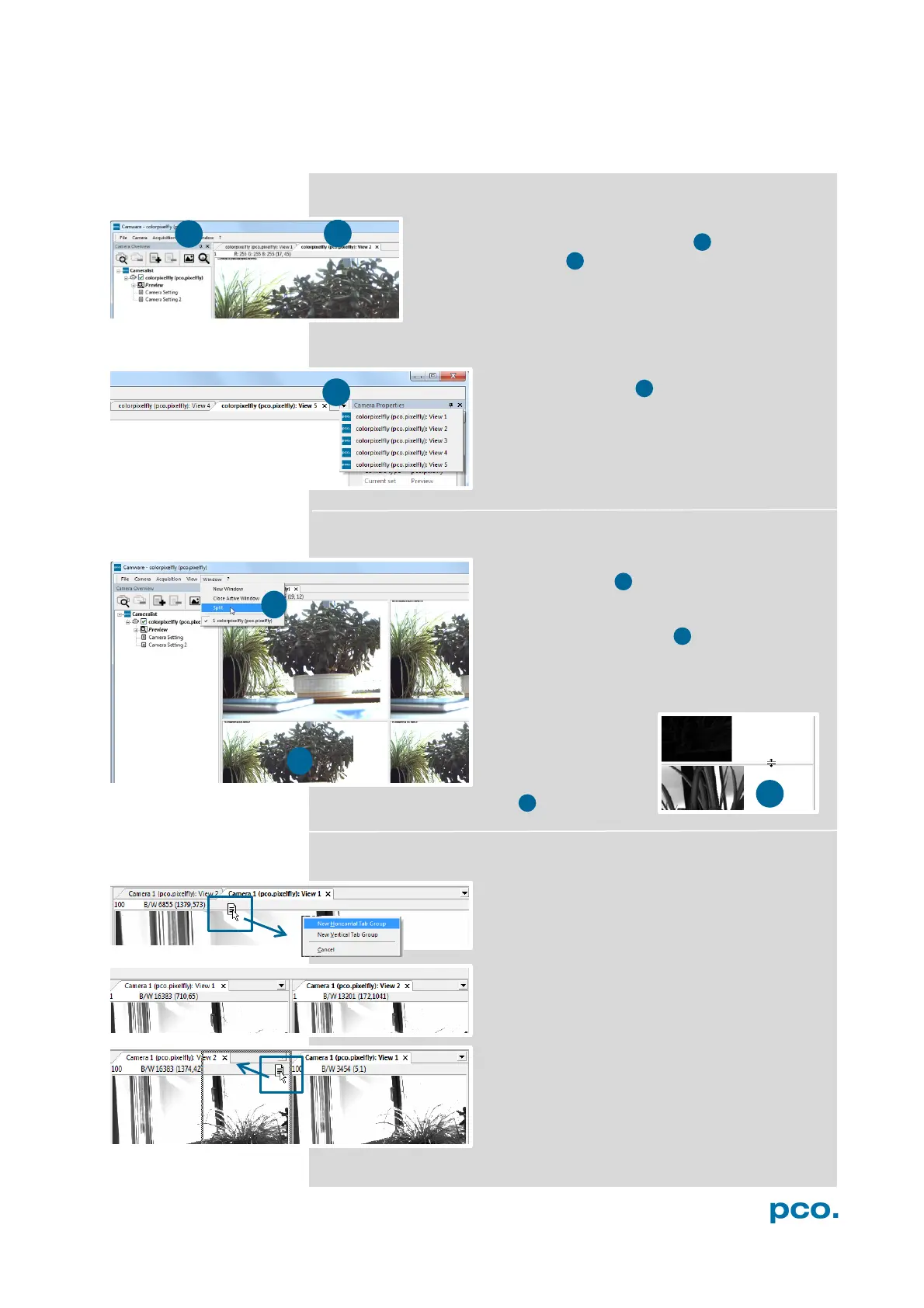
It is possible to open more view windows from one
camera: just open new view window 1 and Camware
will create a new one 2 .
Even when multiple view windows (or from multiple
cameras) are open, the same image number is always
shown in all of the view windows.
A dropdown menu helps to select a view
window. If you have more view windows than
can be displayed on the desktop, you will be
able to select each view window.
Split View Window
The view window can be split. Choose
Window → Split 4 and a split cross will be
shown. You can easily adjust the size of the
splitted window elements by grabbing and
dragging the dividing lines 5 .
The main function is that you are able to view
four regions of your image in one view. Choose
the Zoom± function to zoom in the image (first
turn off Stretched
View) (See 6.9.8 )
If you want to undo
the split, you have to
double click on the
deviding line (after symbol 6 is visible).
Two Tabs side by side or on top of each other
If you want to view two tabs side by side or
arranged one above the other just drag a tab
and then Camware will ask you if you want to
create a new horizontal or vertical tab group.
Undo this very easily by draging the tab back
to its former position.
This also applies for view windows of several
cameras.


 To Next Page