32
6.9 CAMWARE MENU TABS & FEATURES
This chapter describes in detail the Camware Demo Mode and the
Camware Tabs: File, Camera, Acquisition, View and Window.
Furthermore the right-click menu and some additional features are
listed.
6.9.1 DEMO MODE
When Camware is started, it automatically recognizes the
camera type of the connected and running cameras.
Camware will start in Demo Mode, if your camera is switched
off or no camera is connected.
In this mode all image processing features are available, but all
camera settings are deactivated. The user only has to tell
Camware what type of image he wants to open. For that
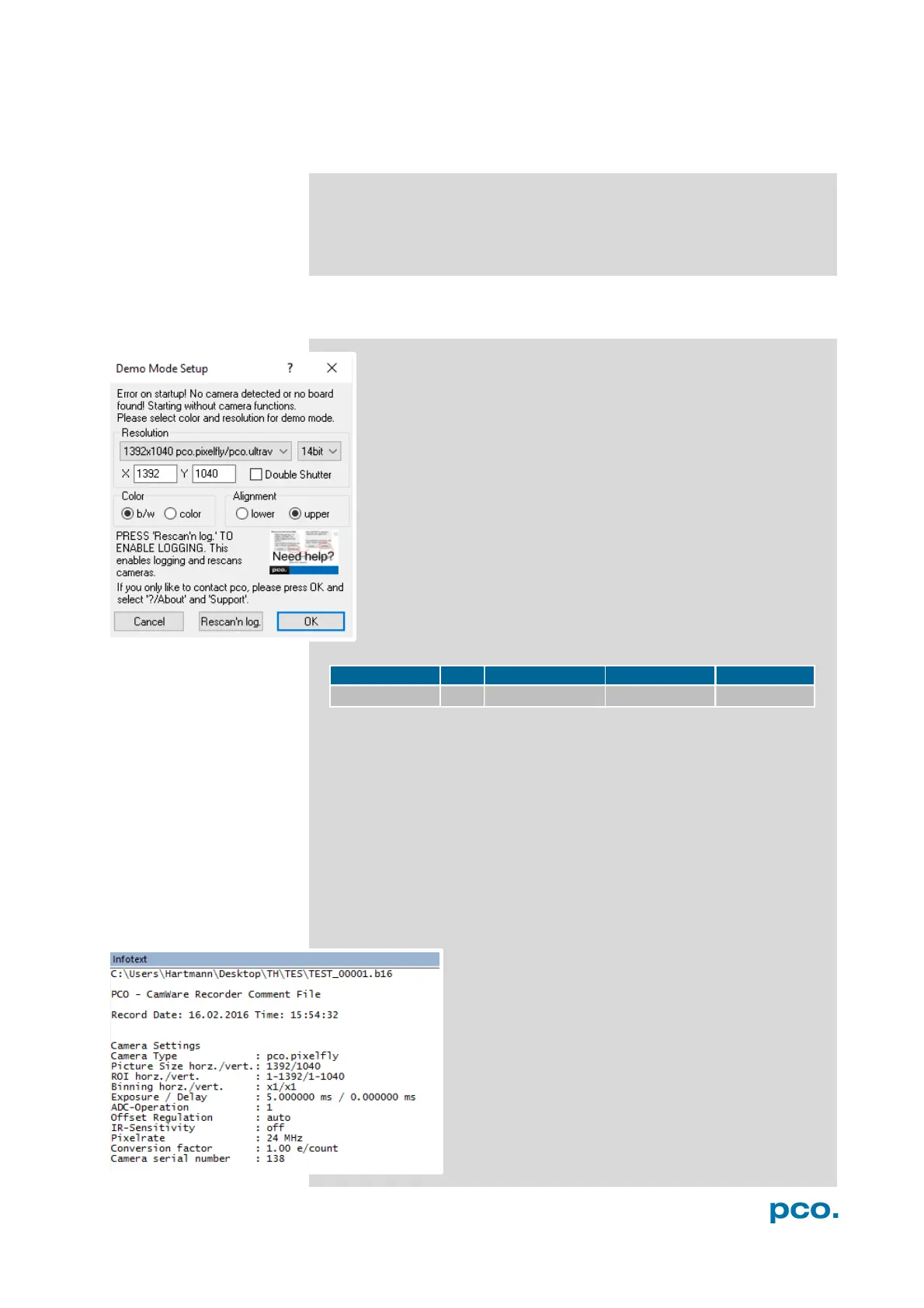
purpose, the Demo Mode Setup window opens and asks for
the corresponding input. All camera options are deactivated.
Need Help? If this window pops up because you have trouble
running the camera, please see instructions in appendix A5.
Settings to view the b16 files of the pco.pixelfly usb
Resolution
The drop down list displays the PCO camera image sensor
resolutions. Select the specific resolution and bit depth of the images
to be opened. If double shutter images have been recorded, Double
Shutter Mode should be checked
Color
Select color mode.
Alignment
Adjust whether MSB (most significant bit) aligned (upper) or LSB
(least significant bit) aligned (lower) images have been stored.
Infotext
The Infotext is automatically shown in Camware if
you open a stored image sequence.
The Camera Properties settings, storing location
and Record date are listed in this file.
Infotext can be activated in the View Menu 6.9.5 at
any time.


 To Next Page