39
Copy to Clipboard: will copy the actual image to
clipboard.
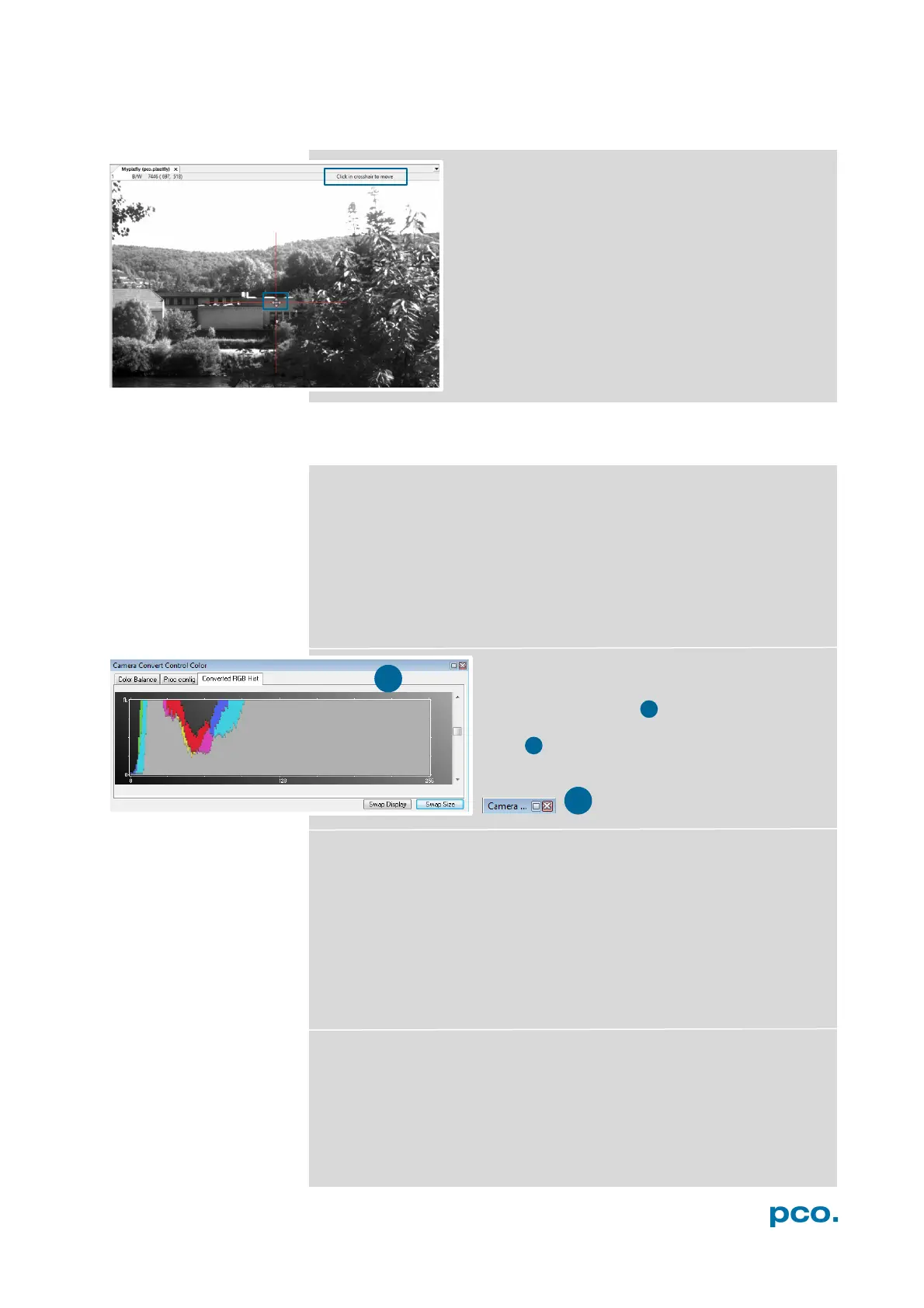
Crosshair: activates a centered crosshair. Size and
color are selectable see chapter 6.9.2 → Options.
Crosshair is movable, just drag it by mouse. Reset
it to center position by double-click into center of
the crosshair.
6.9.9 ADDITIONAL FEATURES
White Balance by Mouse
It is possible to change white balance easily by mouse: You only
have to press the CTRL (Strg) and the shift button at the same time
and select a white or gray area within the image. The pixel values
within the coordinates of the selection rectangle are used for
calculating a new white balance.
For best results we recommend to use the white balance button in
the Convert Control Color (see 6.3.5).
Fold Up Window
The Convert Control windows can be
minimized / folded up . Just move the pointer
over the bar and the window will unfold
again .
Setting Contrast Area by Mouse
You can control the minimum and maximum values used for the
conversion from 14 bit to 8 bit with the mouse. Move the mouse
cursor into a region which should be shown with maximum contrast.
Press the shift and the left mouse button. Hold down the mouse
button while increasing the size of the selection rectangle with mouse
moves. After releasing the mouse button the coordinates of the
selection rectangle act as a border for calculating the minimum and
maximum values.
Short Cut List
• Open Raw Image File: STRG + I
• Acquire Sequence: STRG + A
•
Auto Save SHIFT + A
• Open Raw Recorder (Video)
Sequence: STRG + R
• Export File (Image): STRG + T
• Save Raw Image File STRG + E
• Export Recorder Sequence
(Video) STRG + O
• Save Raw Recorder Sequence
(Video) STRG + S


 To Next Page