22
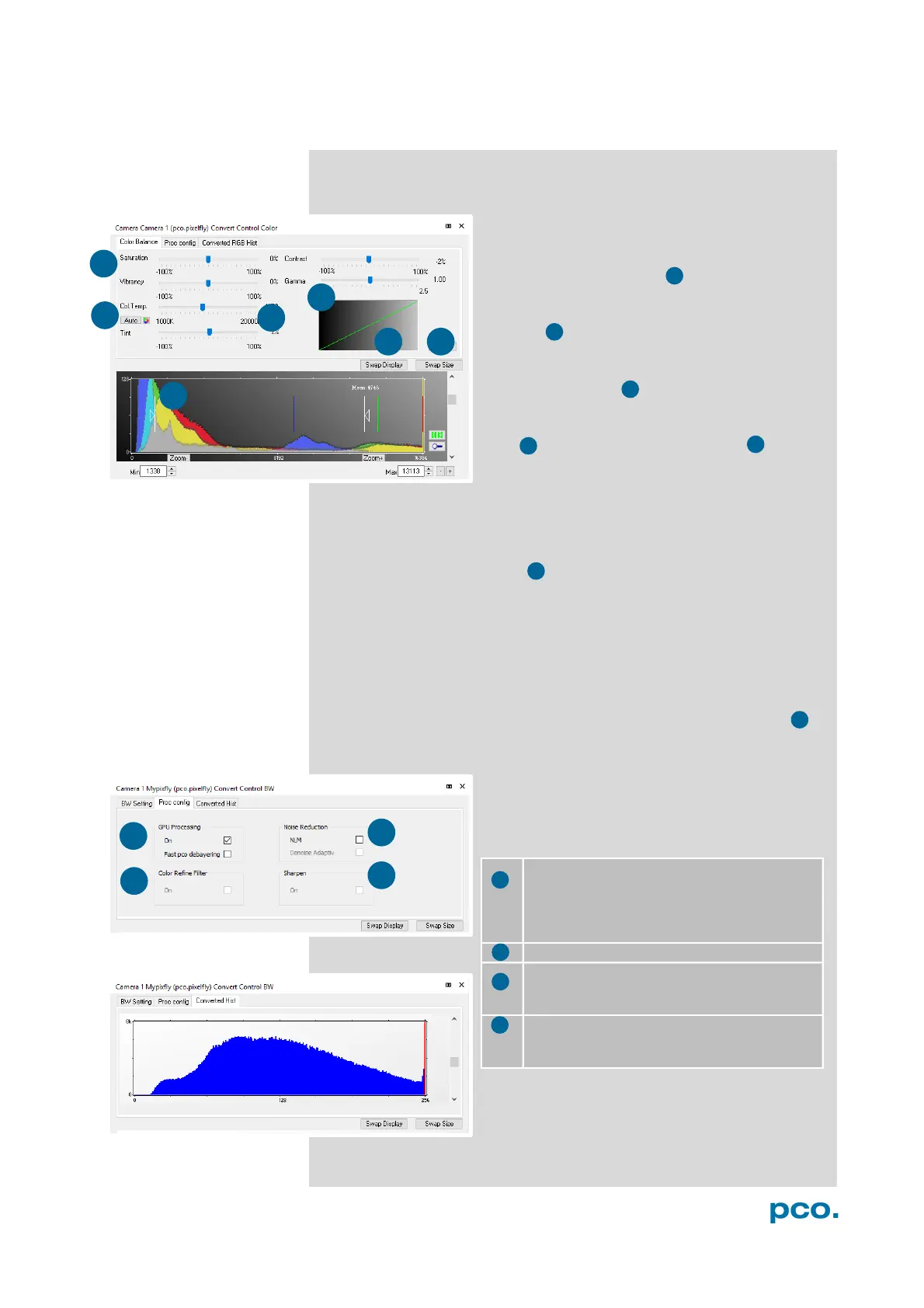
Convert Control Color (only pco.pixelfly usb color)
Color Balance (Histogram of original data)
Intensity of single color can be controlled by
Saturation and Vibrance
.
Press the Auto button to set the white
balance
.
The balancing of RGB can be controlled by
Col.Temp and Tint
.
It is possible to
hide the histogram of original
data and to switch tab/histogram .
The user can influence how the 14 bit intensity values (x-axis) of the
original image are converted into 8 bit values (y-axis) in different
ways.
White sliders in histogram
left slider = Min controller (corresponds to value 0 of the 8 bit
display). Values below that mark are set to 0, i.e. displayed as no
color.
right slider = Max controller (corresponds to value 255). Values
above that mark are set to 255, i.e. displayed as full color.
The values in-between are converted into a value between 0 and 255
according to Contrast and Gamma settings. See the small graph ,
which reflects the calculation.
Proc. Config (Process configuration)
Due to proprietary high-end algorithms used
for these image processing features, no
detailed description is given here.
Converted Hist
This tab shows you the histogram of
converted data.
On: Switch on in order to significantly reduce
processing time (increases refresh rate of the
live image.
Fast pco debayering: only color cameras
Color Refine Filter only color cameras
NLM: Non local means algorithm
Denoise Adaptive: only color cameras
On: only color cameras (first activate Fast


 To Next Page