45
Press the x-column bar or the y-column bar to sort the list
according to ascending y-coordinate order.
Press the counts-column bar to sort the list according to ascending
counts order.
Edit existing list of defective pixels
Camera Box:
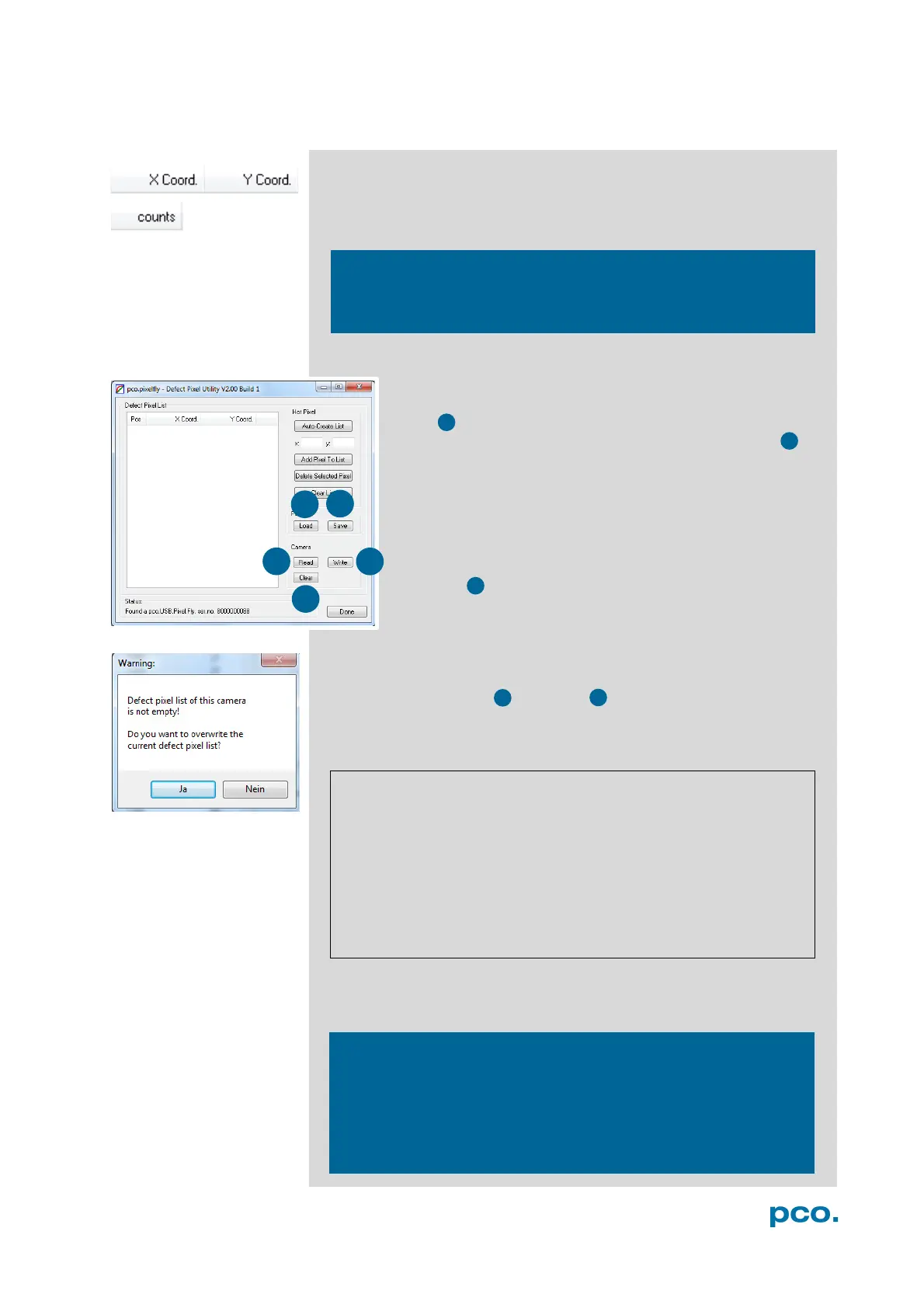
After reading the list from the camera using the Read
button of the Camera Box the user can edit the list and
write the list back to the camera using the Write button of
the Camera Box.
A message box will appear warning you that an already
existing list of defective pixels is going to be overwritten
inside the camera.
Select Yes to write the new list into the camera flash. The
new list will be activated after the next issued power-up. Use
the Clear button to delete an existing list of defective
pixels flashed to the camera.
File Box:
Additionally there is a possibility to save and load files in the DPX
format using the Save and Load buttons. DPX is a proprietary
file format of pco. The files created can be edited with every text
editor, since the content is plain ASCII.
The content of the DPX file is as follows, e.g.:
pco.camera defective pixel list V01.00
200;200
220;208
300;409
<header><CRLF>
[x1;y1<CRLF>
…
xn;yn]
The header is mandatory in order to recognize a DPX file. Each line
after the header will be treated as a x/y coordinate pair, starting with
x followed by y. Each new line has to be separated by a CRLF.
If you want to add a new hot pixel to the list, you should recreate
the whole list. In case the intended hot pixel is not listed, delete
one of those 220 hot pixels from the list, which is not critical for
you. Then you can add the critical one. If there is no space for a
new hot pixel, the pixel with the highest y-coordinate will be
overwritten automatically.
Saved to your camera are only x- and y-coordinates – counts are
only shown on your screen and will not be saved.


 To Next Page