36 EN
Edit titles
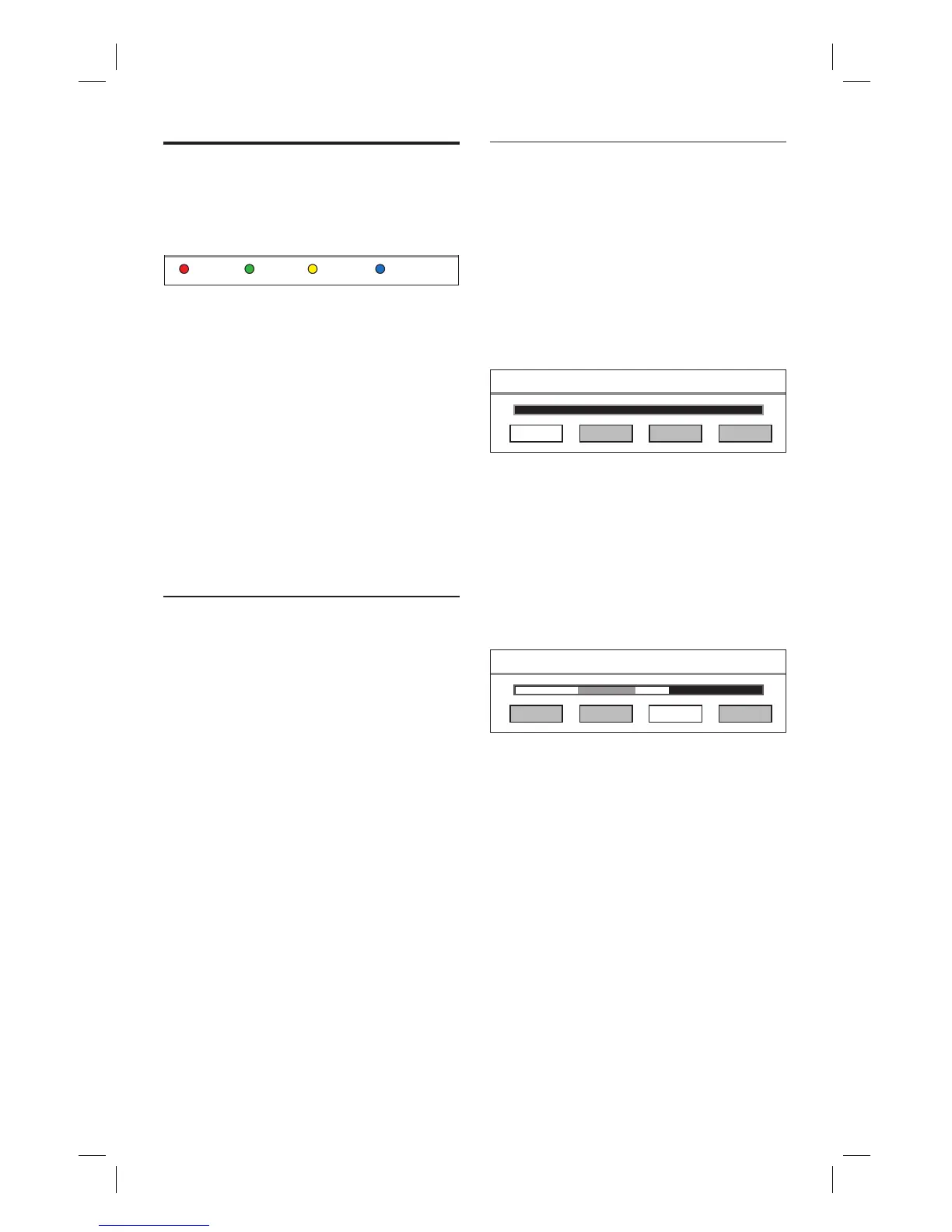
You can use the colour coded buttons in the
recording list to edit your recordings:
Tools SortingEdit Resume Play
The Red button [ Edit ]:
Set a thumbnail
Erase a scene (A-B Erase)
Divide a title
Merge a title
Add/ remove a chapter marker
Rename a title
The Green button [ Tools ]:
Delete all titles
Delete a title
Set child lock
Protect a title
Set a thumbnail
1 Press 录像清单.
2 Select a title, then press the Red button
[ Edit ].
The edit menu is displayed.
3 Select [ Set Thumbnail ], then press OK.
Press à á keys to make a fast
forward/ reverse search.
4 Locate the scene and press u.
To cancel, select [ Cancel ] and press
OK.
5 To confi rm, select [ Confi rm ] and press
OK.
The thumbnail of the title is changed.
•
•
•
•
•
•
•
•
•
•
•
•
•
•
Erase a scene in a title
1 Press 录像清单.
2 Select a title, then press the Red button
[ Edit ].
The edit menu is displayed.
3 Select [ A-B Erase ], then press OK.
Press à á keys to make a fast
forward/ reverse search.
A - B Erase
SET B CancelSET A Confirm
4 Press u to pause at the start point.
5 Select [ SET A ], then press OK.
6 Press u to resume play and press u
again at the end point.
7 Select [ SET B ] and press OK.
To cancel, select [ Cancel ] and press
OK.
A - B Erase
SET B CancelSET A Confirm
8 To confi rm, select [ Confi rm ] and press
OK.
This scene is erased from the title.
•
•
1_DVR2008-93_eng_wk822.indd 361_DVR2008-93_eng_wk822.indd 36 2008-05-26 10:53:18 AM2008-05-26 10:53:18 AM



 To Next Page