Find the correct viewing
channel
Select menu display language
1
2
3
Press nOto turn on the Home Theater
System.
Press DISC to switch to disc mode.
Turn on the TV and switch to the correct
video-in channel in one of the following
ways:
- Go to the lowest channel on your
TV, then press the Channel Down
button until you see the Philips
screen.
- Press _ SOURCE button repeatedly
on the remote control of your TV.
- Set the TV to channel 3 or 4 ira RF
modulator is used.
• Skip this setting if this Home Theater System is
connected to a HDMI CEC compliant TV. It switches
automatically to the same OSD menu language as
per your TV setting.
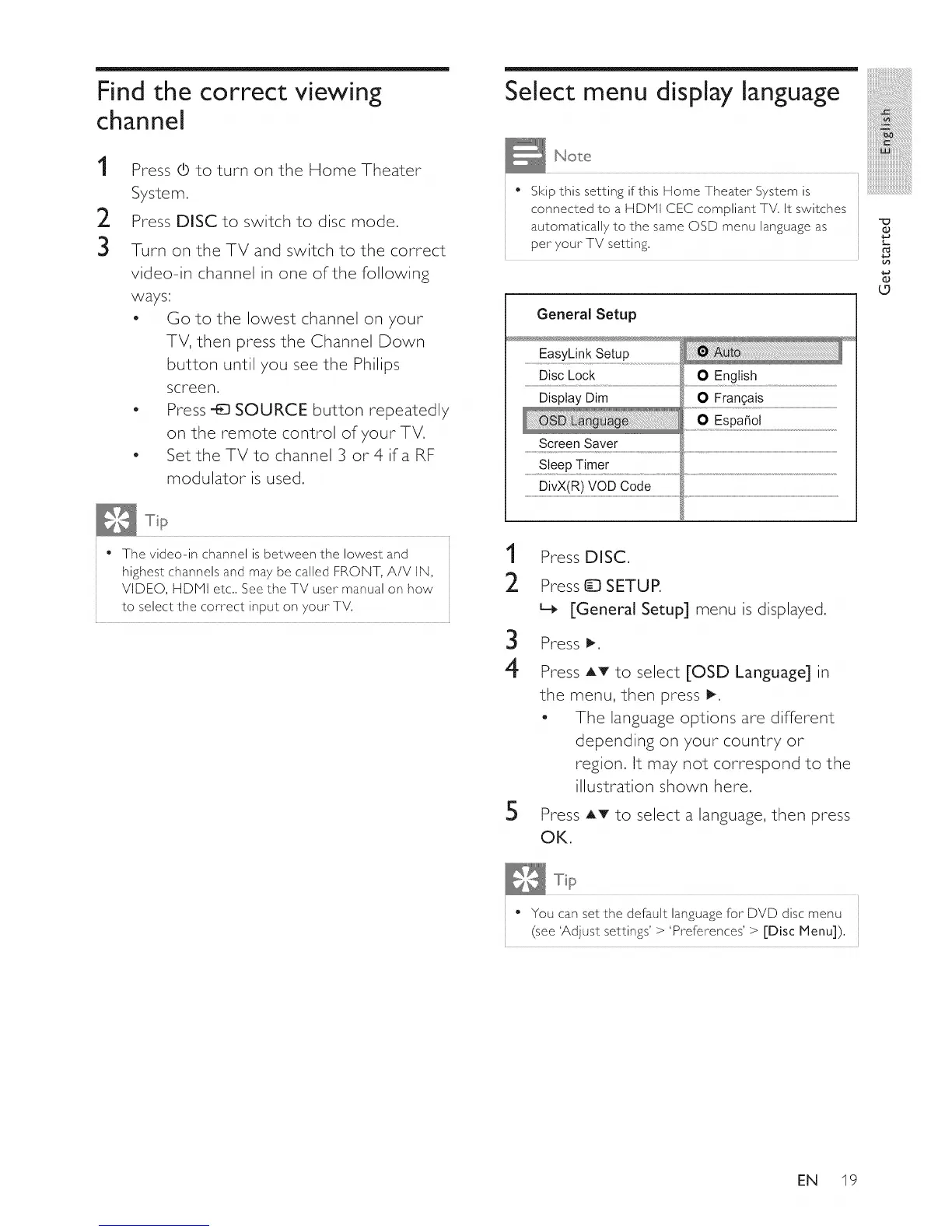
General Setup
EasyLink Setup
Disc Lock O English
Display Dim O Frangais
Screen Saver
Sleep Timer
DivX(R) VOD Code
L.
6S
t_
• The video-in channel is between the lowest and
highest channels and may be called FRONT, A/V IN,
VIDEO, HDM] etc.. See the TV user manual on how
to select the correct input on your TV.
1 Press DISC.
2 Press Q SETUP.
L_ [General Setup] menu is displayed,
3
4
5
Press I_,
Press AT to select [OSD Language] in
the menu, then press 1_.
- The language options are different
depending on your country or
region. It may not correspond to the
illustration shown here.
Press AT to select a language, then press
OK,
• You can set the default language for DVD disc menu
(see 'Adjust settings'> 'Preferences'> [Disc Menu]).
EN 19




 To Next Page