6
Create MP3 audio files
You can convert audio CDs into MP3 audio
files with this Home Theater System.The
created kIP3 audio files are saved in your USB
device.
Option Description
[Speed] Selects the write-to-file speed.
If [Normal] speed is selected,
music play can be heard while
creating the kIP3 file.
[Bitrate] Selects the quality level. Higher
bitrate for better sound quality
and bigger file size.
Default setting is [128kbps].
6
7
Select the audio track, then press OK.
. To
6.
- To select all tracks, select [Select
mmmmmmmmmm_
All] in the menu and press OK.
- To deselect all tracks, select
[Deselect all] in the menu and press
OK.
Select [Start] in the menu to convert,
then press OK.
L_ Once complete, a new folder is
created automatically in the USB
device to store all the new PIP3 files.
To exit the menu, select [Exit] and
press OK.
• While you convert, do not press any buttons,
DTS CDs and copy-protected CDs cannot be
converted,
Write-protected or password-protected USB
devices cannot be used to store P1P3files,
6S
r*
>
<
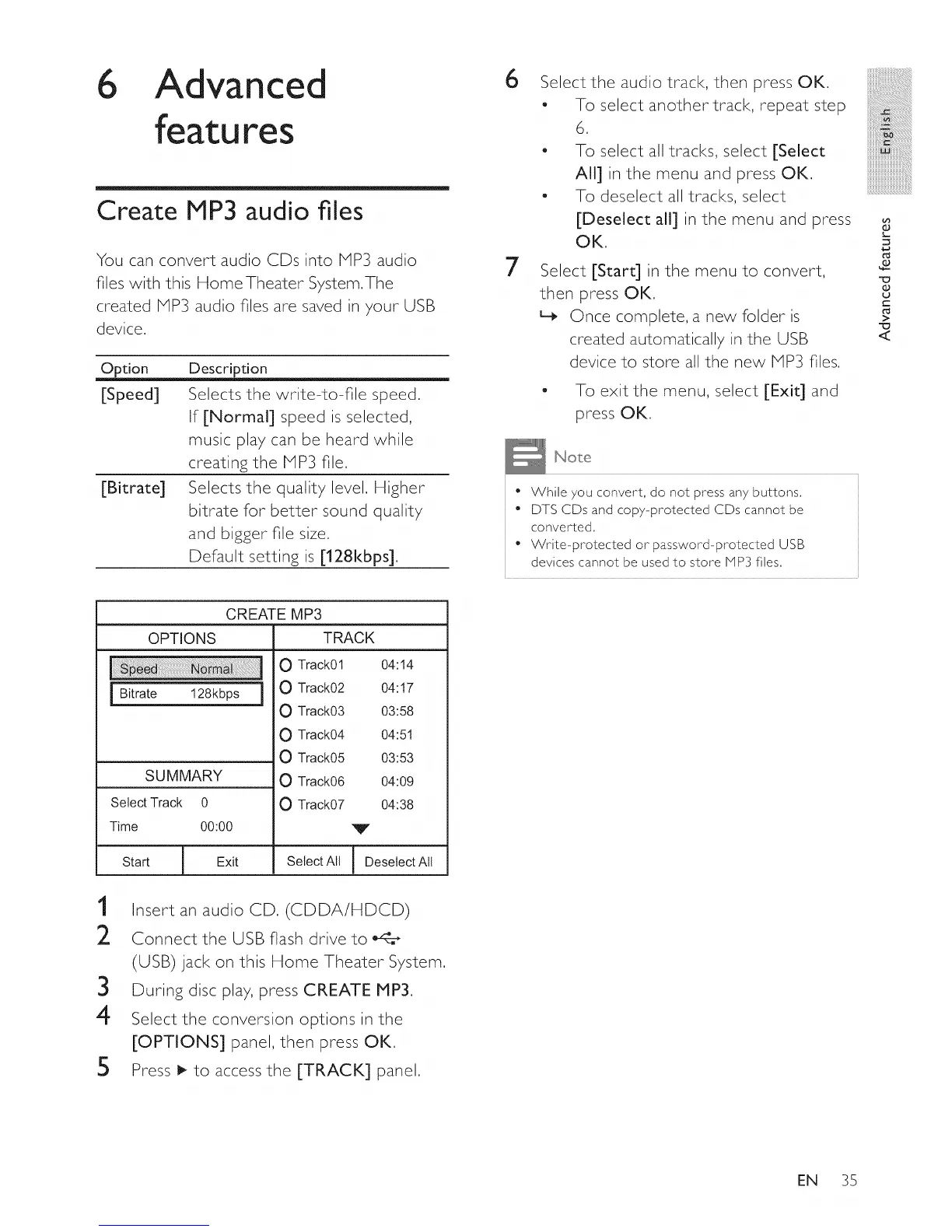
CREATE MP3
OPTIONS
j " a'e 1
SUMMARY
Select Track 0
Time 00:00
Start I Exit
TRACK
O Track01 04:14
O Track02 04:17
O Track03 03:58
O Track04 04:51
O Track05 03:53
O Track06 04:09
O Track07 04:38
v
SelectAll J DeselectAll
I
1 Insert an audio CD. (CDDA/HDCD)
2 Connect the USB flash drive to
(USB) jack on this Home Theater System.
3 During disc play, press CREATE PIP3.
4 Select the conversion options in the
[OPTIONS] panel, then press OK.
5 Press I_ to access the [TRACK] panel.
EN 35




 To Next Page