10 Screeneo U5 SCN550/INT
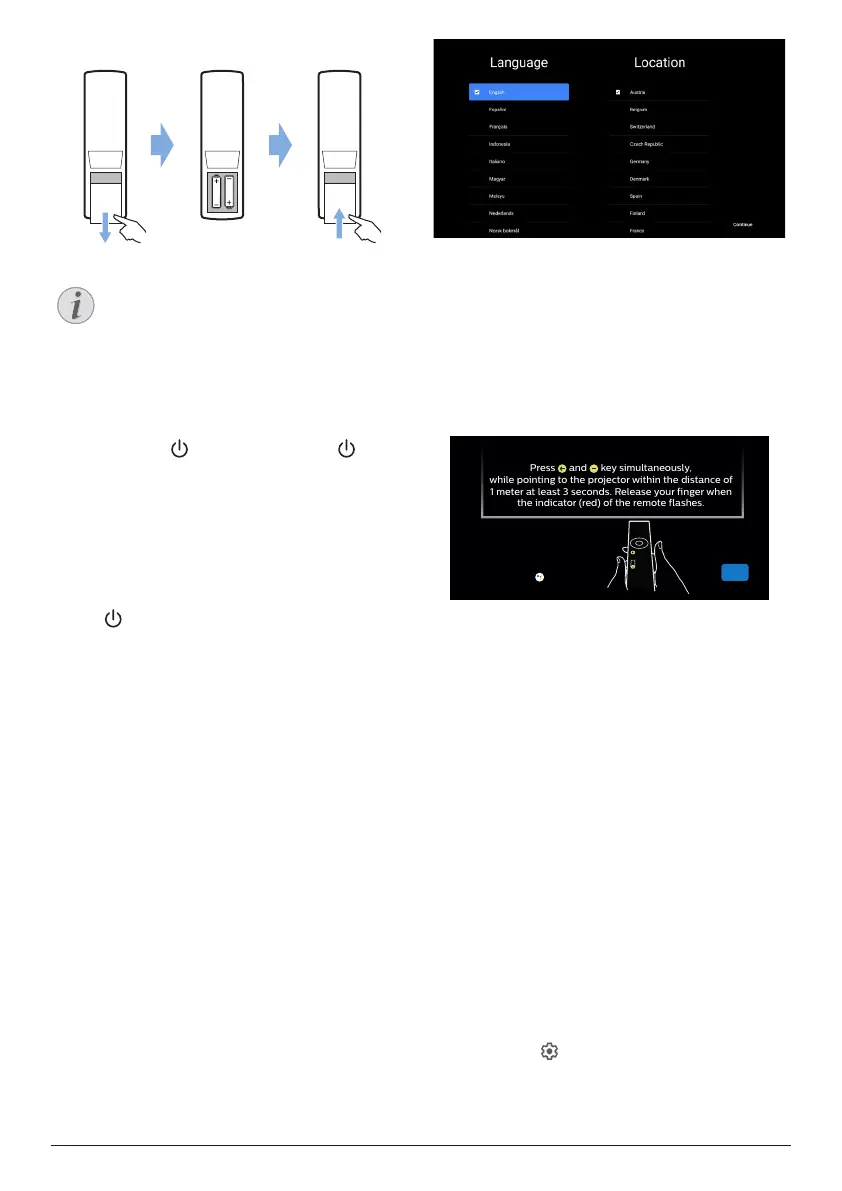
3 Close the battery compartment.
Notice
When using the remote control, point
the remote control at the IR sensor on
the projector, and make sure there is no
obstacle between the remote control
and the IR sensor.
Power on and set up
Press and hold on the projector (or on
the remote control) for 2 seconds to switch the
projector on.
• The distance between the projector and
the screen determines the actual size of the
image.
Switch to standby
Press for 1 second to switch the projector to
standby.
Boot guidance
When you turn on the projector for the first time
or the projector is reset to the factory default
settings, you are prompted to make the Android
TV setup.
Covered settings are country and language,
remote control pairing, quick settings, network
settings, logging into Google account, setting
password lock, region and other settings.
What you need
• A Wi-Fi internet connection or wired
network connections
• A Google account
Pair the remote control with
the projector
The remote control for this projector is bounded
with IR and Bluetooth functions together. To
use the remote control in Bluetooth mode,
follow the on-screen guidance to pair remote
control with projector at first use.
Press and key simultaneously,
while pointing to the projector within the distance of
1 meter at least 3 seconds. Release your finger when
the indicator (red) of the remote flashes.
Skip
Skip this step if your remote
doesn’t have the button
Connect the projector to
Internet
The projector can be connected to Internet
either through wired network connection or via
Wi-Fi connection.
Connect to a wired network
To connect the projector to a wired local area
network (LAN), use an Ethernet cable.
Set up the Wi-Fi network
Set up the Wi-Fi network to access online
applications.
What you need
• A wireless network router.
• For best wireless performance and
coverage, use an 802.11n router and the
5GHz band.
1 Select the icon in the upper right corner
of the screen, and press OK. Then go to
Network & Internet - Wi-Fi.





 To Next Page