16 Screeneo U5 SCN550/INT
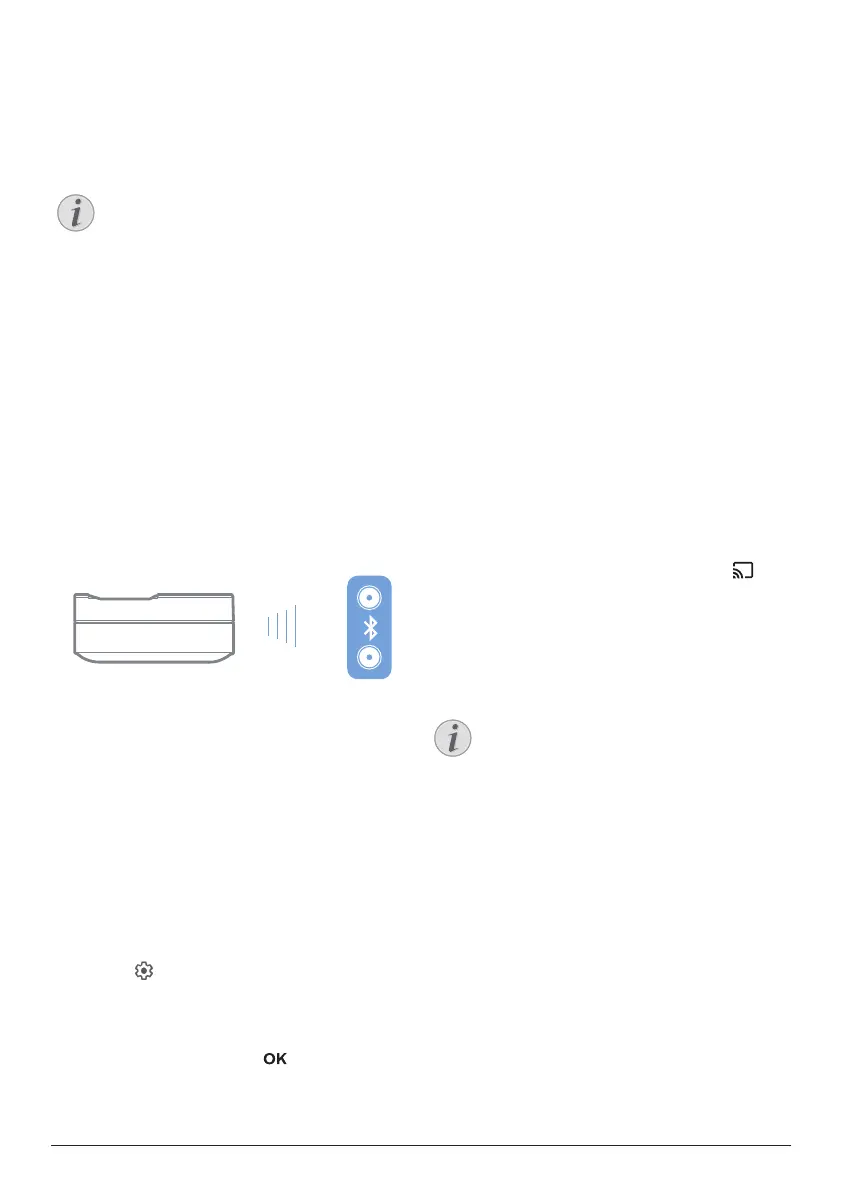
Connect to Bluetooth
speaker
Through Bluetooth, you can stream music
wirelessly from the projector to a Bluetooth
speaker.
Notice
The projector cannot be connected to a
smartphone or tablet for music streaming
through Bluetooth.
1 On your Bluetooth speaker, turn on
Bluetooth (see your device manual for
details).
2 Go to Android TV Settings - Remotes &
Accessories - Add accessory to pair the
projector with the Bluetooth speaker.
3 If your Bluetooth speaker is connected to
the projector, the name of your Bluetooth
speaker is displayed on the Bluetooth
device list of the projector. Select your
Bluetooth speaker from the device list for
connection.
• After successful connection, you can
stream music wirelessly from the
projector to your Bluetooth speaker.
Use EasyLink
This projector supports Philips EasyLink which
uses the HDMI™ CEC (Consumer Electronics
Control) protocol. You can use a single remote
control to turn on or off the EasyLink compliant
devices that are connected through HDMI™.
The manufacturer does not guarantee 100%
interoperability with all HDMI™ CEC devices.
To activate EasyLink function on this projector:
1 Make sure the projector is connected to an
HDMI™ device which supports HDMI™ CEC
function.
2 Select and press OK.
3 Go to Device Preferences - Inputs -
Consumer Electronic Control (CEC) to set
the following options:
• HDMI control: Press to turn HDMI™
CEC function on or off.
• Device auto power off: If enabled, the
connected HDMI™ device turns off
automatically when the projector is
turned off.
• TV auto power on: If enabled, the
projector automatically turns on when
an HDMI™ CEC device is turned on.
Chromecast streaming
This projector has Chromecast built-in. This
allows you to stream content (e.g. videos,
photos and music) from a Chromecast-enabled
app on your mobile device (smartphone, tablet
or laptop; Android or iOS) to the projection
screen.
What you need
• Make sure the projector and your mobile
device are connected to the same Wi-Fi
network.
• The app to be cast must be Chromecast
enabled and must be the latest version.
Visit Google Play Store or Apple App Store
for any app updates.
1 Launch the Chromecast-enabled app on
your mobile device.
2 On the app screen, tap the cast icon .
3 Tap the name of this projector from the
pop-up on your mobile device.
After successful connection, the app
content is streamed to the projection
screen.
Notice
For better streaming performance, use a
5 GHz Wi-Fi network.
Google, Google Play, YouTube, Android TV and
other marks are trademarks of Google LLC.
Google Assistant is not available in certain
languages and countries.





 To Next Page