Operation 11
2 Select your Wi-Fi network from the list and
press OK.
3 Input your Wi-Fi network password using
the on-screen virtual keyboard. Then select
the right arrow on the right side of the
virtual keyboard and press OK.
Sign into your Google
account
To access the abundant range of Android apps,
you need to sign into your Google account.
1 Select the icon in the upper right corner
of the screen, and press OK. Then go to
Accounts & Sign In. Follow the on-screen
prompts to sign into your account.
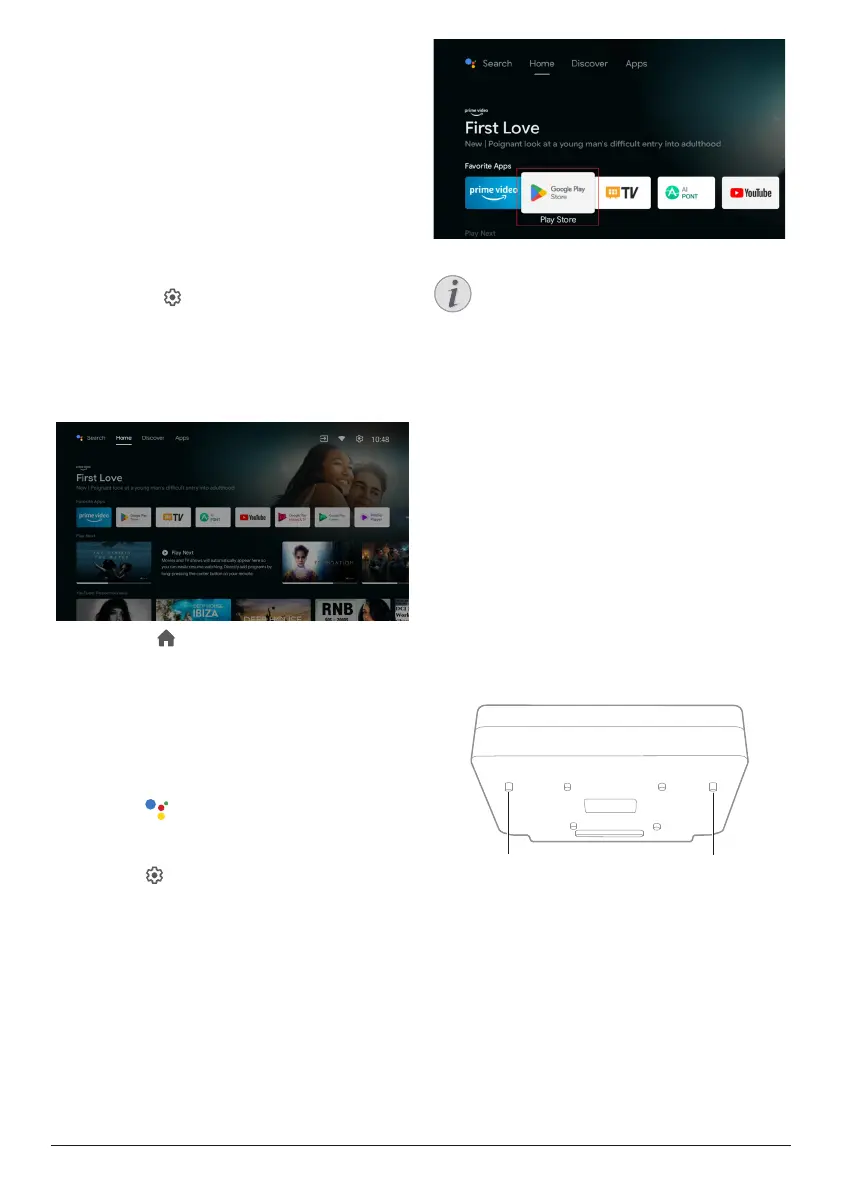
System home page
1 Press the button to enter the home
screen.
2 The home screen displays a list of
commonly used apps. Select an app icon
and hold down the OK key to call out sub-
menus such as “Open” and “Sort”.
3 Select Apps from the top row menus to
show the list of commonly used apps.
4 Use the icon in the upper left corner of
the home screen to access the Voice and
Search menus.
5 Use the icon in the upper right corner of
the home screen to access the menus of
Notifications, Inputs, Network & Internet,
and Settings.
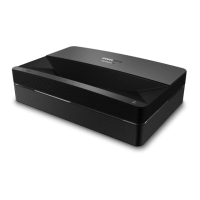
Access online services
Some pre-loaded online applications are
available from the home screen.
To browse, search and install applications,
access Google Play Store from the home
screen.
Notice
The Google Play Store apps come from
3rd party developers. Some apps may
or may not work correctly. Only the
preloaded apps have been tested by
Philips.
Picture adjustment
Adjust image position
This section takes the front table installation
method as an example to explain the picture
adjustment for users’ reference.
1 Connect the power supply and start up the
projector.
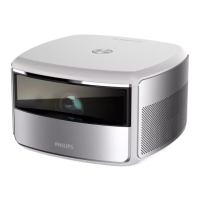
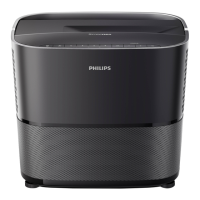
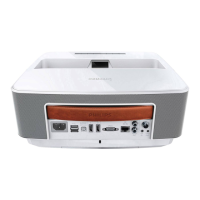
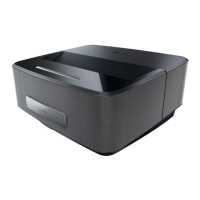
2 If the projector image is not rectangular or
does not align with the screen, adjust the
size and position of the image by moving
the projector forward, backward, left and
right or rotating the height adjustment
kickstand.
Height adjusting
kickstand
Height adjusting
kickstand
Refer to the following instructions to adjust and
get an undistorted image.





 To Next Page