Change settings 17
7 Change settings
This section helps you change the settings of
the projector.
1 To access the Settings menu, use the
Navigation buttons to select the icon in
the upper right corner of the screen, then
press OK.
2 Use
the Navigation buttons and OK to select
and change settings.
Language settings
Go to Device Preferences - Language to select
a language for the on-screen menus.
Date and time settings
Go to Device Preferences - Date & Time to
access the following settings.
• Automatically update date and time, or
manually set date, time and time zone.
• Choose to use 24-hour format.
Picture settings
1 Select to access Settings menu.
2 Select Device Preferences - Picture, and
then press OK.
3 Select a picture option, and then use
the
Navigation buttons
to change:
• Picture mode
• Brightness / Contrast / Saturation /
HUE / Sharpness
• Gamma
• Color Temperature
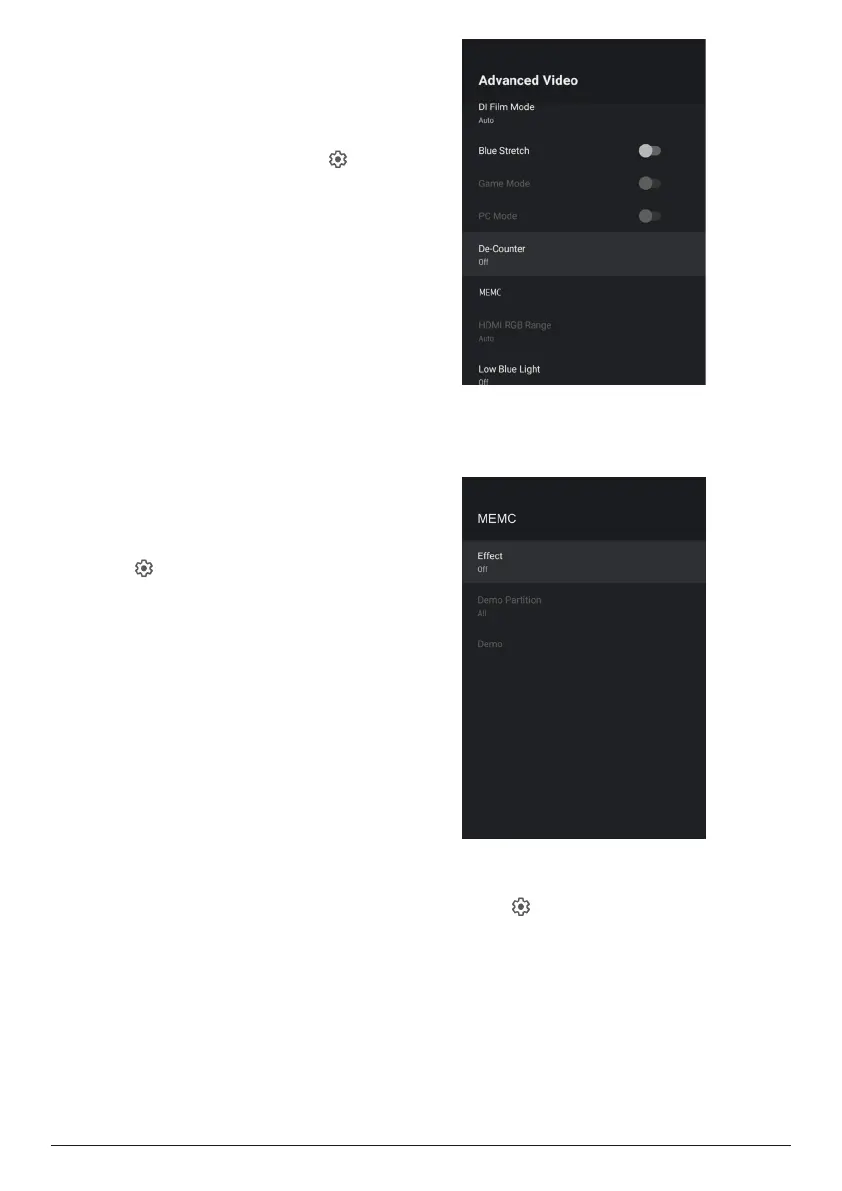
• Advanced Video
• Color Tuner: Enlable the color tuner
to adjust Hue, Saturation, Brightness,
Offset, Gain.
• 11 Point White Balance Correction
• Reset to Default: Reset the picture
settings to factory default values.
FlowMotion
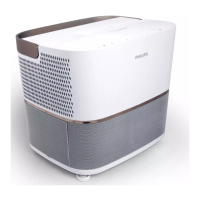
The FlowMotion 4 technology (MEMC) helps to
make playback of fast-moving videos smoother
(games, sports, etc.).
• Go to Device Preferences - Picture -
Advanced Video - MEMC.
• You can set the Effect to “low”, “medium”
or “high” according to your own preference.
For watching movies you can set it to “Off”
to keep the original shooting.
Sound settings
1 Select to access Settings menu.
2 Select Device Preferences - Sound, and
then press OK.
3 Through the Sound settings, you can
make
the following changes:
• Turn the system sound on or off.
• Select a preset sound style or choose
User to customize sound to suit your
video or music.





 To Next Page