18 Screeneo U5 SCN550/INT
• Enable/disable surround sound effect.
• Speakers on or off.
• Enable/disable eARC.
• Enable/disable digital output.
• Turn DTS DRC feature on or off.
• Reset to Default: Reset the sound
settings to factory default values.
• and more.
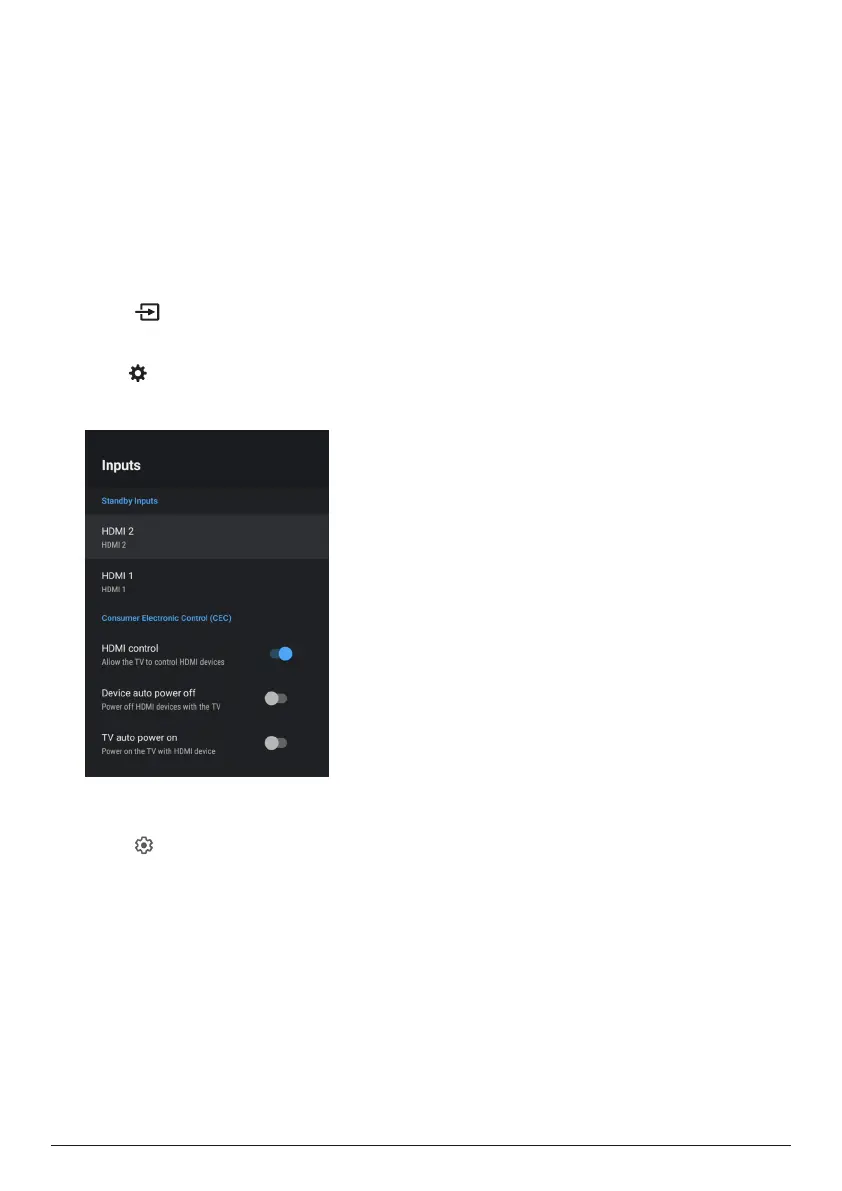
Select input
To select the current input, use either of the
following methods:
• Select in the upper right corner of the
home screen, then select HDMI 1 or HDMI 2
as the input.
• Press on the remote control to access
Settings, go to Device Preferences - Inputs
to select HDMI 1 or HDMI 2 input.
Wi-Fi settings
1 Select to access Settings menu.
2 Go to Network & Internet - Wi-Fi, and then
press OK.
3 Through the Wi-Fi settings, you can make
the following changes:
• Select Wi-Fi then press OK to turn
Wi-Fi on or off.
• Connect the projector to the Internet.
Select an available Wi-Fi network from
the list, then use the pop-up virtual
keyboard to input your Wi-Fi password.
• Add a new Wi-Fi network.
• Configure IP settings and proxy settings
of Ethernet.
Bluetooth settings
Go to Remotes & Accessories - Add accessory
to pair the projector with the remote control,
or a Bluetooth speaker/keyboard/mouse/
gamepad.
Device preferences
Go to Settings - Device Preferences to access
the following settings.
• About: View the projector’s model
information, check software version and
Andriod TV OS version, check for and run
system update, factory reset, etc.
• Timer: Set a timer at which time the
projector will automatically power on or off.
• Keyboard & autofill: Access settings related
to the on-screen software keyboard.
• Inputs: Use a customized name for HDMI
1&2 inputs; control HDMI™ CEC function.
• Power
• Sleep timer: Set the auto sleep timer.
• Switch off timer: Set the auto power-off
timer.
• No-Signal Auto Power-Off: Choose
whether the projector will automatically
power off when no input signal is
detected.
• Auto Sleep: Choose whether the
projector will automatically turn the
screen off when the projector is idle.
• Storage: Check the total and used space for
internal storage.
• Home screen: Customize and organize the
home screen.
• Google Assistant: Turn Google Assistant on
or off; select the active Google account and
customize Google Assistant behaviour.
• Chromecast built-in: View information
about Chromecast.
• Accessibility: Configure a variety of
accessibility options, including captions
and text-to-speech.









 To Next Page