Service 21
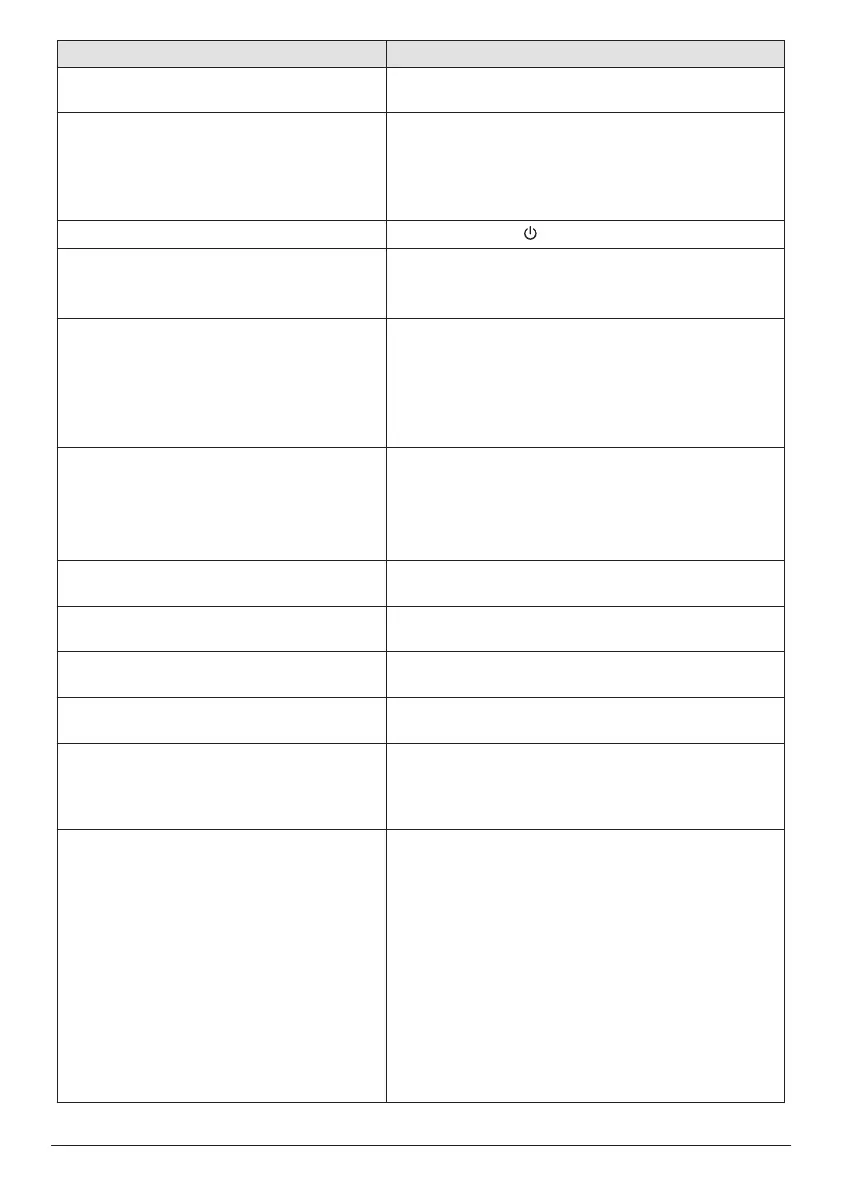
Problems Solutions
The projector cannot be turned on. • Disconnect and reconnect the power cable, and
try to turn the projector on again.
The projector turns itself off. • When the projector is running for a long period
of time, the surface becomes hot. Ventilate the
projector properly, with at least 30 cm clearness
around all the sides of the projector.
• Check that the power cable is connected correctly.
The projector cannot be turned off.
• Press and hold longer than 30 seconds.
The projector cannot read the USB stick. • The projector does not support the exFAT file
system.
• Format the USB stick in FAT format, then use it.
No image from the external HDMI™ device. • Check if the HDMI™ input is selected.
• Disconnect the HDMI™ cable or switch off the
HDMI™ device.
• Wait 3 seconds.
• Reconnect the HDMI™ cable or switch on the
HDMI™ device again.
No sound from the external connected
device.
• Check the cables to the external device.
• Check that the sound is activated on the external
device.
• Only the original cables from the device
manufacturer may function.
No sound from external HDMI™ output
device.
• On the HDMI™ output device, set the audio
setting to Stereo (PCM).
No sound when you connect your
computer via HDMI™ cable.
• Check that the sound is activated on the computer
and set to output to the projector.
The projector does not react to remote
control commands.
• Check the batteries of the remote control.
The temperature of the projector’s surface
is warm.
• For this projector it is normal to generate
moderate heat during operation.
What to do if the projector does not work
when connecting to a notebook PC?
• Check that the HDMI™ cable is plugged in
correctly.
• Make sure that the notebook PC has been
switched to projector display.
Black or white dots (Dead Pixels) appear
on the screen.
• DMD displays from Texas instrument may
contain a small number of pixels that do not
function normally (“Dead Pixels”). Your display
has been inspected and is in compliance with
manufacturer’s specifications, indicating that any
pixel defects do not affect the operation or use
of your display. Without prejudice to generality
of the foregoing, Dead Pixels not exceeding 7
dots are within factory specification and are not
considered a defect under this warranty.
• Concerning dust, it is usually very rare to have
dust inside the optical machine and it should be
on the lens. To clean the lens, use lens-cleaning
paper to gently wipe the lens surface.





 To Next Page