The Inline controller under PC Worx/PC Worx Express
8385_en_02 PHOENIX CONTACT 49
3.4 The Inline controller as a PROFINET device
Activating the PROFINET
device function of the
ILC 131 ETH
You can activate the PROFINET device function once you have assigned an IP address for
the ILC 131 ETH as described in Section “Assigning the IP address for the controller” on
page 45 (in the following example: 192.168.161.155).
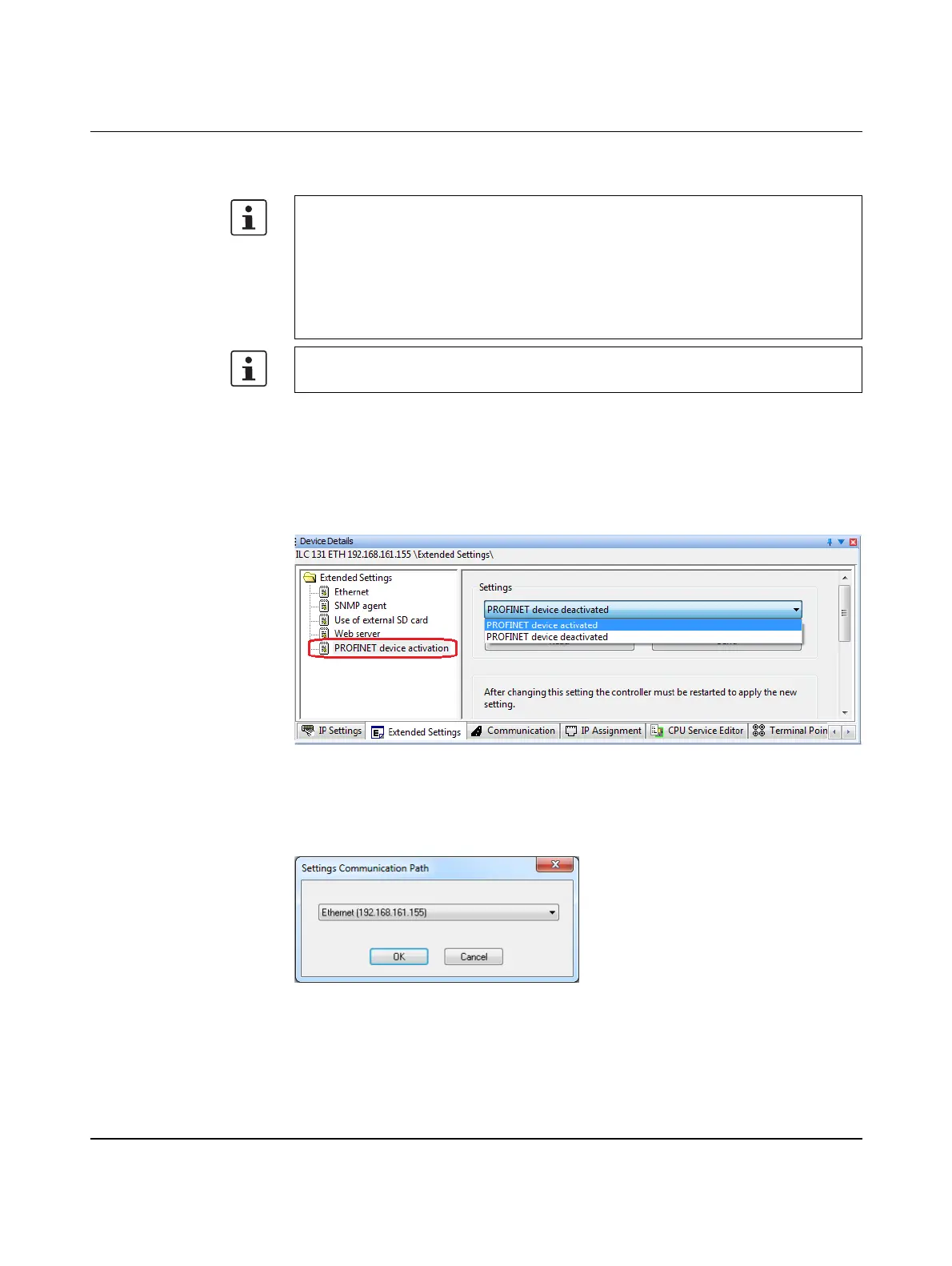
• In the “Device Details” window, select the “PROFINET device activation” item under
“Extended Settings”.
• Under “Settings”, select “PROFINET device activated”.
Figure 3-8 Switching on the PROFINET device function
• Click “Send” (hidden by the drop-down list in Figure 3-8).
• In the “Settings Communication Path” dialog, confirm the suggested IP address or the
one you have set according to your application with “OK”.
Figure 3-9 “Settings Communication Path” dialog
Please note that it is only possible to integrate the Inline controller into the PC Worx soft-
ware as a PROFINET device.
The PROFINET device function of the Inline controller can also be activated in the
PC Worx Express software.
This section uses an example to describe how to integrate the ILC 131 ETH as a PROFI-
NET device. This procedure applies to all the Inline controllers listed in
Section Section 1.1.
The PROFINET-specific system variables can be found in Section 4.5 on page 82.



 To Next Page