6-10
6 • Adding Postage/Connecting to Data Center
SV62276 Rev. D
At a PC Using PC Meter Connect™ (Enhanced Version)
1. At the Postage tab, click on Add Postage to Meter.
2. Enter in the amount you desire, or choose one of the pre-set
amounts for quicker selection. Click Confirm to continue.
3. A status bar displays, letting you know the progress of the trans-
action. After the postage has been downloaded into your meter,
you have choice to print a receipt from your PC:
A. To bypass the printing of the receipt, click Skip.
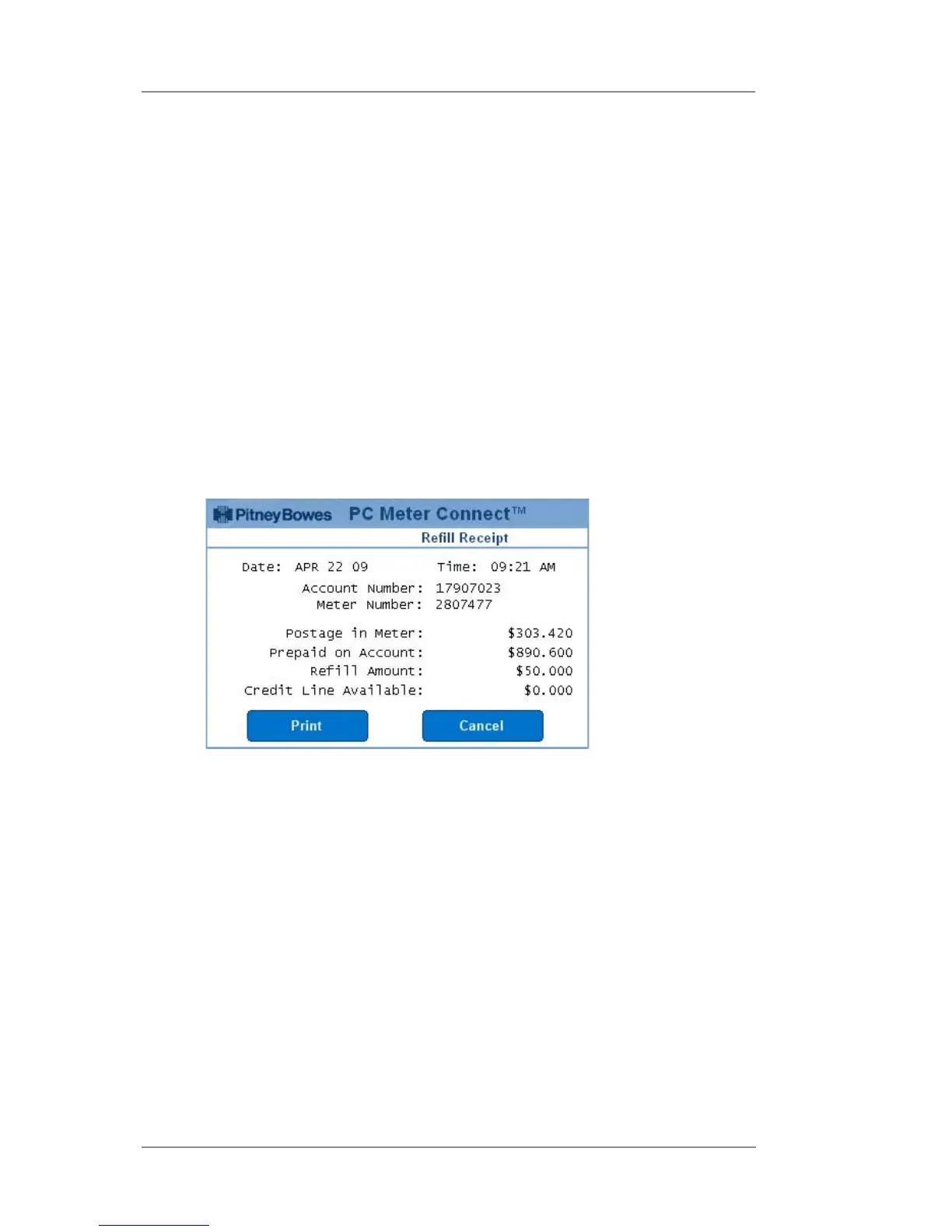
B. To print, click Print Receipt. The Refill Receipt screen displays.
Refill Receipt
from PC Meter
Connect™
Postage in Meter - amount of postage (funds) in your meter.
Prepaid on Account - amount you have left in your Postage By
Phone® system ac count of those funds you paid for in advance
(by sending in a check, direct withdrawal, etc.)
Credit Line Available - amount you have left in your Postage By
Phone® system ac count of those funds you established as credit
with Pitney Bowes (such as Purchase Power®, etc.).
Refill Amount - amount of your refill.
Account No. - your Postage By Phone® system ac count number.
Meter No. - your meter serial number (on record with the USPS)
which is printed on the meter stamp.
C. Click Print to continue. The receipt prints at your PC printer.
Click Done when finished.
Adding Postage
You can add postage to your machine any time you need to, as long
as you have enough funds in your Postage By Phone® ac count and
your system is connected to the Pitney Bowes Data Center.












 To Next Page