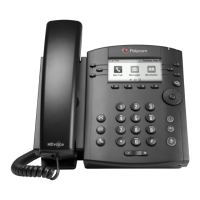
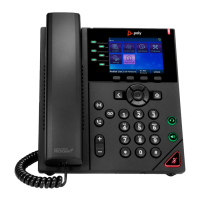
Poly® VVX® 500 and Poly® VVX® 600 Business Media Phones User Guide
22
Managing Multiple Calls
You can easily manage multiple calls from Lines and Calls view. To switch between the two views, swipe
the screen.
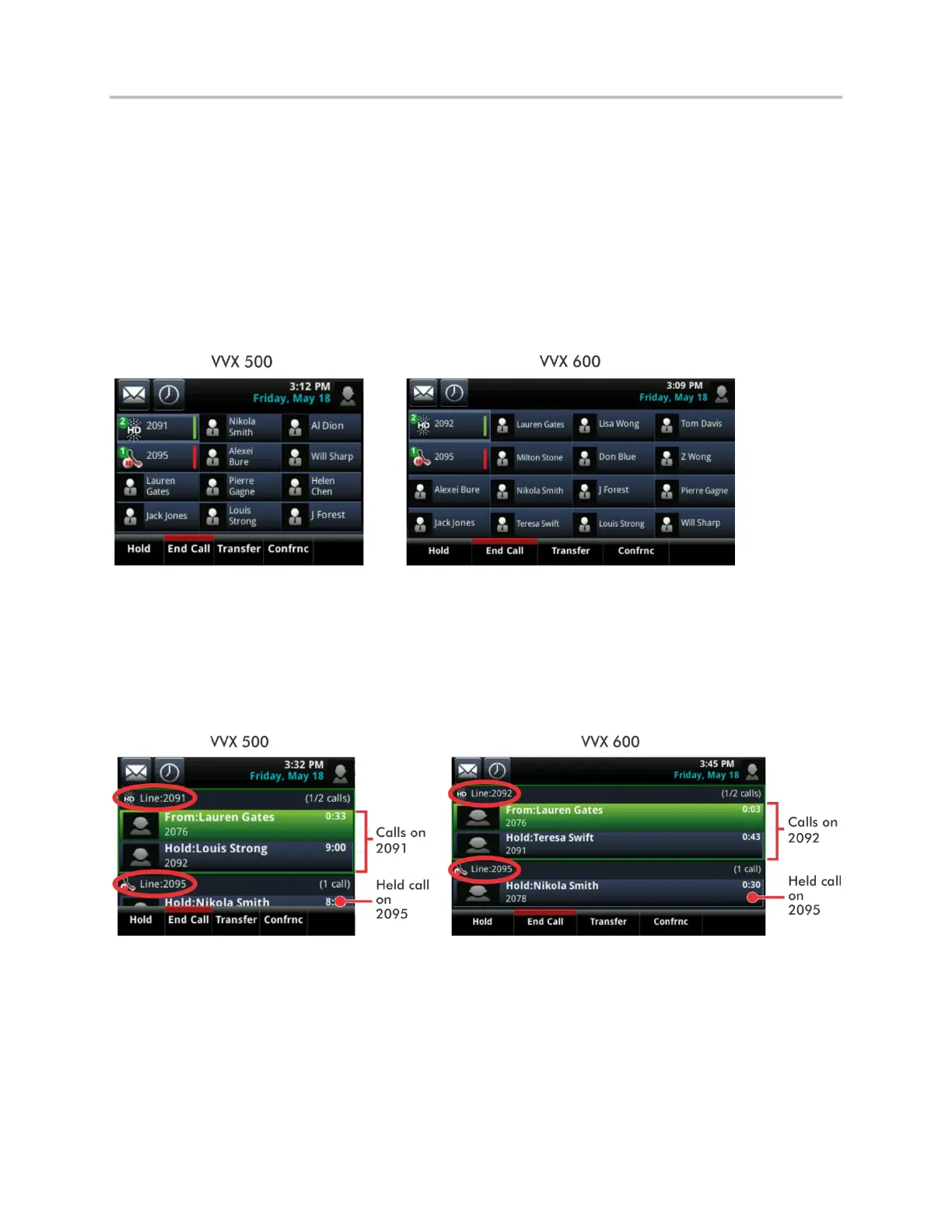
Lines view shows you each line on your phone, and how many calls each line has, as shown next. A
green bar indicates a line with an active call. A flashing red bar indicates a line with one or more held
calls. In the example on the left, line 2091 has two calls (one active, one held), and line 2095 has one
held call. The soft keys apply to the phone line that has the blue border (line 2091). To display the calls
for a particular line, press and hold the phone line.
If you tap a phone line that doesn’t have an active call, the most recent call on that line will become
active. The current call will be held.
Swipe the screen to display Calls view. Calls view displays all the calls for each phone line, as shown next.
All the calls for a phone line display under the associated phone line. Scroll up or down to see all your
lines and calls.
To manage a call, tap a call to highlight it. Then, tap one of the soft keys to hold, resume, end, or
transfer the highlighted call, or set up a conference with the highlighted call.



 To Next Page