Chapter 3: Using Advanced Features
85
Using a Mouse and Keyboard with Your Phone
You can use your computer’s mouse and keyboard to enter information and navigate screens on your
phone. For example, you can enter phone numbers, contact directory information, and select
touchscreen objects without using the phone’s keypad or tapping the touchscreen. You can easily move
the mouse pointer back and forth between your computer and your phone depending on your task.
Before you can use your mouse and keyboard with your phone, you need to make sure the
Poly Desktop Connector (PDC) application is installed and running on your computer. While the PDC
application is running, you can move your mouse pointer back and forth between your computer and
phone.
Web Info: Detailed Information About Setting Up, Enabling, and Using PDC
For more information about setting up and enabling the Poly Desktop Connector, including how
to use it to navigate and enter information on your phone, see Extend Your PC to Your Phone with
the Poly Desktop Connector (Feature Profile 52855).
Starting and Stopping Poly Desktop Connector
Before you can start using your mouse and keyboard with your phone, you’ll need to start the PDC
application from your computer.
You can close the application at any time to prevent your mouse pointer from moving to the phone. If
you stop it, you can restart it again at any time.
To start Poly Desktop Connector:
1 From the Start Menu, select Programs > Poly > Poly Desktop Connector.
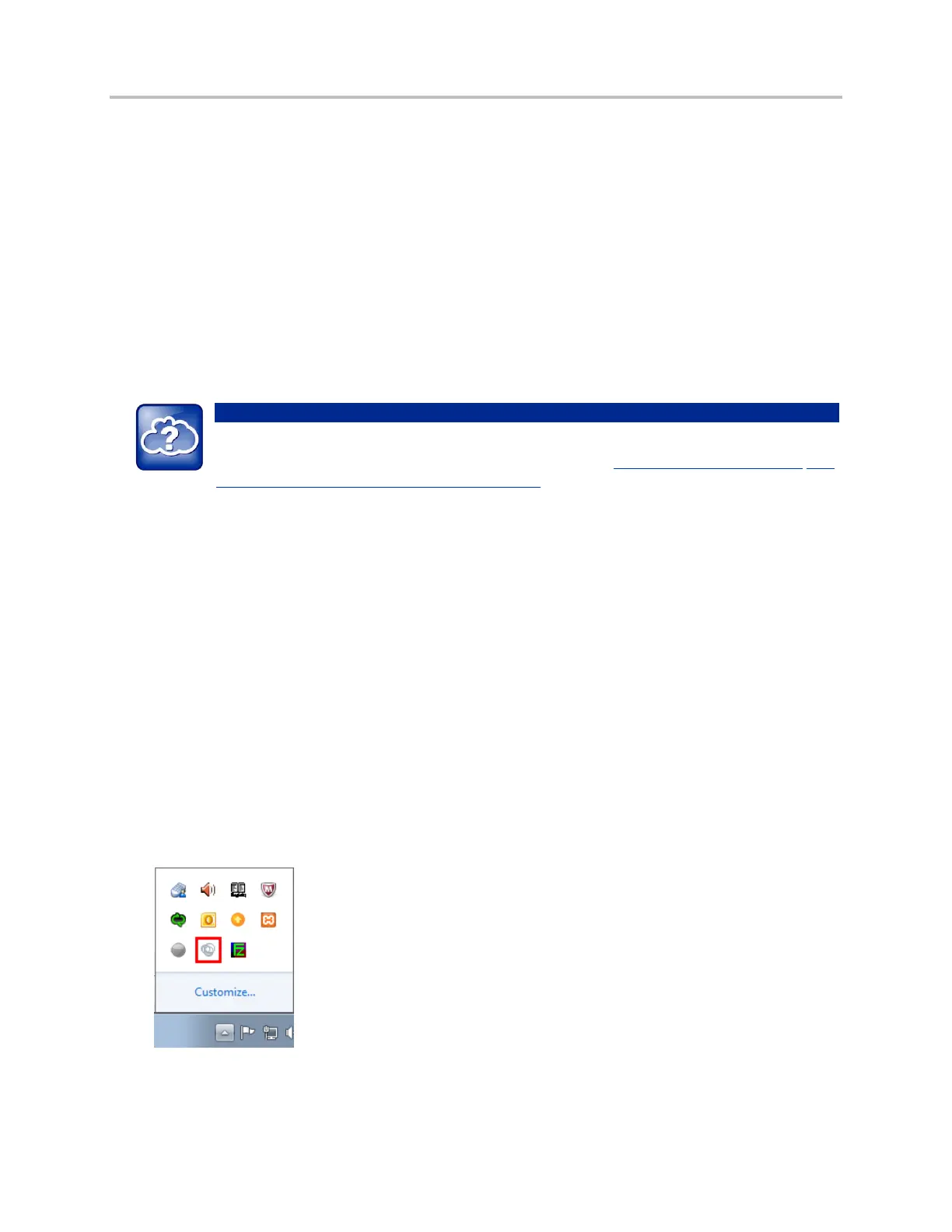
After a few seconds, the Poly Desktop Connector icon (shown next), displays in the Windows
system tray, and the message Allow remote control of device <MAC address of phone> displays
on the computer. This message displays only the first time the application is started.
2 Click OK.



 To Next Page