37 | Chapter 1 : DVR User Manual
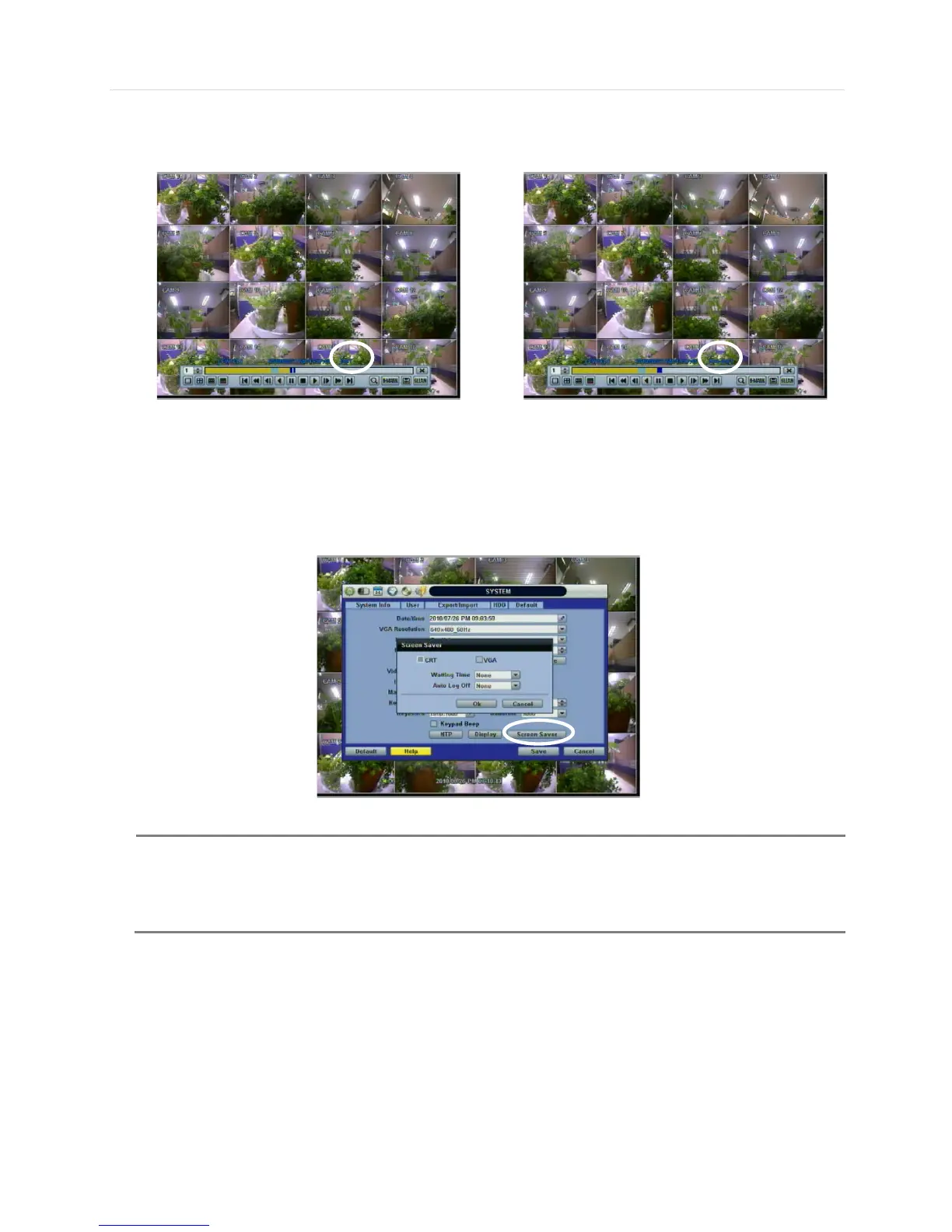
When user click on such overlapped period, a message titled “Recorded video Selection” will pop up. The user can then
select whether to play DST data or Non-DST data.
Click OK to play DST image. Click CANCEL to play Non-DST image.
[“DST” image is displayed on screen] [“Non-DST” image is displayed on screen]
To make SCREEN SAVER setting on the DVR, go to the menu setup: SYSTEM > SYSTEM INFO and click “SCREEN
SAVER” to get the SCREEN SAVER setting window as shown below. Users can select CRT and/or VGA by checking the
boxes. Users can set the WAITING TIME for when the monitor will automatically turn off.
Users can turn on the selected monitor by clicking a mouse, pressing any frontal key buttons, or pressing any buttons on the
remote controller.
WAITING TIME: Users can select the WAITING TIME from NONE, 1,2,3,4,5,6,7,8,9,10,20,30,40,50, and
up to 60 MIN. The SCREEN SAVER will not work when either WAITING TIME is set to “NONE” or both
SPOT and VGA checkbox are unchecked. SCREEN SAVER may not work, during system upgrade, HDD
format, or data backup process. The system continues to record while the monitor is turned off.
When it comes to the “AUTO LOGOFF” setting, please refer to the USER setting.


 To Next Page