104104
PreSonus StudioLive
™
16.4.2
Quick Start:
Level
Setting
Overview Hookup Controls Connecting
to a
Computer
Tutorials Technical
Information
Trouble-
shooting
and Warranty
Scenes, Presets,
and System Menu
7 Software: Universal Control, SL Remote, Capture, Studio One Artist
Software: Universal Control,
SL Remote, Capture,
and Studio One Artist
7.4 Capture
• Play: Start playback at the current playback-cursor position.
• Record: Start recording at the current playback-cursor position.
• Loop: Engage/Disengage Loop Mode.
• Time Display: Displays the time at the current playback-cursor position.
• Remaining Time: Displays the remaining time that can
be recorded, based on the size of the available storage
left on the hard drive to which you are recording.
7.4.4 The Edit Window
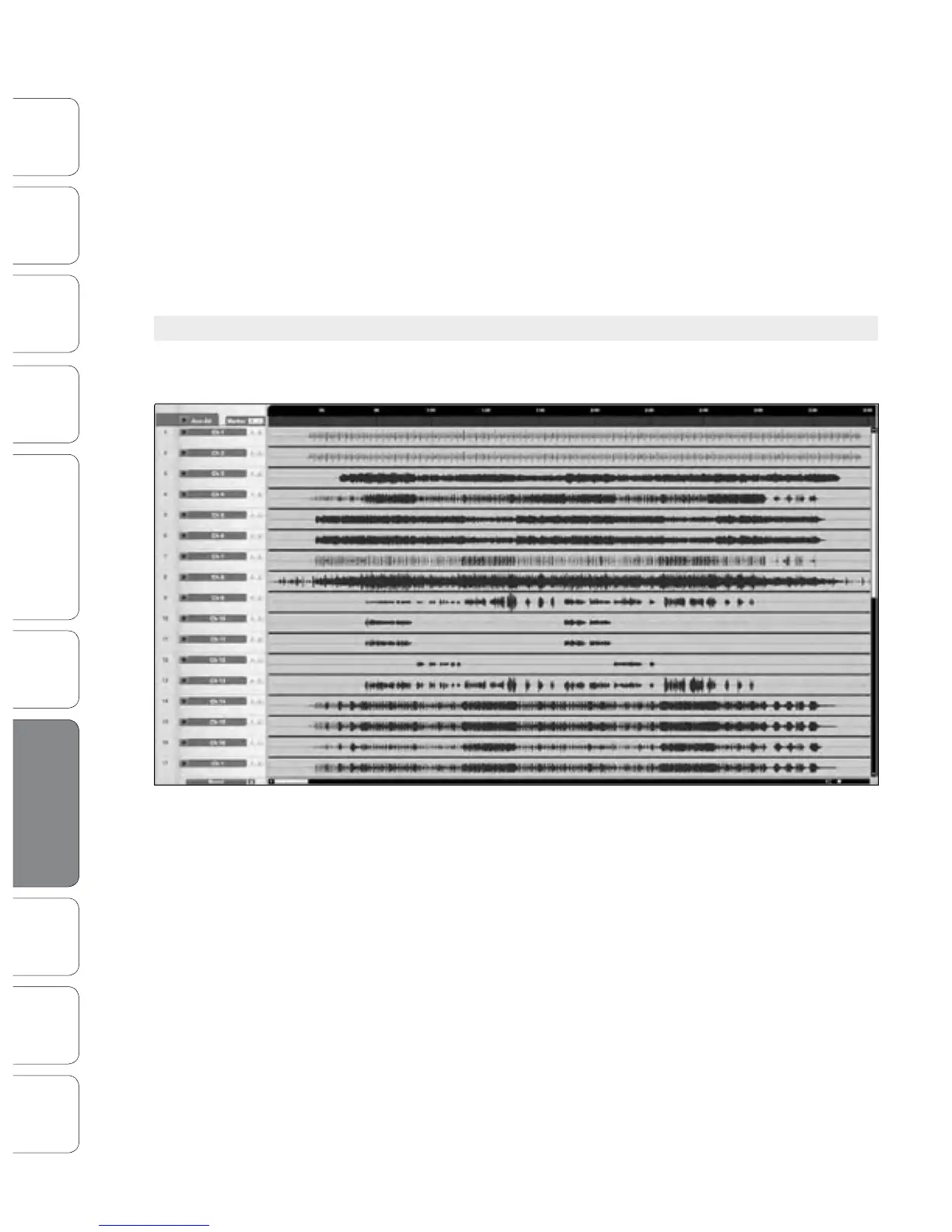
The Edit window is the main view of the Session page,
which provides an overview of the Session for editing.
The Edit window contains the following:
• Timeline Ruler: Displays time increments in seconds.
• Marker Lane: Displays user-inserted markers.
• Arm All: Click this button to arm all inputs for recording.
• Marker ±: Click on the plus (+) button to add a marker at
the current playback cursor position. Select a marker and
click on the minus (-) button to remove the marker.
• Track Column: Contains a dedicated audio track for each audio input
into Capture from the StudioLive mixer, including a Main stereo track.
• Vertical Zoom: Increases or decreases the
height of the tracks and audio les.
• Horizontal Zoom: Zooms the session timeline in or out.




 To Next Page