8989
Owner’s Manual
Quick Start:
Level
Setting
OverviewHookupControlsConnecting
to a
Computer
TutorialsTechnical
Information
Trouble-
shooting
and Warranty
Scenes, Presets,
and System Menu
Software: Universal Control, SL Remote, Capture, Studio One Artist 7
Software: Universal Control,
SL Remote, Capture,
and Studio One Artist
7.3.2 Connecting to Virtual StudioLive and the StudioLive Mixer
Once you have created your ad hoc network and joined it from your
iPad, you are ready to launch StudioLive Remote. Important: You must
connect to your computer’s ad hoc network each time you plan on
remote-controlling your StudioLive with StudioLive Remote.
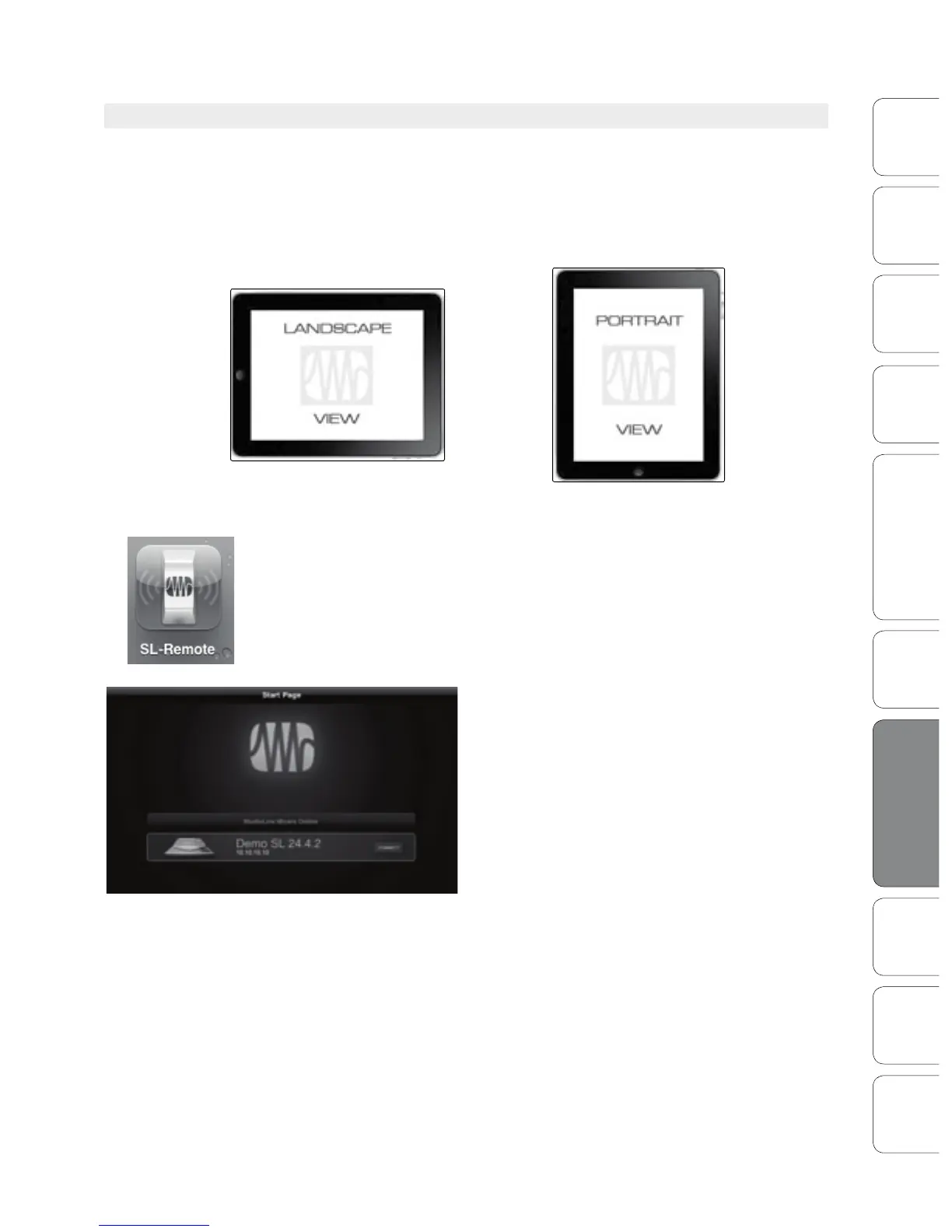
Apple’s iPad oer two unique viewing options: Landscape and Portrait:
For the most part, you will be holding your iPad in Landscape view. This will
allow you to use the Start, Overview, Aux Mix, and GEQ pages. Portrait view
provides you with a zoomed in view of the currently selected channel and allows
you to scroll quickly through every channel and bus on your StudioLive.
To launch StudioLive Remote, tap on the SL Remote icon on your iPad.
When you launch StudioLive Remote for the rst time on a new ad hoc
network, or if you have joined a dierent wireless network since the last time
you linked your computer and iPad, you will taken to the Start page.
On the Start page, you will see a list of every
StudioLive mixer on the network, including
the 24.4.2 oine simulation. The StudioLive
24.4.2 oine simulation enables you to practice
nger control away from your StudioLive.
To connect to your mixer, tap on the StudioLive
device icon. The text will change color to
alert you that it has been selected.
Tap the Connect button to open SL Remote
and control your mixer from your iPad.
Using StudioLive Remote for iPad 7.3










 To Next Page