7474
PreSonus StudioLive
™
16.4.2
Quick Start:
Level
Setting
Overview Hookup Controls Connecting
to a
Computer
Tutorials Technical
Information
Trouble-
shooting
and Warranty
Scenes, Presets,
and System Menu
7 Software: Universal Control, SL Remote, Capture, Studio One Artist
Software: Universal Control,
SL Remote, Capture,
and Studio One Artist
7.2 VSL: Virtual StudioLive
7.2 VSL: Virtual StudioLive
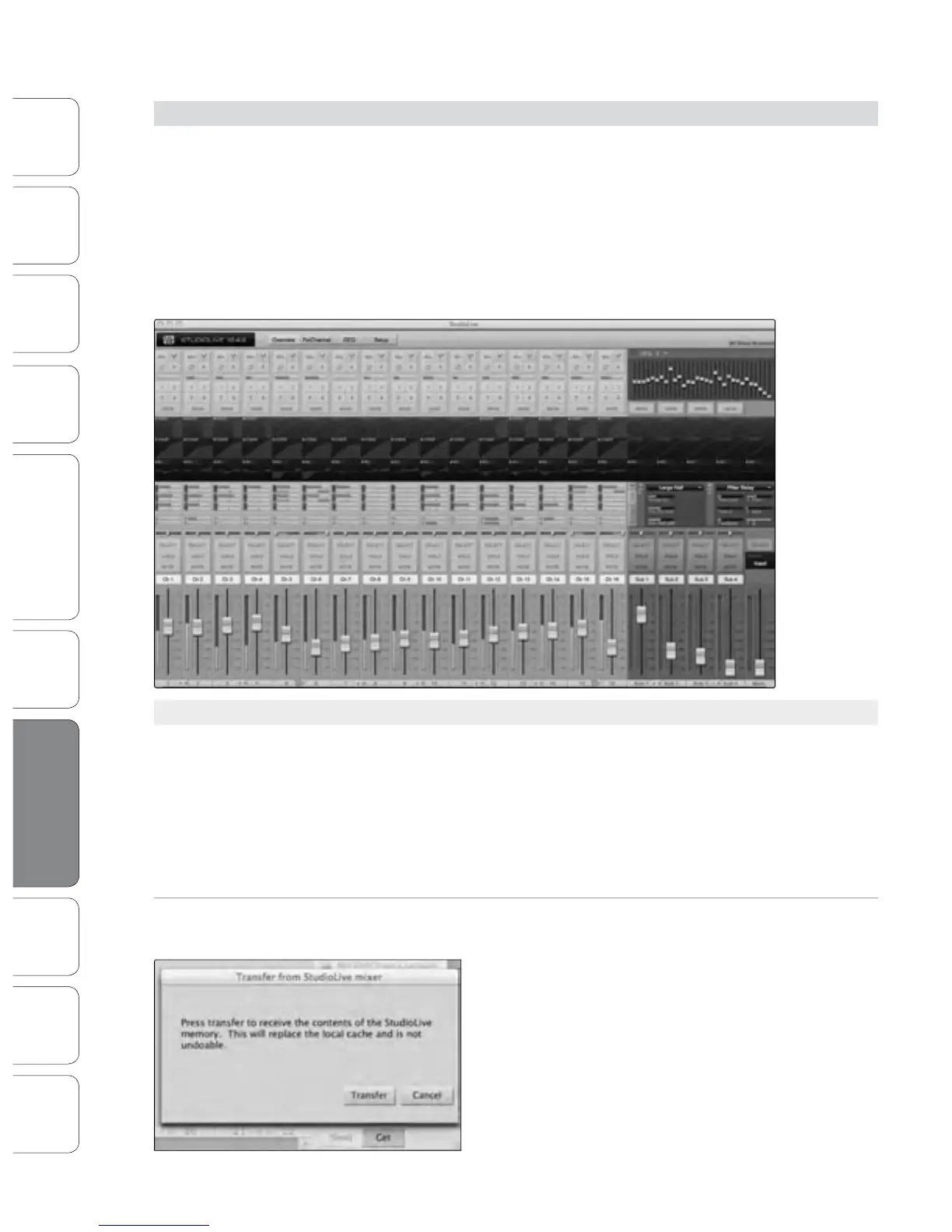
Virtual StudioLive (VSL) is a highly advanced editor/librarian and
control application that is completely integrated with the StudioLive
16.4.2. Because of the continuous bidirectional communication
between your StudioLive and VSL, whatever you do on the
StudioLive‘s mixing surface will be reected in VSL and vice versa.
VSL for StudioLive 16.4.2 requires a minimum screen resolution
of 1024x768. For vertical resolutions set below 914, VSL will
dynamically change the channel faders to knobs.
7.2.1 VSL: Browser
When you rst launch VSL, notice the Browser window along the
right side of the screen. The Browser in VSL functions similarly to the
Browser in Studio One. From the Browser, you can see all of the Scenes,
Fat Channel presets, eects presets, and graphic EQ settings that are
saved on your StudioLive and on your computer. You can also create
new settings and can back up your entire library from this window.
Simply drag-and-drop a Scene or preset to load it on your StudioLive.
Get Button Transfers All Scenes, Fat Channel, FX, and Graphic EQ Presets
Stored on the StudioLive to VSL.
When you rst launch VSL, you will need to create a
link between your StudioLive‘s internal memory and
your computer. To do this, click on the Get button.
A dialog will open, prompting you to click the Transfer
button. Any settings that are temporarily stored in the
local cache (i.e., settings that are currently visible in
the Device Memory section of the Browser window)
will be overwritten.










 To Next Page