8080
PreSonus StudioLive
™
16.4.2
Quick Start:
Level
Setting
Overview Hookup Controls Connecting
to a
Computer
Tutorials Technical
Information
Trouble-
shooting
and Warranty
Scenes, Presets,
and System Menu
7 Software: Universal Control, SL Remote, Capture, Studio One Artist
Software: Universal Control,
SL Remote, Capture,
and Studio One Artist
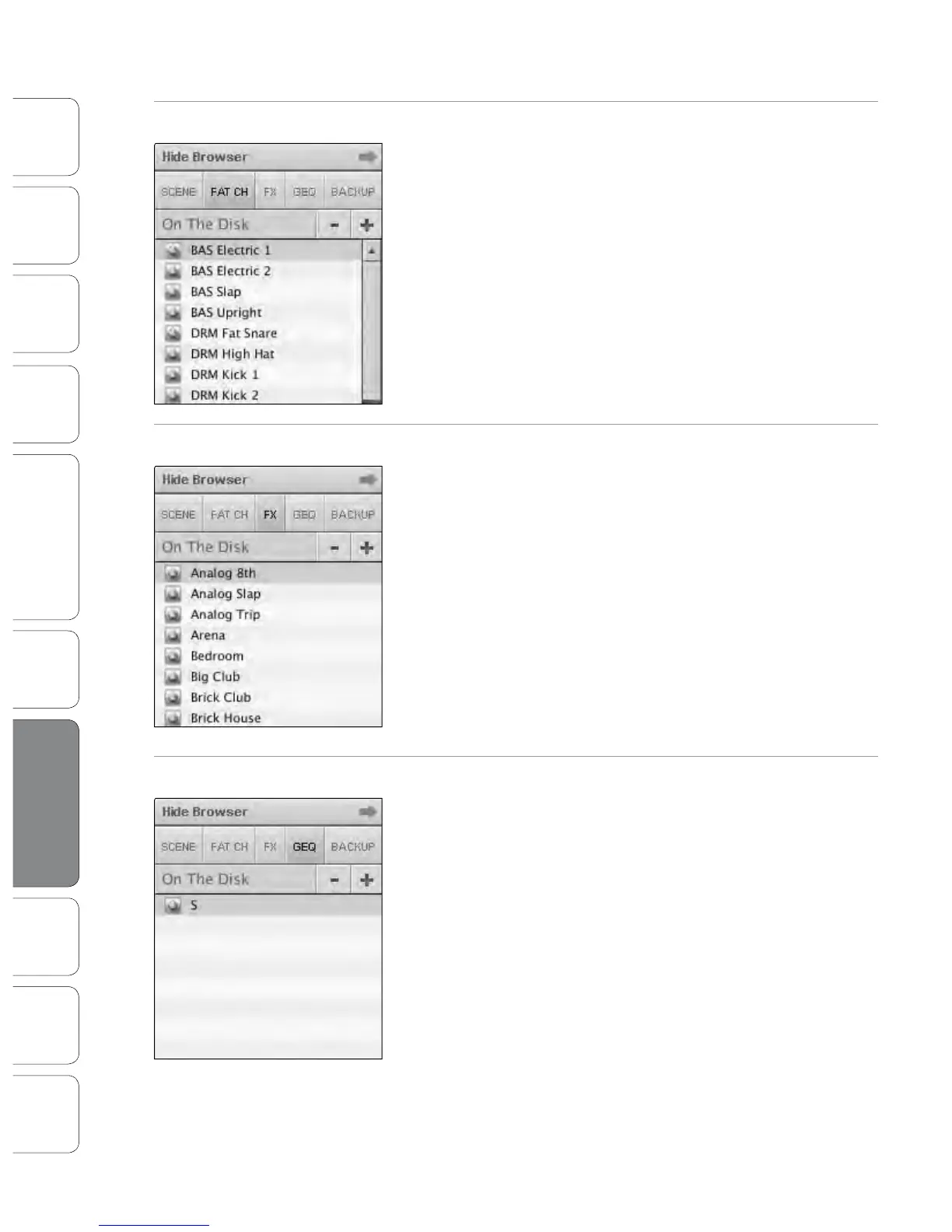
Loading an Entire Fat Channel Preset
To load every component in a Fat Channel preset (Gate, Compressor, EQ),
select the preset from the Browser window and drag it over any part of
the desired channel. If you drag it over any of the component Quick
Views, it will load only that component (e.g., if you drag a preset over the
Gate Quick View, only the Gate will be loaded).
Loading an FX Preset
To load an eects preset, select it from the Browser window and drag it
over any part of the desired FX bus in the Master section of the Overview
tab. Once it is loaded, you can use the FX Type menu to change the eect
and create new presets.
Note: At this time, VSL does not transfer the name of the preset to the
StudioLive. All FX presets loaded from within VSL will be labeled “Natural”
in the FX menu on your StudioLive.
Loading a GEQ Preset
To load a graphic EQ preset, select it from the Browser window and drag it
over any part of the focused graphic EQ. Graphic EQ presets can be
loaded on the Overview tab or the GEQ tab. Once a GEQ preset is loaded,
you can use the sliders in VSL, or the encoders on the StudioLive, to make
adjustments. Note that you must be in the GEQ menu page for the
graphic EQ you wish to control in order to use the StudioLive encoders to
control a graphic EQ in VSL. See the next section for details.
7.2 Virtual StudioLive










 To Next Page