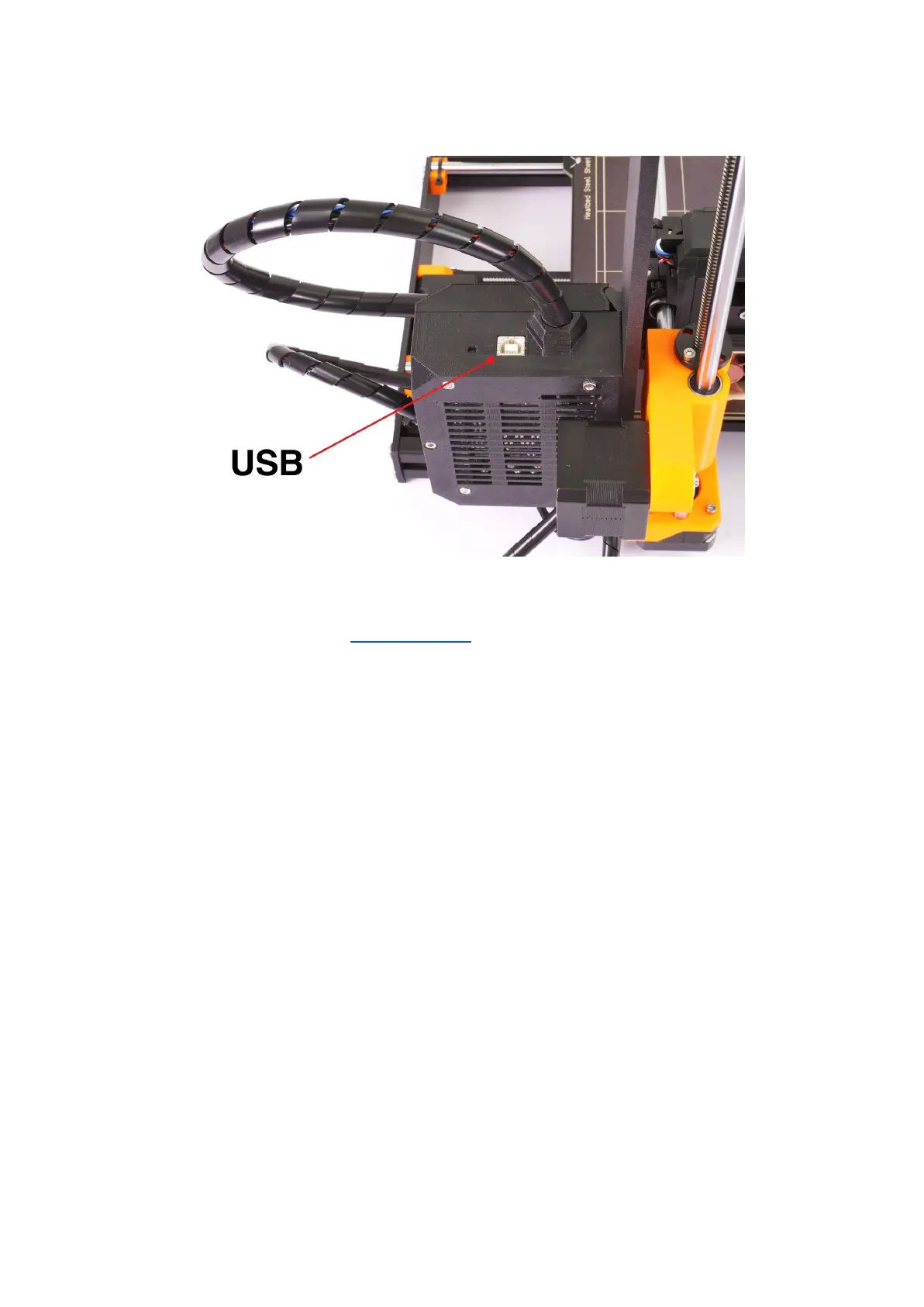
● Connect the printer to the computer with the USB cable.
Pict.
21
-
You
can
find
USB
port
here
● Choose the connection port in Pronterface (download available with the printer
drivers, see the chapter 9 Printer drivers): Mac users use /usbmodem
port, PC
Windows ports are COM1, COM2, etc.; the correct port is displayed in the device
manager, Linux users connect the printer using the virtual serial port. When the
printer is connected, click the Connect button. The right column displays the
connection information.
● The next step is loading the model with Load model button and choosing the
file_name.gcode (no special symbols in file name).
● You can control the movement of all printer axes at the control area.
● Next you can preheat the printer and prepare it for the printing. Set the temperatures
for the nozzle (heater) and heatbed (bed) and click Set button. The printer starts
heating immediately. Always check that the temperatures set in Pronterface are
correct according to our material guide!
● You can check the actual temperatures of the nozzle and the bed in Pronterface.
● When the model is loaded, the right column shows the estimated print duration:
Estimated duration (pessimistic)
34


 To Next Page