7.2.10 Print speed versus print quality
Printing a small object takes a few minutes, but printing larger models are time consuming -
there are prints taking tens of hours. The overall printing time can be changed in different
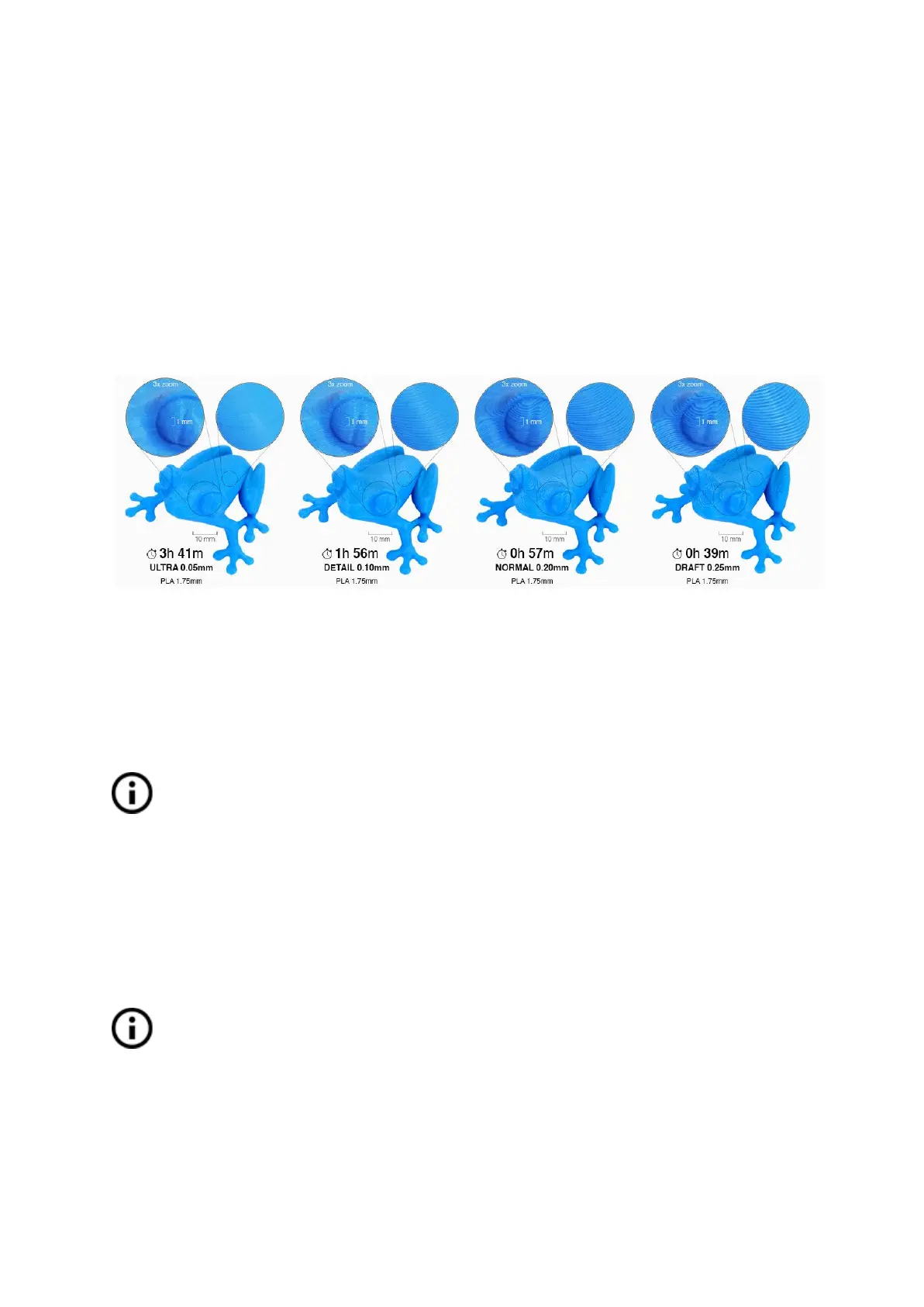
ways. The first way to alter the printing speed is by changing layer height in Slic3r - upper
right window shows Print settings option. The default setting is 0.20 mm (NORMAL), you can
speed up the printer by choosing the 0.35 mm (FAST) option. Raising the speed will result in
the model being less detailed with visible layer borders. If you prefer quality over speed,
choose 0.10 mm (DETAIL) option. Printing time will double but the model gets the extra
detail. Again, higher printing speed results in a less-detailed model
.
Pict.
20
-
Print
quality
vs
print
time
The speed can also be changed while printing. The LCD shows the FR 100 % item - it’s
actual print speed (feed rate). By turning the LCD-knob clockwise you can increase the print
speed up to 999 %. However, we do not advise increasing the speed over 200 %. Watch the
results of increased speed on the printed model and adjust the speed accordingly.
When increasing the speed always check that the model is cooled properly -
especially when printing a small object from ABS, increased speed causes distortion
(sometimes called “warping”) of the model. You can prevent this issue by printing
more similar objects together - layer printing interval is long enough to prevent this
issue.
If the model shows a lower quality than desired, you can decrease the printing speed - turn
the LCD-knob counterclockwise. Minimum usable printing speed is around 20 % of nominal
speed.
7.2.11 USB cable and Pronterface
We strongly recommend the use of the LCD panel while printing on the Prusa i3 MK3
- Pronterface doesn’t support all functions of the new firmware (e.g. filament change
while printing).
Keep in mind that when printing from Pronterface, the computer must be connected to the
printer during the whole printing process - the computer must be prevented from sleep,
hibernation, or shutting down. Disconnecting the computer during the print ends the printing
without the option to finish the object.
33


 To Next Page