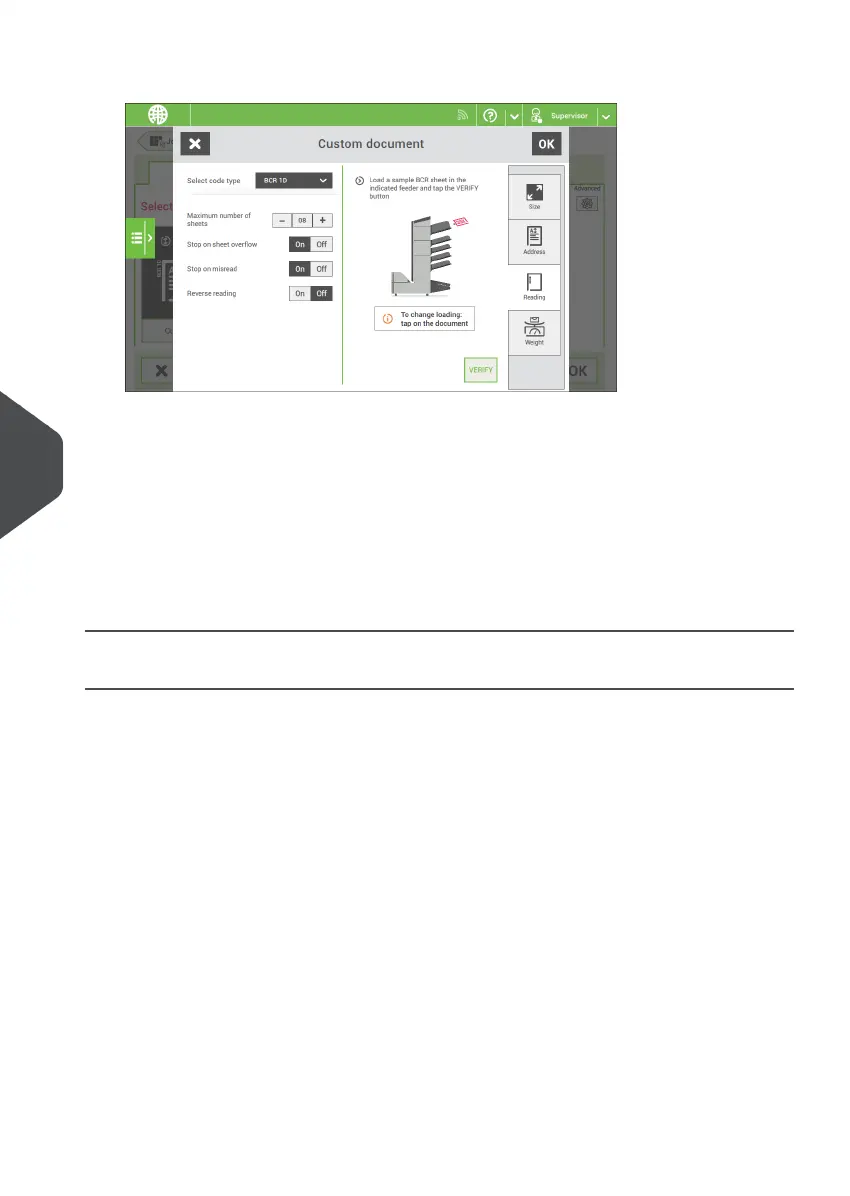
8. Select the code type [BCR 1D] or [BCR 2D].
9. Load a sample document in the feeder tray as indicated.
10. Tap [Verify] to find the barcode(s) on the sheet.
• If multiple barcodes are found you can select the correct barcode from the list.
11. Tap [OK] and follow the remaining steps to complete the job.
12. When you completed the job creation, tap [Save] to save job.
If required the maximum number of sheets can be reconfigured. Refer to Reading Settings
for more details on how to change these settings.
Read a Configuration Sheet
If you want to set the code definition for BCR, use a BCR configuration sheet. The
configuration sheet function is available when you are logged on as a supervisor on page
6.
To read a configuration sheet:
Go to the settings menu for supervisor, see Opening the settings menu (supervisor).1.
112
| Page 112 | Nov-25-2020 04:16 | Reading
8
English


 To Next Page