Application Setup
Intelligent Electric Vehicle Chargepoints QUBEVSM-V01-R0 Installation and Operation Manual
Page 25 of 42 February 2023
Add a Device
1. Log into the application using the details entered during registration.
x Read the application agreement then select the ‘I Agree’ check box to accept the
terms and continue to use the app.
2. Press and hold the function button on the charger for 10s (beep x2) to reset the Wi-Fi.
NOTES:
x Make sure the charging cable is NOT connected to the vehicle before moving to the next
step.
x Make sure the mobile phone is close to the charger before moving to the next step.
x Make sure the phone’s Wi-Fi, Bluetooth and Geolocation are turned ON.
x If these services are not on, the application will alert you to this during the next steps.
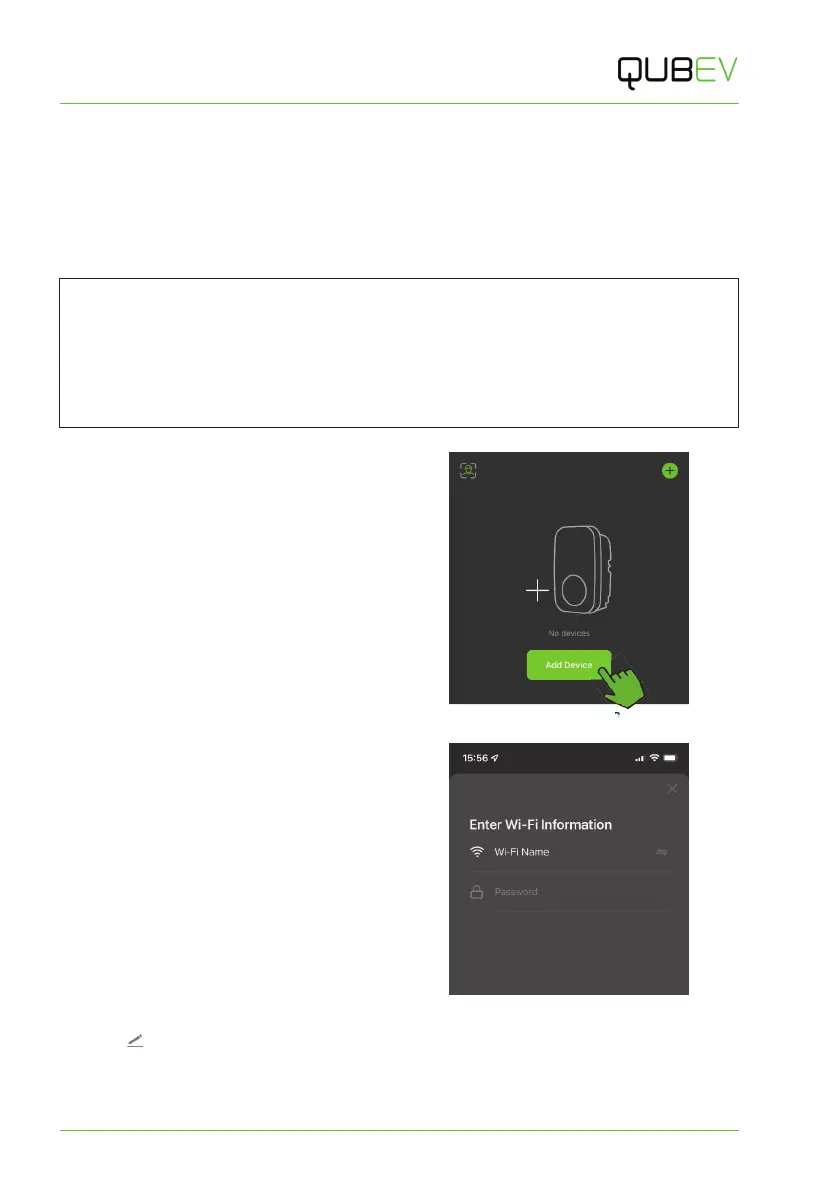
3. Tap the Add Device button on the
phone screen to add the charger
device that needs to be connected.
x The application will automatically
search for the charger.
4. The application will display the
charger(s) it has found during the
search.
5. Select the appropriate chargepoint
then tap the ADD button on the phone
screen.
Figure 17 Add Device Screen
6. Enter the Wi-Fi name and password of
the access point onto the screen.
x You may need to get these details
from the customer.
x Make sure to add the details
exactly as they are shown. They
are often case sensitive.
7. Wait for the application to add the
chargepoint.
8. A ‘success’ screen will be shown.
9. If required, the charge point name can
be edited by tapping the pencil icon
( ).
Figure 18 Enter Login Details
x Alternatively, tap the Done text button to access the default Home screen of the
application.


 To Next Page