Application Setup
QUBEVSM-V01-R0 Installation and Operation Manual Intelligent Electric Vehicle Chargepoints
February 2023 Page 30 of 42
Change the Load Balancing Setting
If the figure entered into the system for load balancing is incorrect or needs to be changed it
cannot be amended without removing the data from the system.
NOTE:
If attempting to amend the figure, the system will appear to accept the entry by beeping twice
but the entry will NOT be saved.
To remove data from the system:
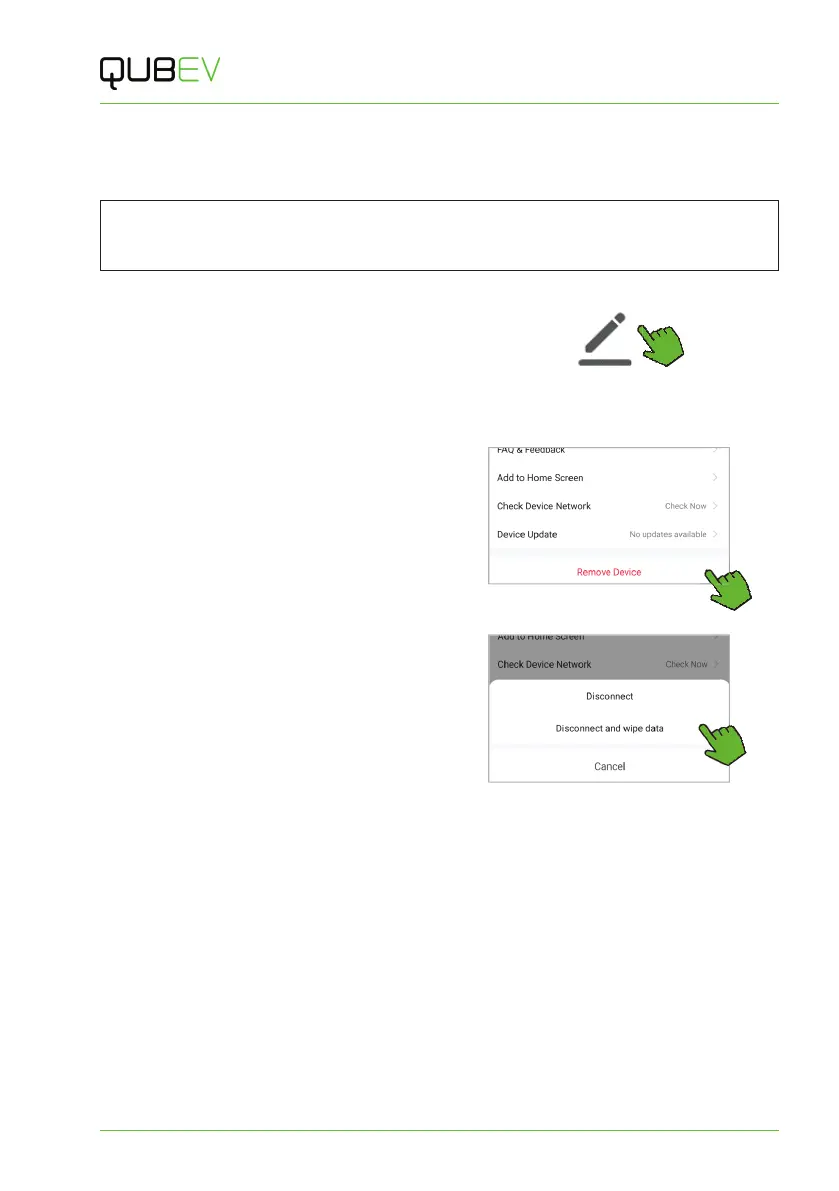
1. Tap the Edit icon shown at the top of
any of the main application screens.
x A configuration screen will be
displayed.
Figure 24 Edit Icon
2. Tap Remove Device, shown at the
bottom of the screen.
Figure 25 Remove Device
3. Tap the option to Disconnect and wipe
data.
x The Disconnect option will only
remove the charger from the
application but will not remove the
data.
4. A warning message will be displayed
Tap Confirm.
Figure 26 Disconnect and wipe data
x The charger and all of its settings will be removed from the application and the
initial connection screen will be shown.
x Connection network settings should be retained.
5. Simply scan for the charger as described in Add a Device and re-add the charger to the
application.
6. The correct load balancing figure can now be entered as described in Configure Load
Balancing on page 28.


 To Next Page