There may be instances when there is no sound coming out of your headphones. This may be due to
either a Bluetooth connection failure if you’re using wireless headphones or a defective headset. It
could also be a software issue.
The troubleshooting steps below will depend on what type of headphones are connected to your
phone.
Note: Before proceeding to the troubleshooting steps, be sure that the Razer Phone is up to date.
Navigate to Settings > System > Advanced > System update > Check for update.
Connection via Bluetooth
1. Ensure that both the Bluetooth device and the Razer Phone have enough power.
2. Ensure that Bluetooth is enabled and properly paired to your Bluetooth headphones.
3. If the device fails to pair, test the Bluetooth device on a separate Bluetooth-enabled device to test
if the Bluetooth device is defective.
4. If the issue persists and you have verified that the Bluetooth device is working fine, forget the
paired connection from the Razer Phone and perform a hard reset.
5. After rebooting the phone, pair the Bluetooth device to the Razer Phone and test it again.
6. If the issue persists, back up your files and perform a factory reset.
Connection via USB-C or 3.5 mm Analog Port Adapter
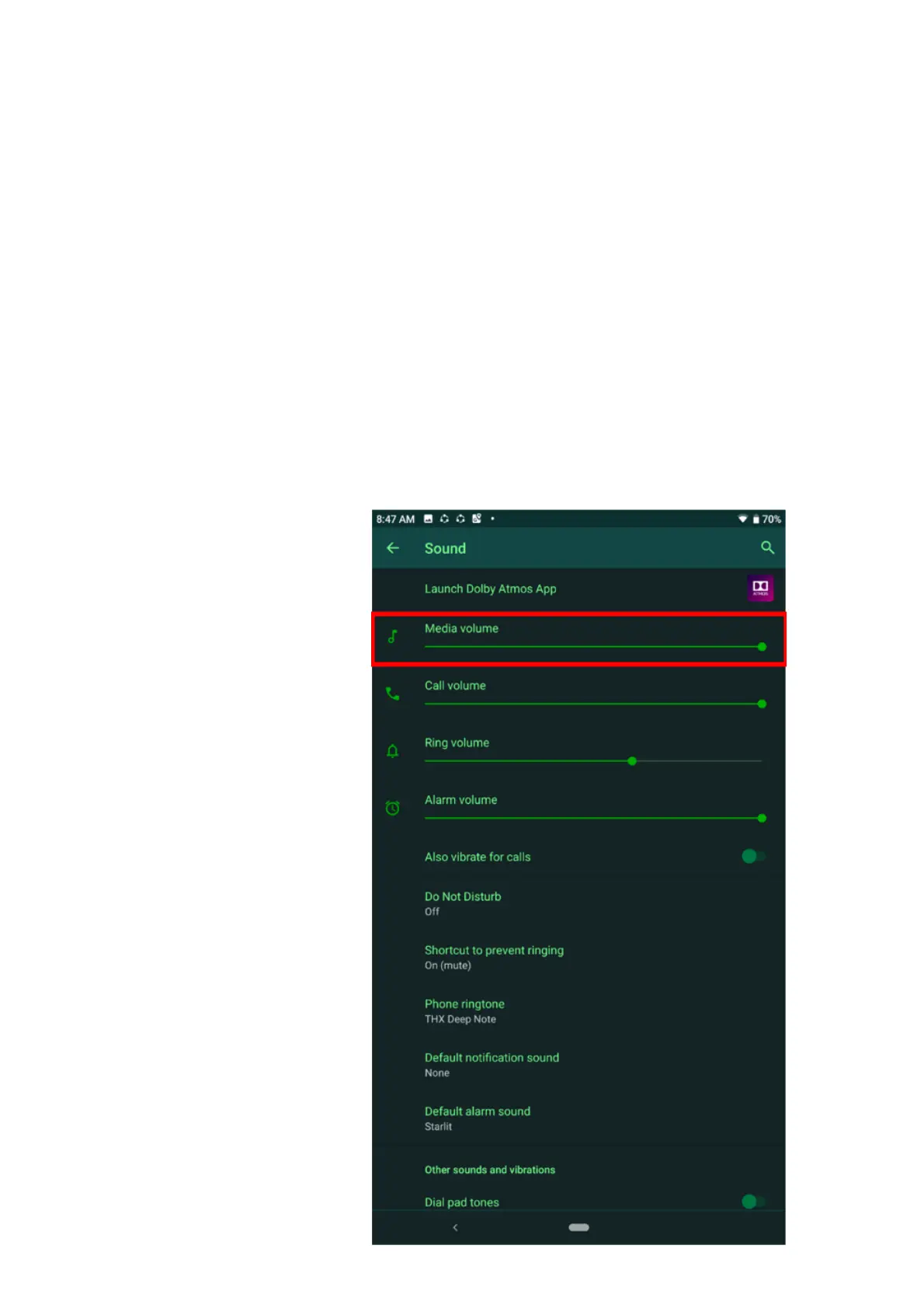
1. Make sure that the audio settings are correct, and the device is not muted. Check if the “Media”
slider is at its maximum for testing.


 To Next Page