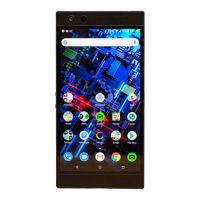
You may encounter some issues with the performance of the Razer Phone and several troubleshooting
steps can be performed to resolve them. Before troubleshooting, ensure that the Razer Phone is up to
date. Make sure that the phone is charged correctly. Charge the phone for at least an hour before
troubleshooting.
To troubleshoot:
1. Clear up your recent apps by pressing the home button and swiftly swiping upwards to display
your recently opened apps, swipe right, and press “CLEAR ALL”.
2. If the Phone is loading slowly, perform a hard reset.
3. If the issue persists, boot the Razer Phone to safe mode to see if a third-party application is
causing the issue.
4. Observe the phone for 24-hours to observe if the issue persists while in safe mode.
5. If the phone works normally while under safe mode, the issue is due to a third-party application.
Uninstall the app that is causing the issue.
6. Perform a hard reset to exit safe mode.
7. If you are still experiencing a slowdown or if you are unsure if an app is causing the issue, check if
you are running the latest software for the device and perform a system update if needed.
8. If the issue persists, back up your phone data and perform a factory data reset.
My Razer Phone crashes or freezes
If you experience crashing and freezing on your Razer Phone. this can be attributed to a number of
factors such as the following:
Phone has not been reset for a long time
Third-Party apps malfunctioning
Internal memory may be full
To resolve this, try the following troubleshooting steps:
1. Perform a hard reset.
2. Test the phone.
3. If you are still experiencing crashing and freezing or if you are unsure if an app is causing the
issue, check if you are running the latest software for the device and perform a system update.
4. Check if there are any application updates available on Google Play under “My apps & games”.
Perform an app update if there are any.
5. If the issue is still present, boot the phone to safe mode to isolate if a third-party application is
causing the issue.
Observe the phone for 24-hours to see if the issue persists while in safe mode.
If the phone works normally while under safe mode, the issue is due to a third-party
application. Please uninstall the app that is causing the issue.
6. If the issue persists, backup your phone data and perform a factory data reset.
The Razer Phone is unable to proceed with the Setup Wizard on first boot up
If your Razer Phone is unable to proceed with the Setup Wizard on its first bootup, this may be caused
by the phone attempting to do an Over-the-air (OTA) update which contains System and application
optimizations. It is a mandatory update and cannot be skipped. See the tips below:
The size of the OTA update is approximately 500MB. It may take quite a while to download.
The Razer Phone needs to be connected to a Wi-Fi or cellular network to receive an OTA update.
It is recommended to update via Wi-Fi.
If not using a Wi-Fi connection, the user may use up cellular data on their plan.
Others
How do I access my Razer Phone if I forgot the security lock code?
If you cannot access the Razer Phone because of a security lock on your Password, numeric password,
lock pattern, and so on, select one of the two methods below to recover your phone.


 To Next Page